Modern businesses face constant threats to their digital assets, from hardware failures to ransomware attacks. Implementing a reliable backup strategy is no longer optional but essential for maintaining business continuity. Microsoft’s OneDrive offers automatic backup functionality that simplifies data protection for organisations of all sizes, creating seamless redundancy without manual intervention.
Understanding OneDrive Automatic Backup Functionality
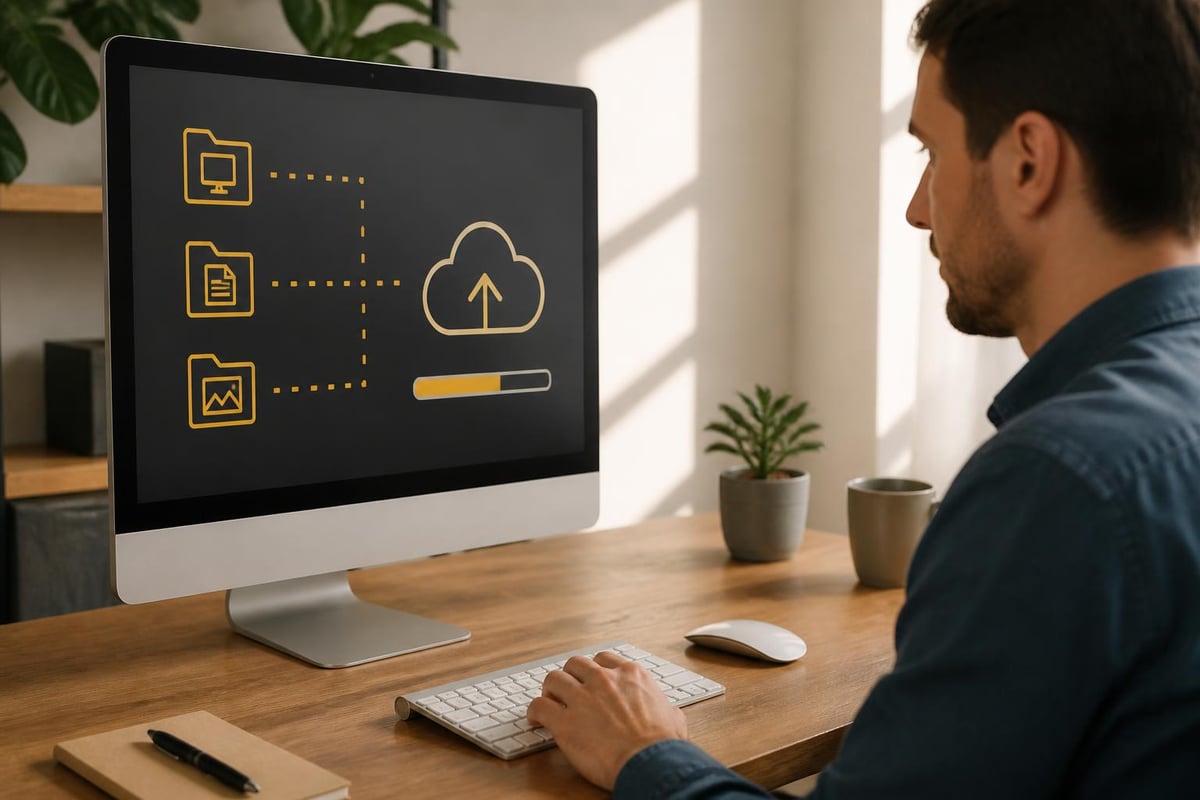
OneDrive automatic backup operates through intelligent synchronisation between your local devices and Microsoft’s cloud infrastructure. The service monitors designated folders continuously, uploading changes in real-time to ensure your data remains protected across multiple locations.
The system distinguishes between two primary operational modes. Known Folder Protection automatically backs up your Desktop, Documents, and Pictures folders without requiring manual file selection. Meanwhile, selective sync allows granular control over which directories receive automatic protection.
Default Backup Behaviour and Limitations
Microsoft’s OneDrive platform provides automatic backup for specific system folders but requires configuration to extend protection beyond these defaults. Understanding these parameters helps businesses establish appropriate expectations for their data protection strategy.
| Feature | Personal Plans | Business Plans | Storage Capacity |
|---|---|---|---|
| Known Folder Protection | Yes | Yes | 5GB – 1TB+ |
| Automatic Version History | 30 days | Custom retention | Varies by plan |
| File Size Limits | 250GB per file | 250GB per file | Standard |
| Real-time Sync | Yes | Yes | Unlimited devices |
The service does not automatically backup programme files, system directories, or folders outside the designated locations unless explicitly configured. This selective approach prevents unnecessary storage consumption whilst focusing on user-generated content most vulnerable to loss.
Configuring OneDrive Automatic Backup on Windows
Setting up onedrive automatic backup on Windows devices requires systematic configuration through the OneDrive application. The process integrates seamlessly with Windows 10 and 11, providing native backup capabilities without third-party software.
Initial Setup Process
Begin by ensuring OneDrive is installed and authenticated with your Microsoft account. Navigate to the system tray, locate the OneDrive cloud icon, and access settings through the context menu.
- Right-click the OneDrive icon in the notification area
- Select Settings from the menu
- Navigate to the Backup tab
- Choose Manage backup to configure protected folders
- Select Desktop, Documents, and Pictures folders
- Confirm your selections and initiate synchronisation
The initial sync duration varies depending on folder contents. In particular, large libraries containing thousands of files may require several hours for complete upload. However, during this time, the system remains fully operational. As a result, users can continue working without interruption while data is being securely backed up.
Advanced Configuration Options
Beyond basic folder protection, OneDrive offers sophisticated controls for optimising backup behaviour. The Files On-Demand feature conserves local storage by maintaining cloud-only placeholders whilst preserving immediate file access.
- Bandwidth throttling prevents backup operations from consuming excessive network resources
- Selective sync excludes specific subfolders from automatic backup
- Automatic pause during presentations or video calls reduces system load
- Network monitoring adjusts sync speed based on connection quality
Recent updates to Microsoft Word now save new documents to OneDrive by default, creating automatic backup points without user intervention. This enhancement significantly reduces data loss from unexpected application crashes or power failures.
OneDrive Automatic Backup for Business Environments
Enterprise deployments require additional considerations beyond consumer implementations. Business accounts include enhanced administrative controls, compliance features, and integration with broader Microsoft 365 ecosystems.
Administrative Deployment and Policy Management
IT administrators can enforce onedrive automatic backup across entire organisations through Group Policy Objects or Microsoft Endpoint Manager. Centralised deployment ensures consistent protection without relying on individual user compliance.
Key administrative capabilities include:
- Mandatory Known Folder Protection for all domain-joined devices
- Preset storage quotas aligned with departmental requirements
- Compliance monitoring through audit logs and reporting
- Automated alerts for sync failures or storage threshold breaches
These controls transform OneDrive from a personal productivity tool into an enterprise-grade backup solution. In particular, it becomes capable of protecting thousands of endpoints simultaneously. Furthermore, this enables consistent data protection across large organisations. As a result, businesses can scale backup operations efficiently while maintaining strong security standards.

Security Considerations for Automatic Backups
Data protection extends beyond simple file redundancy. Security-conscious organisations must evaluate encryption standards, access controls, and regulatory compliance before implementing automatic backup solutions.
OneDrive employs multiple security layers:
| Security Feature | Implementation | Business Benefit |
|---|---|---|
| Encryption at Rest | AES 256-bit | Protects stored data |
| Encryption in Transit | TLS 1.2+ | Secures data transfer |
| Multi-factor Authentication | App-based or SMS | Prevents unauthorised access |
| Advanced Threat Protection | AI-powered scanning | Blocks malware uploads |
| Data Loss Prevention | Policy-based controls | Prevents accidental sharing |
Organisations handling sensitive information should supplement OneDrive’s native security with additional controls, including conditional access policies and information rights management. These measures ensure automatic backups maintain compliance with industry regulations whilst preventing unauthorised data exposure.
Troubleshooting Common Automatic Backup Issues
Despite robust design, onedrive automatic backup occasionally encounters synchronisation problems requiring systematic diagnosis and resolution. Understanding common failure patterns accelerates recovery and minimises data protection gaps.
Sync Failures and Resolution Strategies
Microsoft’s support documentation addresses frequent synchronisation challenges through comprehensive troubleshooting guides. Most issues stem from authentication problems, file conflicts, or storage limitations.
Common problems and solutions:
- Authentication errors: Sign out completely and re-authenticate using current credentials
- File path length exceeds limits: Restructure folder hierarchies to reduce nesting depth
- Storage quota exhausted: Archive older files or upgrade storage allocation
- Conflicting file versions: Review and merge competing changes manually
- Network connectivity interruptions: Verify firewall configurations permit OneDrive traffic
The OneDrive troubleshooter built into Windows automatically detects and resolves many common issues. Access this utility through Settings > Update & Security > Troubleshoot > Additional troubleshooters > OneDrive.
Performance Optimisation Techniques
Slow synchronisation degrades user experience and extends vulnerability windows. In particular, several optimisation strategies improve backup performance without compromising protection quality. Furthermore, these adjustments help maintain consistent system responsiveness.
Disable real-time antivirus scanning for the OneDrive cache directory to prevent scan-induced delays. In most cases, modern antivirus solutions already scan files before upload. Therefore, redundant local scanning becomes unnecessary and can be safely reduced.
Configure OneDrive to upload files during off-peak hours when network congestion is minimal. However, the application lacks native scheduling. As a result, third-party solutions can be used to enable automated backup timing aligned with business requirements.
Comparing OneDrive Automatic Backup with Alternative Solutions
Evaluating OneDrive against competing backup platforms helps organisations select solutions matching their specific requirements. In particular, each platform offers distinct advantages depending on use cases and technical environments. As a result, organisations can make more informed decisions aligned with their operational needs.
Feature Comparison Matrix
| Capability | OneDrive | Google Drive | Dropbox | vBoxx Solutions |
|---|---|---|---|---|
| Automatic backup | Yes | Limited | Yes | Comprehensive |
| Privacy focus | Moderate | Low | Moderate | Exceptional |
| European data centres | Partial | Limited | Yes | Yes |
| Green hosting | No | Limited | Limited | Yes |
| Business consultancy | No | No | No | Yes |
OneDrive excels within Microsoft-centric environments where Office 365 integration provides substantial productivity benefits. However, organisations prioritising data sovereignty or enhanced privacy controls may find specialised providers better aligned with these objectives. In particular, this is especially relevant for businesses with strict compliance or regulatory requirements.
For businesses seeking demonstrable security credentials, alternatively, exploring dedicated cloud service providers offers opportunities to evaluate comprehensive security features. For example, vBoxxCloud for secure file storage, vBoxxConnect for encrypted email solutions, and vBoxxVault for password management provide integrated capabilities within a single platform. As a result, organisations can consolidate security services while maintaining strong privacy and control standards.

Integration with Existing Infrastructure
Seamless integration with current technology stacks determines implementation success. In particular, OneDrive’s tight coupling with Windows and Microsoft 365 applications provides inherent advantages. As a result, organisations already invested in these ecosystems benefit from smoother deployment and improved workflow efficiency.
Native integration enables:
- SharePoint synchronisation for team collaboration
- Teams file sharing without duplicate storage
- Outlook attachment management through cloud links
- Power Automate workflows triggered by file events
Organisations utilising alternative productivity suites or prioritising vendor independence should evaluate standalone backup solutions offering platform-agnostic protection. In particular, these alternatives prevent ecosystem lock-in. Furthermore, they maintain robust automatic backup capabilities. As a result, organisations can preserve flexibility while ensuring consistent data protection across different platforms.
Best Practices for OneDrive Automatic Backup Management
Implementing OneDrive automatic backup represents merely the initial step. In fact, sustained data protection requires ongoing management. Furthermore, it requires regular validation and periodic strategy refinement based on evolving business requirements. As a result, organisations can ensure long-term reliability and effectiveness of their backup systems.
Establishing Backup Verification Protocols
Automatic systems inspire confidence but require validation. In particular, regular testing confirms backups remain restorable and complete. Furthermore, this helps prevent unpleasant discoveries during actual recovery scenarios. As a result, organisations can ensure reliable data recovery when it is most needed.
Monthly verification procedures should include:
- Randomly selecting files from backup sets
- Performing test restorations to alternative locations
- Validating file integrity and version history accuracy
- Confirming sync status across all protected devices
- Reviewing storage consumption trends and forecasts
Documentation of verification results creates audit trails demonstrating due diligence in data protection. In particular, this is especially valuable for compliance-regulated industries. Furthermore, it provides clear evidence of ongoing security practices. As a result, organisations can more easily demonstrate regulatory compliance and accountability.
User Education and Adoption Strategies
Technology succeeds only when users embrace it properly. In particular, comprehensive training programmes ensure employees understand automatic backup benefits, limitations, and proper usage patterns. Furthermore, training should address misconceptions about cloud storage. In addition, it should emphasise the distinction between synchronisation and backup and establish clear protocols for handling sensitive information. As a result, regular refresher sessions help maintain awareness as staff turnover introduces new team members.
Retention Policies and Storage Management
Unlimited retention sounds appealing but creates practical challenges. Establishing sensible retention policies balances historical access requirements against storage costs and regulatory obligations.
Define clear retention schedules:
- Active projects: Retain indefinitely with full version history
- Completed projects: Maintain final versions plus 12 months of history
- Archived materials: Preserve single final version without versioning
- Temporary files: Automatically purge after 90 days of inactivity
These policies prevent storage sprawl whilst ensuring business-critical information remains accessible throughout its useful lifecycle.
Mobile Device Automatic Backup Configuration
Modern workforces extend beyond traditional desktops, requiring backup protection for smartphones and tablets. In particular, OneDrive’s mobile applications provide automatic backup for photos, videos, and documents created on portable devices. Furthermore, this ensures that data remains protected across all endpoints. As a result, organisations can maintain consistent backup coverage in increasingly mobile work environments.
iOS Automatic Backup Setup
Apple devices integrate OneDrive through dedicated applications available via the App Store. In particular, configuration mirrors desktop processes whilst accommodating mobile-specific considerations. As a result, users benefit from a consistent setup experience across devices.
Enable camera upload to automatically back up new photos and videos immediately after capture. Furthermore, this feature operates on both Wi-Fi and cellular connections. However, options are available to restrict uploads to Wi-Fi for data conservation.
Configure background app refresh permissions to ensure OneDrive maintains synchronisation even when not actively open. In some cases, iOS restrictions may prevent background operations. Therefore, periodic manual launches may be required to trigger pending uploads.
Android Automatic Backup Configuration
Android devices offer broader integration possibilities due to the platform’s open architecture. In particular, OneDrive can serve as the default storage location for various applications. As a result, this creates more comprehensive automatic backup coverage across apps and services.
Navigate to OneDrive settings and enable automatic folder backup for Camera, Screenshots, and Documents folders. Furthermore, granular controls allow separate configuration for photos versus videos. In addition, this accommodates different storage priorities depending on user needs.
Advanced users can configure automatic backup for custom directories using file manager integrations or third-party automation applications like Tasker or Automate. As a result, this enables highly tailored backup workflows for more complex requirements.
Monitoring and Maintaining Backup Health
Proactive monitoring prevents backup failures from escalating into data loss incidents. In particular, establishing systematic health checks identifies issues while recovery remains straightforward. Furthermore, this enables early detection of potential problems before they impact operations. As a result, organisations can maintain reliable data protection and reduce the risk of data loss.
Dashboard Monitoring and Reporting
The OneDrive admin centre provides centralised visibility into backup operations across entire organisations. In particular, dashboards display sync status, storage consumption, sharing activities, and potential security concerns. Furthermore, this enables administrators to monitor system health in real time. As a result, organisations can improve oversight, security, and operational control over their backup environment.
Configure automated reports delivered weekly to IT leadership, summarising:
- Total protected devices and user accounts
- Aggregate storage utilisation and growth trends
- Sync failures requiring intervention
- Unusual access patterns suggesting security concerns
- Compliance violations or policy exceptions
These reports transform reactive support into proactive management. In particular, they enable issues to be identified early before users experience disruption. Furthermore, this helps reduce downtime and improve system reliability. As a result, organisations can maintain smoother operations and stronger user satisfaction.
Automated Alert Configuration
Modern IT environments demand immediate notification of critical issues. OneDrive supports integration with monitoring platforms through webhooks and API connections, enabling real-time alerting for backup failures. In particular, this allows issues to be detected instantly as they occur. Furthermore, it ensures faster response times from IT teams. As a result, organisations can reduce downtime and prevent minor backup issues from escalating into major data loss incidents.
Establish alerts for:
- Devices offline exceeding 48 hours without synchronisation
- Storage quotas approaching capacity thresholds
- Repeated authentication failures suggesting compromised credentials
- Malware detection during upload scanning
- Policy violations requiring administrative review
Timely alerts enable rapid response, minimising protection gaps and maintaining continuous data safety.
Future Developments in Automatic Backup Technology
Cloud backup technology continues evolving rapidly, with artificial intelligence and machine learning introducing sophisticated capabilities beyond simple file synchronisation. In particular, predictive analytics will soon identify files requiring backup based on usage patterns rather than location alone. Furthermore, intelligent systems will automatically back up frequently modified documents whilst ignoring static reference materials, optimising storage efficiency.
Enhanced versioning will leverage AI to identify semantically significant changes worthy of preservation versus trivial formatting adjustments consuming unnecessary storage. As a result, these intelligent systems will dramatically reduce storage requirements whilst improving recovery granularity.
Blockchain-based verification may eventually provide cryptographic proof of backup integrity. In addition, this would enable tamper-evident archives for compliance-critical applications. Consequently, such innovations will transform automatic backup from protective convenience into forensic-grade evidence preservation.
As businesses navigate these technological advances, increasingly, partnering with providers committed to privacy, security, and sustainable infrastructure becomes important for long-term data protection strategies.
Implementing OneDrive automatic backup provides essential protection against data loss, however, businesses seeking enhanced privacy, European data residency, and green hosting practices should evaluate comprehensive alternatives. In this context, vBoxx delivers secure cloud solutions emphasising privacy and sustainability, offering cloud storage, backup solutions, and consultancy services that align with stringent data protection requirements whilst supporting your organisation’s environmental commitments.