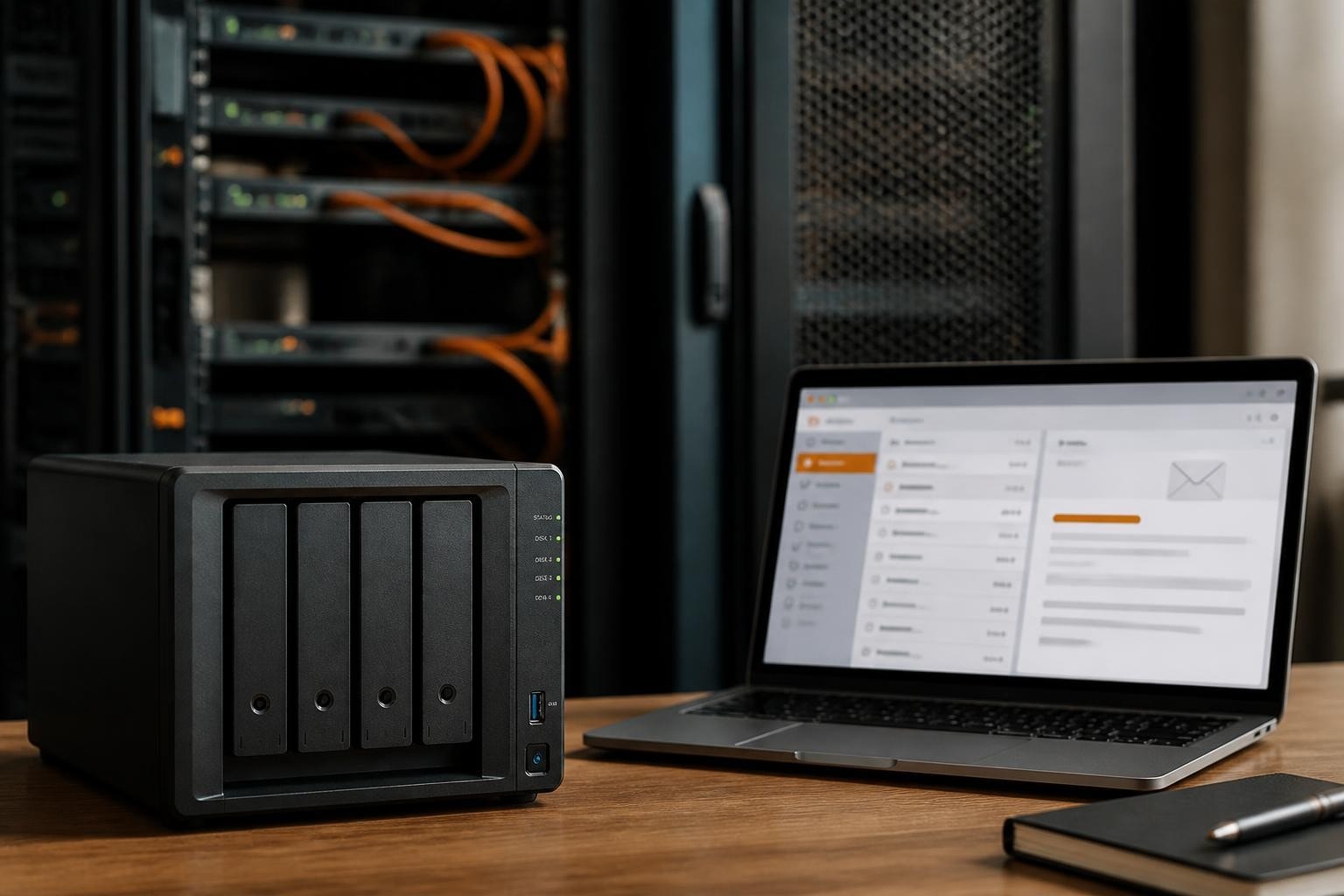

Running your own mail infrastructure provides businesses with complete control over their communications, data privacy, and operational costs. As a result, many organisations are choosing self-hosted email solutions over third-party services. Furthermore, a Synology Mail Server offers an accessible entry point for organisations seeking to manage email internally whilst maintaining professional standards. In addition, it combines enterprise-grade functionality with a straightforward deployment process. Consequently, businesses can implement secure and reliable email services without investing in complex, dedicated mail server infrastructure. This comprehensive guide explores how organisations can leverage Synology’s NAS hardware to create a robust, secure email environment that rivals commercial hosted solutions.
Understanding Synology Mail Server Architecture
A synology mail server operates as a dedicated package running on Synology’s DiskStation Manager (DSM) operating system. Moreover, this architecture transforms standard network-attached storage devices into fully-functional mail servers capable of handling multiple domains, users, and sophisticated filtering rules.
The platform offers two distinct packages: the original Mail Server and the newer MailPlus Server. Nevertheless, both solutions provide comprehensive email functionality, including SMTP, IMAP, and POP3 support. MailPlus Server represents the evolution of Synology’s email offering, featuring enhanced collaboration tools and improved administrative interfaces.
Hardware Requirements and Model Selection
Selecting appropriate hardware determines your mail server’s performance and reliability. In particular, the chosen hardware should align with your organisation’s current and future requirements. Therefore, businesses should evaluate their anticipated user count, storage requirements, and concurrent connection demands before purchasing equipment. Furthermore, considering these factors in advance helps prevent performance bottlenecks and unnecessary upgrade costs. As a result, organisations can deploy a mail server that delivers consistent performance while supporting long-term growth.
Recommended specifications include:
- Processor: Quad-core Intel or AMD (minimum dual-core for smaller deployments)
- RAM: 4GB minimum, 8GB or more for organisations with 50+ users
- Storage: Redundant RAID configuration (RAID 1, 5, or 6) for data protection
- Network: Gigabit Ethernet or faster for optimal throughput
Most Synology Plus series and higher-end Value series models support mail server functionality. Furthermore, the official Synology Mail Server package page provides detailed compatibility information for specific models.

Essential DNS Configuration and Domain Setup
Proper DNS configuration represents the foundation of reliable email delivery. In addition, incorrect DNS settings cause delivery failures, bounce rates, and potential blocklisting by receiving servers.
Required DNS Records
| Record Type | Purpose | Example Value | Priority |
|---|---|---|---|
| MX | Mail server destination | mail.yourdomain.com | 10 |
| A | IP address mapping | 203.0.113.50 | N/A |
| SPF | Sender authentication | v=spf1 ip4:203.0.113.50 -all | N/A |
| DKIM | Email signing | v=DKIM1; k=rsa; p=MIGfMA0… | N/A |
| DMARC | Policy framework | v=DMARC1; p=quarantine; rua=mailto:… | N/A |
The step-by-step Synology Knowledge Center guide provides detailed instructions for configuring these records with various domain registrars. Moreover, reverse DNS (PTR) records must point back to your mail server’s hostname to pass receiving server verification checks.
Dynamic IP Considerations
Businesses operating without static IP addresses face additional configuration challenges. Nevertheless, dynamic DNS services enable reliable mail server operation by automatically updating DNS records when IP addresses change. Therefore, many administrators successfully operate mail servers using DDNS providers alongside proper port forwarding through their internet gateways.
Installation and Initial Configuration
Installing your synology mail server begins within the DSM Package Center. Furthermore, the installation wizard guides administrators through essential settings whilst allowing customisation for specific business requirements.
Step-by-Step Installation Process
- Access Package Center through your DSM interface
- Search for MailPlus Server or Mail Server in available packages
- Install the package and accept the required permissions
- Configure basic settings including server hostname and administrator credentials
- Set up SSL certificates for encrypted connections (mandatory for modern email clients)
SSL certificates ensure all communications between mail clients and your server remain encrypted. In addition, Let’s Encrypt integration within DSM provides free, automatically-renewing certificates suitable for production environments.
Creating User Accounts and Domains
After installation, administrators configure domains and user accounts through the MailPlus Server interface. Moreover, the platform supports multiple domains on a single server, enabling organisations to manage separate email spaces for different business units or subsidiary companies.
Key account management features:
- Bulk user import via CSV files
- Integration with LDAP or Active Directory for centralised authentication
- Customisable storage quotas per user or group
- Shared mailbox functionality for departmental addresses
- Alias configuration for multiple addresses routing to single accounts
Therefore, businesses can implement sophisticated organisational structures without requiring complex configuration or third-party tools.

Security Hardening and Threat Protection
Security represents the paramount concern when operating any internet-facing service. Furthermore, email servers attract constant attention from spammers, malware distributors, and malicious actors attempting unauthorised access.
Essential Security Measures
The comprehensive security features guide details Synology’s built-in protection mechanisms. Nevertheless, administrators must actively configure and maintain these features to ensure effective protection.
Critical security configurations include:
- Anti-spam filtering: Bayesian filters, greylisting, and DNS blocklist integration
- Antivirus scanning: Real-time scanning of incoming and outgoing messages
- Authentication enforcement: Require SMTP authentication for all outbound mail
- IP whitelisting/blocklisting: Control which addresses can connect to your server
- Rate limiting: Prevent abuse by limiting messages per user or connection
Moreover, recent reports highlight the importance of maintaining current software versions. The critical vulnerabilities discovered in MailPlus Server demonstrate that prompt patching remains essential for maintaining secure operations.
Advanced Authentication Protocols
Modern email security relies on multiple authentication layers working together. Therefore, implementing SPF, DKIM, and DMARC protocols significantly improves delivery rates whilst protecting your domain reputation.
SPF records specify which servers can legitimately send email from your domain. In addition, DKIM adds cryptographic signatures to outgoing messages, proving they originated from your infrastructure and remain unaltered in transit. Furthermore, DMARC provides receiving servers with instructions for handling messages failing authentication checks.
Performance Optimisation and Maintenance
Maintaining optimal performance requires regular monitoring and proactive maintenance. Nevertheless, Synology’s integrated tools simplify many administrative tasks that typically demand extensive technical expertise.
Monitoring and Logging
DSM provides comprehensive logging functionality tracking all mail server activities. Moreover, administrators should regularly review logs for unusual patterns indicating security concerns or performance bottlenecks.
| Log Type | Information Captured | Review Frequency |
|---|---|---|
| Connection | Incoming/outgoing connections | Daily |
| Delivery | Successful deliveries and failures | Daily |
| Security | Authentication failures, rejected messages | Daily |
| System | Resource usage, errors | Weekly |
Furthermore, setting up automated alerts notifies administrators immediately when critical events occur, enabling rapid response to potential issues.
Backup Strategies
Email data represents critical business information requiring robust backup procedures. Therefore, Synology mail servers should integrate with comprehensive backup solutions protecting against hardware failure, accidental deletion, and ransomware attacks.
Recommended backup approach:
- Local snapshots on the same NAS for rapid recovery
- External device backups using USB or eSATA-connected drives
- Off-site replication to another Synology device or cloud storage
- Regular restoration testing to verify backup integrity
In addition, implementing the 3-2-1 backup rule (three copies, two different media types, one off-site) provides comprehensive protection for critical communications.
Client Configuration and User Support
Supporting end users requires clear documentation and testing across multiple platforms. Moreover, organisations typically support diverse device types including Windows PCs, macOS systems, smartphones, and tablets.
Common Client Settings
Modern email clients require specific configuration parameters to connect securely with your synology mail server. Furthermore, providing users with clear setup instructions reduces support burden and ensures secure connections.
Standard configuration parameters:
- Incoming server (IMAP): mail.yourdomain.com, port 993, SSL/TLS
- Outgoing server (SMTP): mail.yourdomain.com, port 587, STARTTLS
- Authentication: Username (full email address) and password
- Security: Require encrypted connections for both protocols
Therefore, creating platform-specific guides with screenshots helps non-technical users configure their devices correctly. In addition, mobile device setup often differs from desktop configuration, necessitating separate documentation.
Webmail Access
MailPlus Server includes an integrated webmail interface accessible through any modern browser. Nevertheless, this functionality provides users with consistent access regardless of location or device availability, enhancing business continuity during travel or remote work scenarios.
The webmail interface supports essential functions including message composition, folder management, contact organisation, and calendar access. Moreover, responsive design ensures usability across desktop and mobile browsers without requiring native applications.
Migration Strategies from Existing Systems
Transitioning from hosted email services or other mail servers requires careful planning to minimise disruption. Furthermore, businesses must consider timing, data integrity, and user communication throughout the migration process.
Pre-Migration Planning
Successful migrations begin with thorough preparation and testing. Therefore, administrators should establish clear timelines, identify potential complications, and develop contingency plans before beginning the actual transition.
Essential planning steps:
- Audit existing email data including mailbox sizes and special folders
- Test migration tools with sample accounts before full deployment
- Communicate timeline to all users with clear expectations
- Prepare rollback procedures in case migration encounters critical issues
- Schedule during low-activity periods to minimise business impact
In addition, maintaining parallel operation of old and new systems during initial deployment allows gradual user migration and provides fallback options if issues arise.
Data Transfer Methods
MailPlus Server supports multiple migration approaches depending on source system capabilities. Moreover, IMAP-based migration tools provide the most reliable transfer method for preserving folder structures and message metadata.
Popular migration tools include imapsync for server-to-server transfers and Synology’s built-in migration assistant for supported platforms. Nevertheless, large mailbox migrations may require overnight processing due to data transfer volumes and network bandwidth limitations.

Comparing Self-Hosted and Managed Solutions
Deciding between self-hosted infrastructure and managed services involves evaluating multiple business factors. Furthermore, organisations must weigh control, cost, expertise, and compliance requirements when making this strategic decision.
Cost Analysis
| Factor | Self-Hosted Synology | Managed Email Service |
|---|---|---|
| Initial investment | Hardware purchase (£500-2000) | Minimal (account setup) |
| Monthly costs | Electricity, internet | Per-user subscription (£3-10/user) |
| Scaling costs | Additional hardware | Linear per-user increase |
| Administrative time | Significant internal resource | Minimal (vendor managed) |
| Data sovereignty | Complete control | Depends on provider location |
Therefore, organisations with technical expertise and privacy requirements often find self-hosted solutions economically attractive. Nevertheless, smaller businesses lacking IT resources may achieve better value through managed services despite higher per-user costs.
If your organisation requires the security and control of self-hosted solutions but lacks the infrastructure management expertise, exploring alternatives like vBoxxConnect provides the benefits of dedicated email infrastructure without the operational overhead. Moreover, managed solutions combine privacy-focused hosting with professional administration, eliminating many challenges associated with running your own synology mail server.
Compliance and Data Sovereignty
Regulatory requirements increasingly influence email infrastructure decisions. Furthermore, GDPR and similar privacy regulations make data location and processing transparency critical considerations for European businesses.
Running your own synology mail server provides complete control over data storage locations and processing activities. In addition, this approach simplifies compliance documentation and reduces reliance on third-party data processing agreements. Nevertheless, organisations remain responsible for implementing appropriate technical and organisational measures protecting personal data.
Advanced Features and Integration
Beyond basic email functionality, Synology’s platform supports sophisticated features enhancing collaboration and productivity. Moreover, these capabilities enable organisations to replace multiple disparate tools with integrated solutions.
Collaboration Tools
MailPlus Server includes calendar and contact management integrated directly with email functionality. Therefore, users access scheduling, address books, and messaging through unified interfaces across desktop and mobile platforms.
Key collaboration features:
- Shared calendars for team scheduling and resource booking
- Global address lists providing organisation-wide contact visibility
- Distribution lists for departmental or project-based communication
- Delegation capabilities allowing assistants to manage executive mailboxes
- Calendar sharing with granular permission controls
Furthermore, CalDAV and CardDAV support enable synchronisation with third-party applications, ensuring compatibility with diverse client ecosystems.
Archiving and Retention
Regulatory compliance often requires maintaining email records for specific periods. In addition, organisations may need to retrieve historical communications for legal discovery or business reference purposes.
MailPlus Server supports configurable retention policies automatically managing message lifecycle. Moreover, administrators can establish different retention rules for various user groups, departments, or message types based on business requirements.
Troubleshooting Common Issues
Even properly configured mail servers occasionally encounter operational challenges. Nevertheless, systematic troubleshooting approaches quickly identify and resolve most common problems.
Delivery Failures
Messages failing to reach intended recipients typically result from DNS configuration errors, blocklisting, or recipient server rejection. Therefore, examining bounce messages and server logs provides essential diagnostic information.
Common delivery issues and solutions:
- SPF failures: Verify SPF record includes your server’s IP address
- blocklist entries: Check reputation using online tools and request delisting
- Connection timeouts: Confirm port 25 isn’t blocked by your ISP
- SSL certificate errors: Ensure certificates remain valid and properly installed
Furthermore, the detailed setup guide for secure mail servers addresses many configuration issues that impact delivery reliability.
Performance Degradation
Slow mail server performance affects user productivity and satisfaction. Moreover, identifying bottlenecks requires examining multiple system components including storage, network, and processing resources.
Resource monitoring through DSM Resource Monitor reveals CPU utilisation, memory consumption, and network throughput patterns. In addition, mail server logs indicate whether specific processes or operations consume disproportionate resources during performance issues.
Scaling Considerations
Business growth necessitates infrastructure evolution to maintain service quality. Furthermore, planning for expansion prevents performance degradation as user counts and message volumes increase.
Horizontal vs Vertical Scaling
Synology mail servers primarily scale vertically through hardware upgrades. Nevertheless, organisations eventually encounter practical limits requiring architectural changes to support continued growth.
Vertical scaling options:
- Memory expansion to support additional concurrent users
- Storage capacity increases through larger drives or additional bays
- Network interface upgrades for improved throughput
- CPU upgrades (model-dependent) for enhanced processing capability
Therefore, selecting appropriately-sized initial hardware delays the need for replacement whilst avoiding excessive upfront investment in unused capacity.
High Availability Configurations
Mission-critical email infrastructure often requires redundancy to eliminate single points of failure. Moreover, Synology supports high availability configurations using multiple NAS devices in clustered arrangements.
These configurations automatically fail over to secondary systems when primary devices encounter problems. In addition, load balancing distributes incoming connections across multiple servers, improving performance whilst providing redundancy.
Implementing a synology mail server provides businesses with powerful, cost-effective email infrastructure offering complete control over communications and data. Nevertheless, successful deployments require careful planning, proper security implementation, and ongoing maintenance to deliver reliable service. If you’re seeking the benefits of dedicated email infrastructure without the operational complexity, vBoxx offers secure, privacy-focused communication solutions including vBoxxConnect for email, calendar, and collaboration. Furthermore, our European-hosted platform combines professional management with green hosting practices, ensuring your business communications remain secure, compliant, and sustainable.