
In 2026, losing digital data is no longer a minor inconvenience, it can disrupt your personal life or business operations in an instant. Threats like accidental deletion, ransomware, and hardware failure are becoming more common as our reliance on cloud storage grows.
This comprehensive one drive backup guide is designed to help you protect your most valuable files and memories. You will learn how to stay one step ahead of evolving risks and keep your information secure.
Discover practical steps, expert insights, and advanced strategies that make safeguarding your data simple and effective. Start building your confidence in data protection today.
Why OneDrive Backup Matters in 2026
In 2026, the digital landscape is more complex and challenging than ever. As more data moves to the cloud, the need for a resilient one drive backup strategy has become critical. Businesses and individuals alike face mounting threats that can compromise data integrity, privacy, and continuity.
The Rising Threat Landscape
The threat landscape for digital data continues to evolve rapidly. Cyberattacks such as ransomware and phishing schemes target cloud storage solutions with increasing sophistication. According to industry reports, attacks against cloud-based services have surged, making one drive backup essential for both businesses and individuals.
Accidental deletion and user error remain among the leading causes of data loss. Even with robust infrastructure, mistakes can happen—files may be deleted, overwritten, or misplaced. Device theft, loss, or hardware failure also pose persistent risks, especially in organisations with remote or hybrid workforces.
Microsoft operates under a shared responsibility model. While Microsoft secures the platform itself, the responsibility for safeguarding user data lies with the user. This means that relying solely on built-in features is not sufficient to guarantee full protection. Regulatory and compliance pressures, such as GDPR and NIS2, require organisations to demonstrate robust backup strategies and data retention practices.
Remote and hybrid work models further complicate the data protection landscape. Employees access sensitive files from multiple devices and locations, increasing the potential for loss or compromise. There have been numerous instances where businesses lost access to critical files due to insufficient backup policies, resulting in operational downtime and lost revenue.
One crucial statistic to consider comes from Acronis: if accidental deletion occurs, businesses must act swiftly to recover data, as retention periods are limited. For a deeper understanding of these risks, see OneDrive’s Role in Data Protection, which highlights both the strengths and limitations of the platform. Without a comprehensive one drive backup plan, organisations may find themselves exposed to avoidable threats.
The Consequences of Inadequate Backup
Failing to maintain a robust one drive backup strategy can have far-reaching consequences. For businesses, the most immediate risk is disruption to operations. Losing access to essential files can halt projects, delay services, and erode customer trust. The financial impact of downtime and data recovery efforts can be severe, especially for small and medium-sized enterprises.
Reputational damage is another major concern. A single incident of data loss or breach can undermine stakeholder confidence and brand reputation. For personal users, the consequences may be more emotional—losing irreplaceable photos, important documents, or cherished memories due to ineffective one drive backup measures.
Legal and compliance repercussions are also significant. Regulations such as GDPR impose strict requirements for data protection and recovery. Organisations unable to restore data after an incident may face fines, sanctions, or legal disputes. For example, companies hit by ransomware have found themselves unable to recover data because they lacked backup redundancy outside the affected environment.
Consider the following summary table of potential consequences:
| Consequence | Impact Type | Who is Affected |
|---|---|---|
| Business Downtime | Financial, Operational | Companies, Teams |
| Data Breach | Reputational, Legal | Organisations, Individuals |
| Irreplaceable Loss | Emotional, Personal | Families, End-users |
| Compliance Failure | Legal, Financial | Regulated Businesses |
These risks underline why a proactive one drive backup approach is non-negotiable in 2026. Regular reviews, layered strategies, and attention to compliance are the cornerstones of effective data protection for every user.
Understanding OneDrive Backup: Features and Limitations
Securing your data in 2026 means having a clear grasp of both the strengths and the boundaries of one drive backup. With cloud storage now central to business and personal workflows, understanding what OneDrive offers, and where it falls short, is essential for robust data protection.
Native OneDrive Backup Capabilities
One drive backup provides several built-in features designed to make securing your files straightforward and effective.
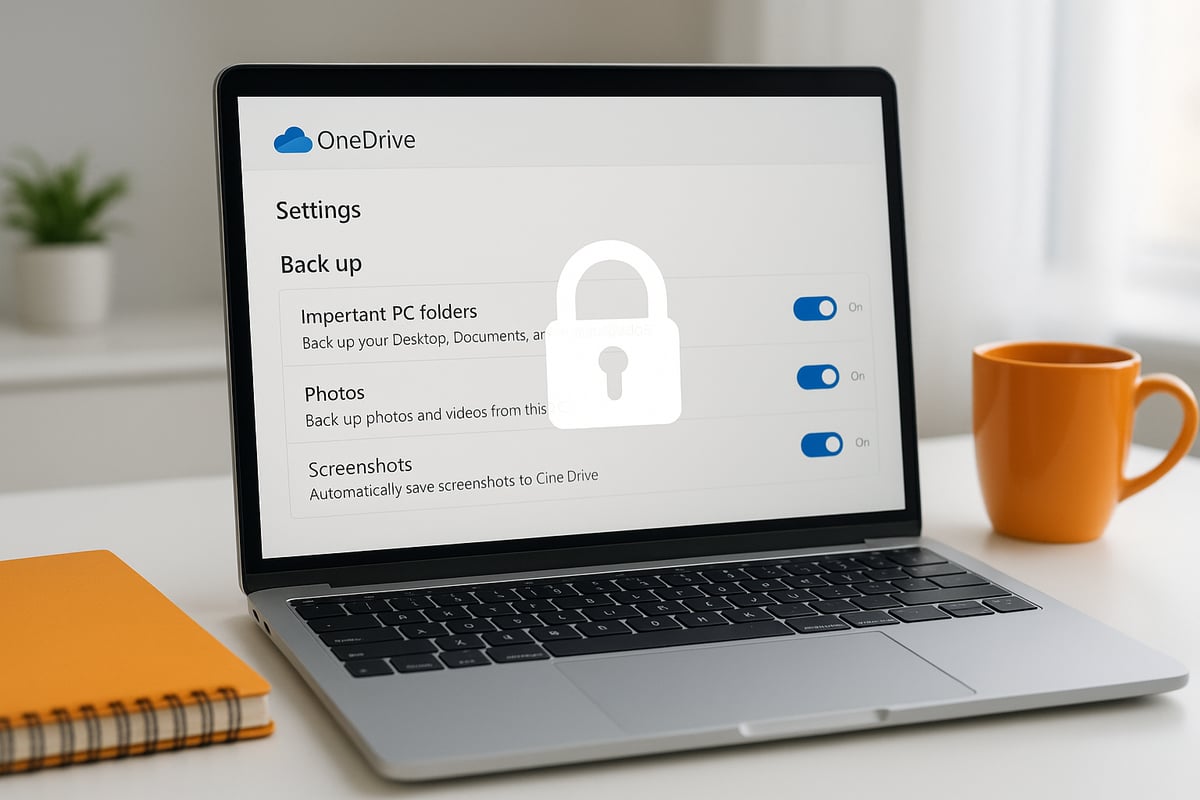
- Automatic Folder Sync: OneDrive can automatically sync your Desktop, Documents, and Pictures folders, ensuring that key files are always backed up to the cloud.
- File Version History: Accidentally overwrite or delete a file? With one drive backup, you can restore previous versions of files for up to 30 days, which helps you recover from mistakes quickly.
- Personal Vault: For sensitive information, Personal Vault adds an extra layer of protection. Identity verification is required to access this secure area, making it ideal for items like scanned IDs or confidential contracts.
- Ransomware Detection and Recovery: If suspicious activity is detected, such as mass file encryption, one drive backup can alert you and help you recover affected files.
- Mobile Access and Integration: Whether working from a phone or tablet, you can retrieve files on the go. Integration with Microsoft 365 apps like Teams, Outlook, and Word streamlines collaboration and ensures that changes are always synchronised.
Imagine you’ve just scanned an important contract and saved it in your Personal Vault. With one drive backup, you can access that contract from anywhere, knowing it is protected both by cloud redundancy and strong identity checks.
These features make one drive backup a powerful foundation for data security, especially for users already invested in the Microsoft ecosystem.
Limitations of Built-in Backup
Despite its strengths, one drive backup has limitations that users must consider when planning a comprehensive backup strategy.
- Retention Periods: Deleted files and previous versions are typically only recoverable for 30 days. After this window, recovery becomes impossible.
- Shared Responsibility: Microsoft secures its infrastructure, but users are responsible for their own data. User error, such as accidental deletion, or advanced threats like targeted ransomware, can still lead to data loss.
- Restore Limitations: One drive backup does not offer true point-in-time restores beyond basic version history, which can be a challenge for businesses needing more granular recovery.
- Compliance and Automation: Built-in options offer limited automation and customisation, which may not meet the retention or reporting needs of regulated industries.
- Technical Constraints: There are also certain file size and sync restrictions that can impact large or complex projects. For a comprehensive overview, refer to the official OneDrive’s Sync Limitations.
For example, a business with strict legal requirements might find the standard retention period insufficient, risking non-compliance if files cannot be recovered after a month. This highlights the importance of assessing whether the default options in one drive backup align with your organisation’s risk profile and regulatory obligations.
Understanding both the capabilities and the limits of one drive backup is the first step towards building a data protection plan that truly safeguards your information.
Preparing for Backup: What Data Should You Secure?
Safeguarding your information with a robust one drive backup strategy starts with knowing exactly what needs protection. Before configuring any backup solution, take time to map out your digital landscape. This preparation is essential for both personal users and organisations aiming to secure valuable files, sensitive records, and essential business assets.
Assessing Your Data Landscape
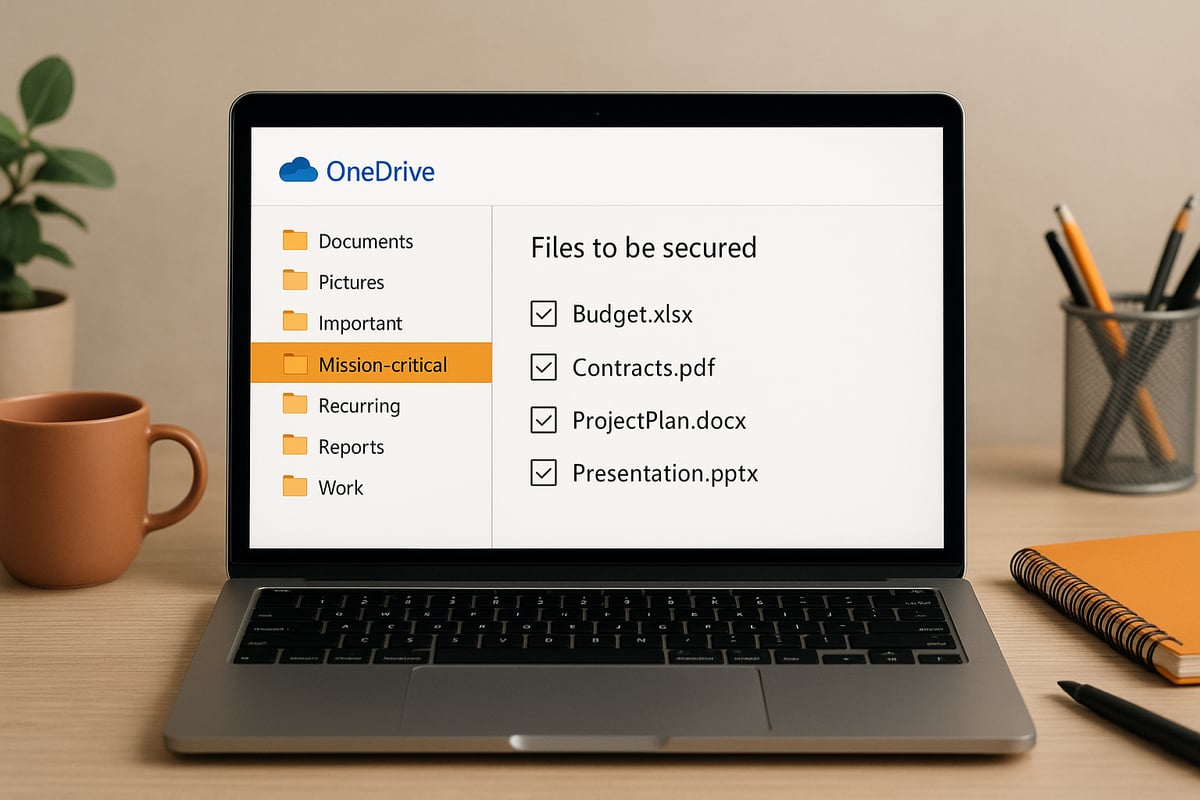
A successful one drive backup begins with a clear understanding of your data. Start by identifying mission-critical files such as contracts, financial statements, customer information, and operational documents. These files are often irreplaceable and form the backbone of your digital estate.
Next, evaluate data volatility. Files that change frequently, like project documents or collaborative spreadsheets, require more frequent backup cycles. Consider how often your files are updated and how quickly changes need to be preserved in your one drive backup.
Data dependencies are another key factor. Some files are linked to databases or integrated with other business applications. If your backup does not account for these relationships, restoring data could become complex. Make a list of these dependencies to ensure comprehensive coverage.
Data size and structure also matter. Large media files, such as video or design assets, may require different backup strategies compared to standard documents. Assess the storage footprint of your data and plan accordingly to optimise your one drive backup process.
Prioritise sensitive and high-value data, including intellectual property and personal information. Segmenting your OneDrive folders by business impact or compliance requirements helps you allocate resources where they are needed most. For instance, you might group financial records separately from general correspondence to streamline your backup and recovery procedures.
By taking these steps, your one drive backup will be aligned with the actual needs of your digital environment, ensuring nothing essential is overlooked.
Best Practices for Data Selection
Effective one drive backup is not just about quantity; it is about making smart choices. Begin by categorising files into core business, compliance, operational, and archive groups. This classification clarifies which data needs immediate protection and which can be scheduled for less frequent backup.
Use Microsoft 365 admin tools to select folders and files with precision. Granular sync settings let you focus backup resources on high-priority areas, reducing unnecessary storage consumption. For example, you may choose to exclude non-essential folders, such as temporary downloads or redundant archives, to improve backup performance.
Regular audits are critical. As business needs evolve, so should your backup priorities. Set a recurring schedule to review and update your one drive backup configuration. This ensures new mission-critical files are always included and obsolete data does not consume valuable space.
Security and compliance play a significant role in modern backup strategies. Incorporating online storage with encryption into your one drive backup approach strengthens data protection and helps meet regulatory requirements.
By following these best practices, you create a more resilient backup environment. Remember, a well-organised one drive backup not only streamlines recovery but also supports business continuity, compliance, and peace of mind.
Step-by-Step Guide: Setting Up OneDrive Backup in 2026
Setting up a robust one drive backup is essential for protecting your digital assets in 2026. Whether you are an individual or managing a remote team, following a clear process ensures your files remain safe and accessible. Let us walk through each stage of configuring your one drive backup for maximum security and efficiency.
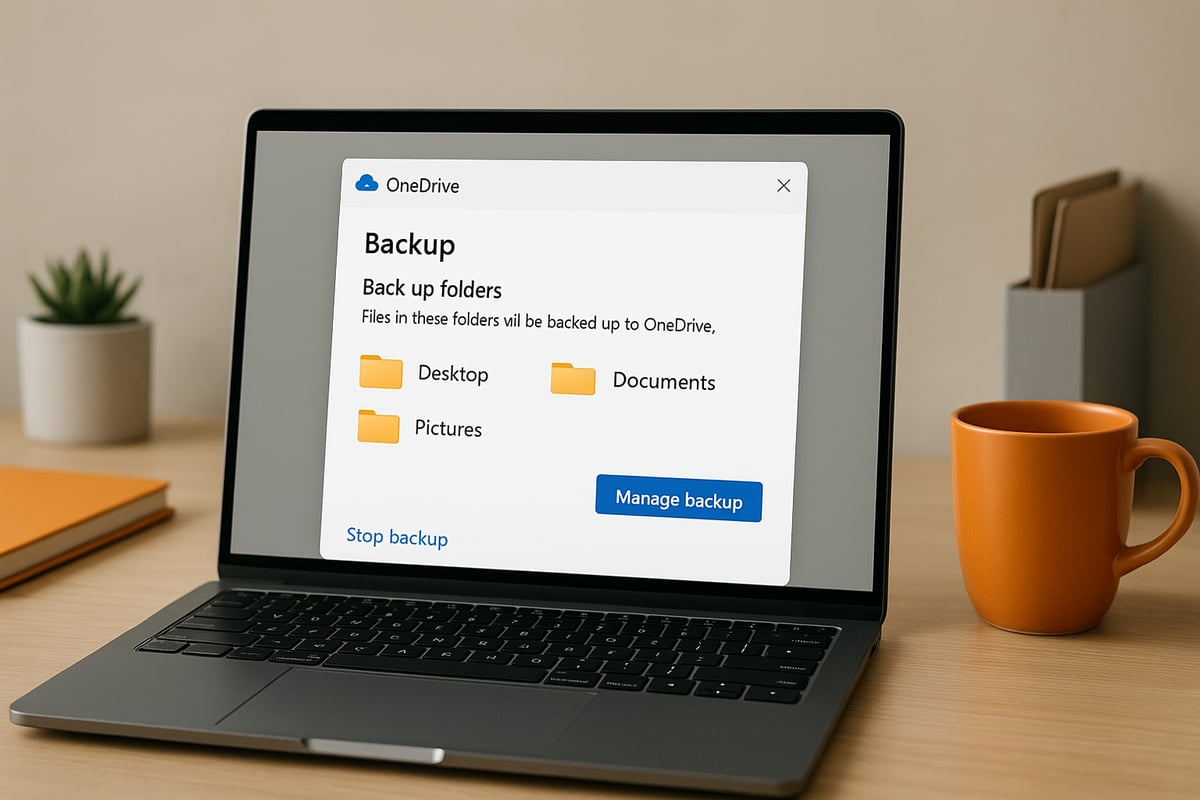
Enabling PC Folder Backup
The first step in your one drive backup journey is enabling protection for your most important folders. Microsoft OneDrive allows you to automatically back up your Desktop, Documents, and Pictures folders, ensuring these critical files are always safe.
To enable PC folder backup:
- Click the OneDrive icon in the Windows notification area.
- Open 'Settings' and go to the 'Sync and back up' tab.
- Select 'Manage Back up.'
- Choose which folders (Desktop, Documents, Pictures) you want to protect.
- Decide if files should be stored on 'OneDrive only' or remain on 'This computer only.'
- Confirm your selections to activate the backup.
For remote employees or those with sensitive data, consider backing up only work-related folders. This targeted approach keeps your one drive backup focused and efficient, reducing unnecessary storage usage.
Regularly review which folders are included to ensure all essential files remain protected. Remember, enabling PC folder backup is the foundation of a comprehensive one drive backup strategy.
Customising Sync and Backup Preferences
Every user’s needs are different, so customising your one drive backup preferences is crucial. OneDrive provides options that let you tailor backup settings to match your workflow and device capabilities.
You can:
- Exclude non-essential folders from your one drive backup to optimise storage.
- Use selective sync to download only specific files or folders on devices with limited space.
- Set up auto-save for Microsoft 365 applications, ensuring every document is instantly protected.
For example, if you work on large project files but only need access to current projects on your mobile, use selective sync to keep your device clutter-free. This flexibility allows your one drive backup to adapt as your data needs evolve.
Review your backup preferences periodically, especially when your projects or device usage changes. Custom settings help you maintain control over what is backed up and available on each device.
Accessing and Restoring Files
A well-configured one drive backup is only valuable if you can easily access and restore your files. OneDrive offers multiple ways to retrieve your data, whether you are using a desktop, web browser, or mobile app.
To access and restore files:
- Open the OneDrive web interface or mobile app.
- Browse to the folder or file you wish to retrieve.
- Use the version history feature to restore previous versions (up to 30 days).
- Access sensitive documents via Personal Vault, which adds an extra layer of security.
Imagine accidentally deleting a contract. With one drive backup, simply locate the file, select 'Version history,' and restore the required version. The Personal Vault is ideal for storing scanned IDs or confidential contracts, keeping them secure yet accessible.
Regularly practice file restoration to ensure you and your team are confident in recovering data when needed. This reduces downtime and minimises the risk of permanent loss.
Managing Backup Notifications and Alerts
Staying informed about your one drive backup status is vital for ongoing protection. OneDrive offers a range of notifications and alerts to help you monitor backup health and quickly resolve issues.
Here is how to manage notifications:
- Enable alerts for sync errors, failed backups, and approaching storage limits.
- Regularly check backup status from the OneDrive settings menu.
- Investigate any warnings or error messages and follow recommended steps to resolve them.
For example, if backup is paused due to connectivity issues, you will receive a notification prompting you to take action. Timely responses prevent data gaps and keep your one drive backup running smoothly.
Encourage all users to familiarise themselves with these alerts. Proactive monitoring is a key component of a resilient backup strategy.
Advanced Settings for Power Users
Advanced users and IT administrators can further enhance their one drive backup setup. Fine-tuning backup frequency, retention policies, and security integrations ensures compliance and robust protection.
Consider these advanced options:
- Adjust backup frequency and retention periods if available, aligning with business or regulatory requirements.
- Integrate Microsoft Defender for added ransomware protection.
- Use admin tools to enforce backup policies across distributed teams.
- Schedule regular backup integrity checks and tests.
For those seeking even more control, third-party backup tools can provide longer retention, point-in-time restores, and automation. Explore OneDrive Backup Best Practices for strategies such as automation with PowerShell and comprehensive policy enforcement.
By leveraging these advanced configurations, your one drive backup can meet even the most demanding business continuity and compliance needs.
Advanced Strategies: Beyond Basic OneDrive Backup
As digital threats evolve, so must your one drive backup strategy. Relying solely on built-in protection is no longer sufficient for many users and organisations. Advanced approaches can bridge gaps, extend retention, and bolster resilience against sophisticated risks.
Third-Party Backup Solutions for OneDrive
While Microsoft offers robust features, third-party solutions are essential for truly comprehensive one drive backup. These platforms fill critical gaps, especially for businesses with strict compliance or retention needs. Leading vendors such as Acronis provide automated, scheduled backups, ensuring you can recover from any point in time, not just the last 30 days.
Key features of advanced backup solutions include:
- Extended retention beyond Microsoft’s limits
- Point-in-time and granular restore options
- Encrypted backups for sensitive data
- Cloud-to-cloud and cross-platform compatibility
For those prioritising security, encrypted cloud service options enable safe storage and compliance with local data privacy regulations. Integration with OneDrive is seamless, allowing automated protection without manual intervention. For example, an IT team can use a third-party tool to schedule nightly backups, covering all critical files and folders.
Staying updated on Microsoft 365 Backup Enhancements ensures your one drive backup strategy leverages the latest capabilities. This approach is vital for organisations handling regulated or high-value information.
Cloud vs. Local Backup: Building Redundancy
A resilient one drive backup plan should not rely on a single method. Combining cloud-to-cloud and local backup creates a safety net against diverse threats. Cloud-to-cloud backup offers protection from device loss, cyberattacks, and accidental deletion, while local backup ensures rapid recovery and offline access.
The classic 3 2 1 backup rule is still highly effective:
- Keep three copies of your data
- Store them on two different media types
- Ensure one copy is offsite
For example, syncing OneDrive to an external hard drive adds an extra layer of assurance. If ransomware strikes or cloud access is disrupted, you maintain control over your files. This multi-layered approach to one drive backup is particularly valuable for businesses with critical operations or frequent remote work.
Best Practices for Backup Security and Compliance
Security and compliance are at the heart of any advanced one drive backup strategy. Enabling multi-factor authentication and strong password policies helps safeguard both your backups and the OneDrive account itself. Regularly testing and verifying backup integrity is essential to ensure data can be restored when needed.
To meet regulatory requirements, document your backup policies and retention schedules. This is especially important for businesses subject to GDPR or industry-specific rules. Schedule quarterly backup tests and review user permissions to reduce risk.
By prioritising these best practices, you ensure your one drive backup not only protects data, but also supports business continuity and legal compliance. Staying proactive and informed is the key to building lasting digital resilience.
OneDrive Backup Tips, Troubleshooting & Future Trends
Protecting your business and personal data in 2026 requires more than just enabling one drive backup. To truly safeguard your digital assets, you need to maximise your backup strategy, address common issues quickly, and stay ahead of evolving threats. Explore these essential tips, troubleshooting advice, and future trends to ensure your one drive backup setup remains robust and future-ready.
Maximising Your Backup Success
Ensuring your one drive backup is effective starts with regular audits. Schedule periodic reviews of your backup configuration to confirm all critical files and folders are included. Use OneDrive’s built-in reporting tools to monitor storage usage and backup health, which can help you spot potential issues before they escalate.
Educate all users on how to manage files safely. This includes recognising sync errors, understanding what triggers backup failures, and knowing how to restore files. For example, regular staff training can significantly reduce the risk of accidental data loss by empowering everyone to take proactive steps within the one drive backup environment.
- Schedule monthly backup audits.
- Use reporting dashboards to track backup status.
- Provide ongoing user training on file management and restoration.
Troubleshooting Common Backup Issues
Even with the best setup, one drive backup can encounter hiccups. Sync conflicts often arise from file name issues, simultaneous edits, or exceeding storage limits. When you notice files not syncing, check for invalid characters or long file paths, and ensure you have enough available space.
Connectivity or authentication problems can cause backup pauses. If your backup fails or is incomplete, try resetting the OneDrive client, signing in again, or checking your internet connection. For persistent issues, consult Microsoft’s online troubleshooting resources or your IT support team.
- Resolve sync errors by renaming files and reducing path length.
- Monitor storage limits and upgrade if necessary.
- Reset OneDrive if backups repeatedly fail.
The Future of Cloud Backup: Trends for 2026 and Beyond
The landscape for one drive backup is rapidly evolving. AI-powered recommendations are emerging, offering smarter backup schedules and detecting anomalies before they become problems. Integration with collaboration platforms is deepening, allowing for more seamless data protection across Teams, Outlook, and other Microsoft 365 tools.
Compliance requirements are driving longer retention policies and stronger encryption. Many organisations are adopting hybrid or multi-cloud strategies, seeking redundancy and flexibility. If you are considering moving beyond OneDrive, explore Alternatives to Microsoft cloud to compare features and compliance options for your backup needs.
- AI tools suggest optimal backup times.
- Hybrid cloud adoption for redundancy.
- Enhanced integrations for productivity tools.
Version History and Data Recovery Enhancements
Recent improvements in one drive backup have focused on file versioning and granular recovery. Businesses now benefit from extended retention policies, making it easier to restore previous versions after accidental deletion or ransomware attacks. For compliance users, these enhancements provide peace of mind, knowing that critical data can be recovered even after several weeks.
Granular recovery options have expanded, letting users restore individual files or entire folders from backup snapshots. This flexibility supports both everyday file recovery and major incident response. For organisations operating in regulated sectors, keeping up with European cloud infrastructure insights can inform your approach to data residency and compliance.
Preparing for New Threats and Opportunities
One drive backup strategies must continually adapt as digital threats evolve. Stay updated by monitoring Microsoft’s roadmap and third-party solution releases. Schedule regular reviews of your backup policies to ensure they reflect new risks, such as emerging ransomware tactics or changes in regulatory standards.
Adopt a proactive mindset by testing your backups quarterly and documenting all procedures for compliance audits. By keeping your one drive backup approach agile, you’ll be better positioned to protect your business or personal data against whatever the future holds.
As we’ve explored, safeguarding your data in 2026 requires more than just relying on built in OneDrive features—you need a solution that truly prioritises security, compliance, and sustainability. At vBoxx, we understand the challenges and evolving risks facing businesses and individuals alike. If you’re ready to see how our secure cloud backup can fit seamlessly into your workflow, why not experience it first hand? You can start a free trial and discover how easy it is to protect your digital assets with confidence and peace of mind.