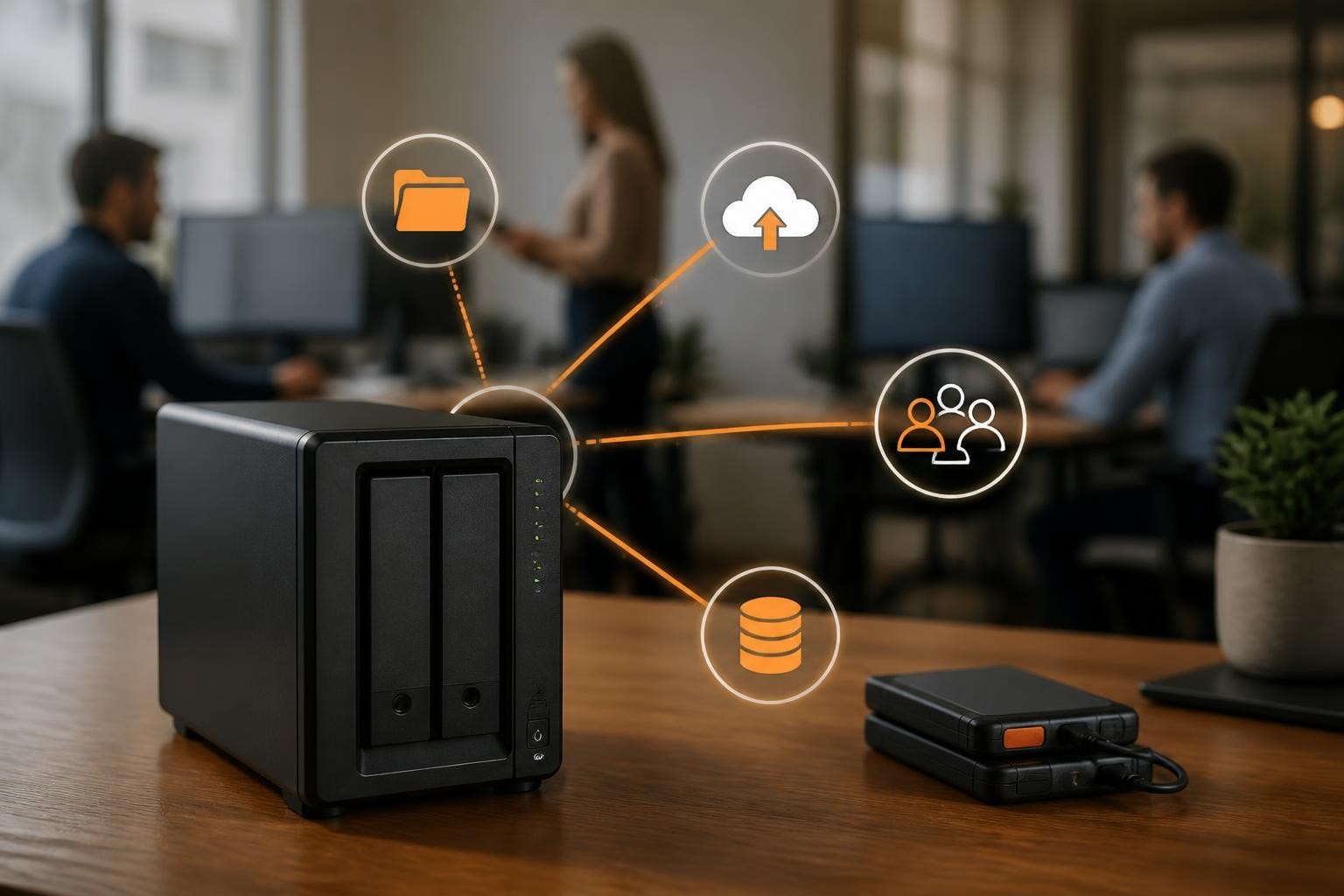

Managing network-attached storage infrastructure requires robust tools that simplify deployment, configuration, and ongoing maintenance. Synology Assistant serves as the primary software utility for discovering, installing, and managing Synology NAS devices across local networks. This desktop application provides administrators with essential capabilities for initial device setup, system monitoring, and troubleshooting tasks. Whether you're deploying a single NAS unit or managing multiple devices across an enterprise environment, understanding how to leverage this tool effectively can significantly reduce deployment time and operational complexity.
Understanding the Core Functionality
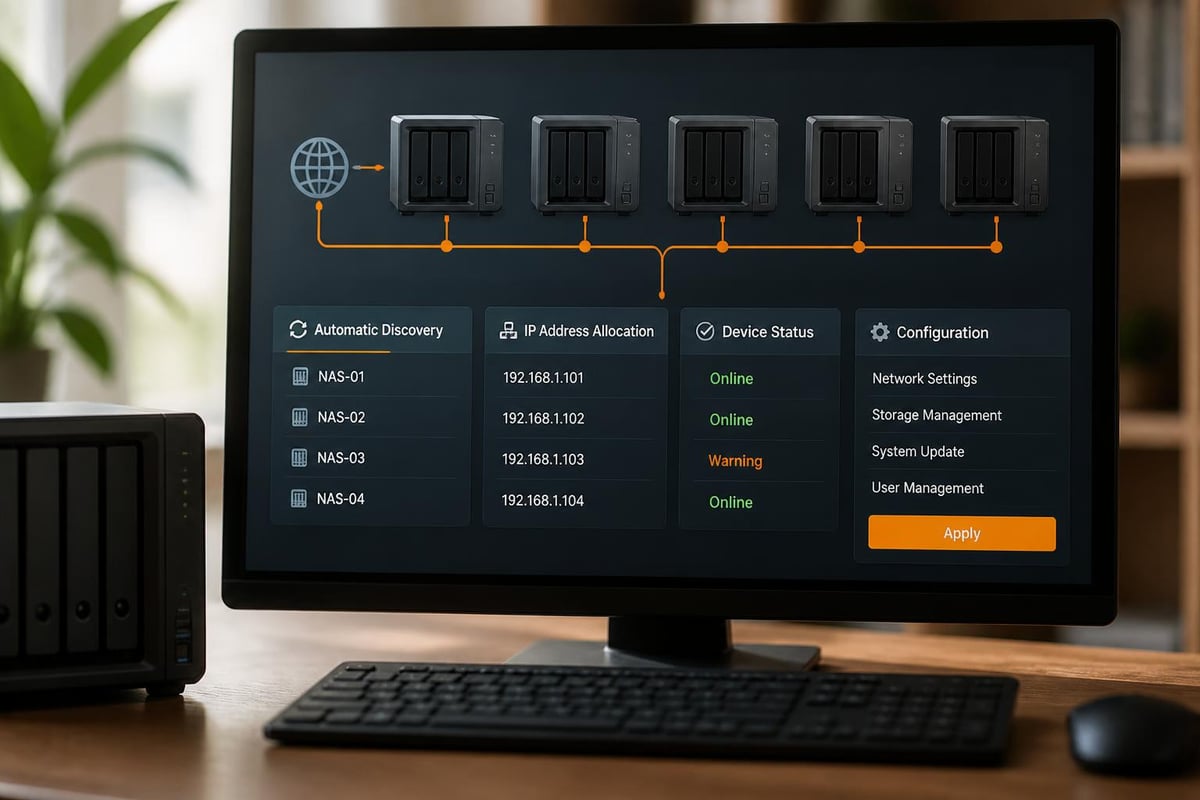
Synology Assistant functions as a comprehensive management interface that bridges the gap between your computer and Synology DiskStation or RackStation devices. The software automatically scans your local network to identify all connected Synology NAS units, displaying their status, IP addresses, and current firmware versions in a centralised dashboard.
The primary advantage lies in its ability to streamline the initial installation process. Rather than manually searching for device IP addresses or configuring network settings through command-line interfaces, synology assistant provides a graphical interface that guides administrators through each setup stage. This approach reduces configuration errors and accelerates deployment timelines.
Key Features and Capabilities
The software delivers several critical functions that support both initial deployment and ongoing administration:
- Automatic device discovery across local network segments
- Bulk firmware updates for multiple NAS units simultaneously
- Network configuration tools including IP address assignment and DHCP settings
- Wake-on-LAN functionality for remote device activation
- Drive mapping capabilities for Windows systems
- System status monitoring with real-time health indicators
Beyond basic discovery, the tool enables administrators to perform initial installations and configurations without accessing the web-based DiskStation Manager interface. This proves particularly valuable in scenarios where network restrictions or firewall configurations complicate web access during initial setup phases.
Installation Across Operating Systems
Deploying synology assistant requires minimal technical expertise, though the process varies slightly depending on your operating system. The software supports Windows, macOS, and Ubuntu Linux distributions, ensuring compatibility across diverse IT environments.
Windows Installation Process
- Download the latest version from the official Synology Download Centre
- Execute the installer package with administrative privileges
- Accept the licence agreement and select installation directory
- Complete the installation wizard and launch the application
- Configure Windows Firewall exceptions if prompted
The installation procedure for different operating systems follows standard software deployment patterns, making it accessible even for administrators with limited Synology experience.
macOS and Linux Considerations
macOS users benefit from a straightforward drag-and-drop installation model. The .dmg package mounts as a virtual drive, allowing you to copy the application directly to your Applications folder. Linux deployments require extracting the downloaded archive and executing the application binary, though some distributions may need additional dependency packages.
| Operating System | File Format | Installation Method | Prerequisites |
|---|---|---|---|
| Windows 10/11 | .exe | Installer wizard | Administrator rights |
| macOS 10.14+ | .dmg | Drag and drop | Security preferences adjustment |
| Ubuntu 16.04+ | .tar.gz | Manual extraction | Java Runtime Environment |
For organisations managing cloud storage infrastructure, ensuring consistent deployment across heterogeneous environments becomes crucial for maintaining operational efficiency.
Device Discovery and Network Configuration
Once installed, synology assistant immediately begins scanning your network for compatible devices. The discovery process utilises multicast DNS protocols and SSDP announcements to identify Synology hardware without requiring manual IP address entry.
The interface displays discovered devices in a list format, presenting essential information including device name, model number, current IP address, MAC address, and operational status. This centralised visibility proves invaluable when managing multiple NAS units across different network segments or VLANs.
Initial Setup Workflow
New devices appear with a status indicator showing they require installation. Selecting an uninitialised device and clicking the Setup button launches the DiskStation Manager installation wizard. The process guides you through:
- Storage pool creation and volume configuration
- Administrative account establishment with security parameters
- Network settings including static IP assignment or DHCP
- QuickConnect configuration for remote access capabilities
- Update settings for automated security patches
This streamlined approach eliminates the need to access devices through serial connections or complex network configurations. Administrators can complete entire deployments from their workstations, significantly reducing setup time compared to manual configuration methods.

Advanced Management Features
Beyond initial deployment, synology assistant provides ongoing management capabilities that support routine administrative tasks. The batch operation functionality enables simultaneous actions across multiple devices, particularly useful in enterprise environments with distributed storage infrastructure.
Bulk Firmware Updates
Keeping NAS firmware current represents a critical security practice. The software allows administrators to select multiple devices and initiate firmware updates simultaneously. This coordinated approach ensures consistent security patch levels across your infrastructure whilst minimising administrative overhead.
The update process includes automatic compatibility checking, backup recommendations, and rollback capabilities. Before initiating updates, the system verifies sufficient storage space, checks for running critical processes, and provides estimated completion times.
Network Drive Mapping
Windows users benefit from integrated drive mapping functionality. Rather than manually configuring network shares through Windows Explorer, administrators can right-click any discovered device and select "Map Drive." This feature automatically configures SMB connections with appropriate credentials, creating persistent network drive letters that reconnect automatically at system startup.
Troubleshooting Common Issues
Despite its user-friendly design, administrators occasionally encounter challenges when working with synology assistant. Understanding common issues and their resolutions helps maintain operational continuity.
Device Discovery Failures
When the software fails to locate expected devices, several factors may be responsible:
- Firewall configurations blocking multicast traffic
- Network segmentation preventing cross-VLAN communication
- IPv6 configuration conflicts in dual-stack environments
- Antivirus software interfering with network discovery protocols
The troubleshooting guide offers comprehensive solutions for resolving discovery issues, including specific firewall rules and network configuration adjustments.
Connection Problems
Established devices may occasionally show connection errors despite being operational. This typically indicates network path issues rather than device failures. Verifying network connectivity through standard ping tests and ensuring no recent network configuration changes have occurred usually resolves these symptoms.
| Issue Type | Common Cause | Resolution |
|---|---|---|
| No devices found | Firewall blocking UDP 9999 | Add exception rule |
| Intermittent discovery | Network congestion | Check switch configuration |
| Cannot connect | IP address conflict | Assign static IP |
| Update failures | Insufficient storage | Free up space before updating |
Integration with Enterprise Workflows
Organisations deploying Synology infrastructure as part of broader IT strategies benefit from understanding how synology assistant integrates with existing management frameworks. The tool complements enterprise monitoring systems through its command-line interface capabilities, allowing script-based automation of routine tasks.
Scripted Deployments
Advanced administrators can leverage the command-line version to automate device discovery and configuration within deployment scripts. This approach proves particularly valuable when provisioning multiple devices across branch offices or during infrastructure expansions. Combined with configuration management tools, it enables infrastructure-as-code practices for storage systems.
For businesses seeking professional guidance on infrastructure deployment, understanding how management tools integrate with existing workflows becomes essential for maintaining operational efficiency whilst ensuring security compliance.
Monitoring and Alerting
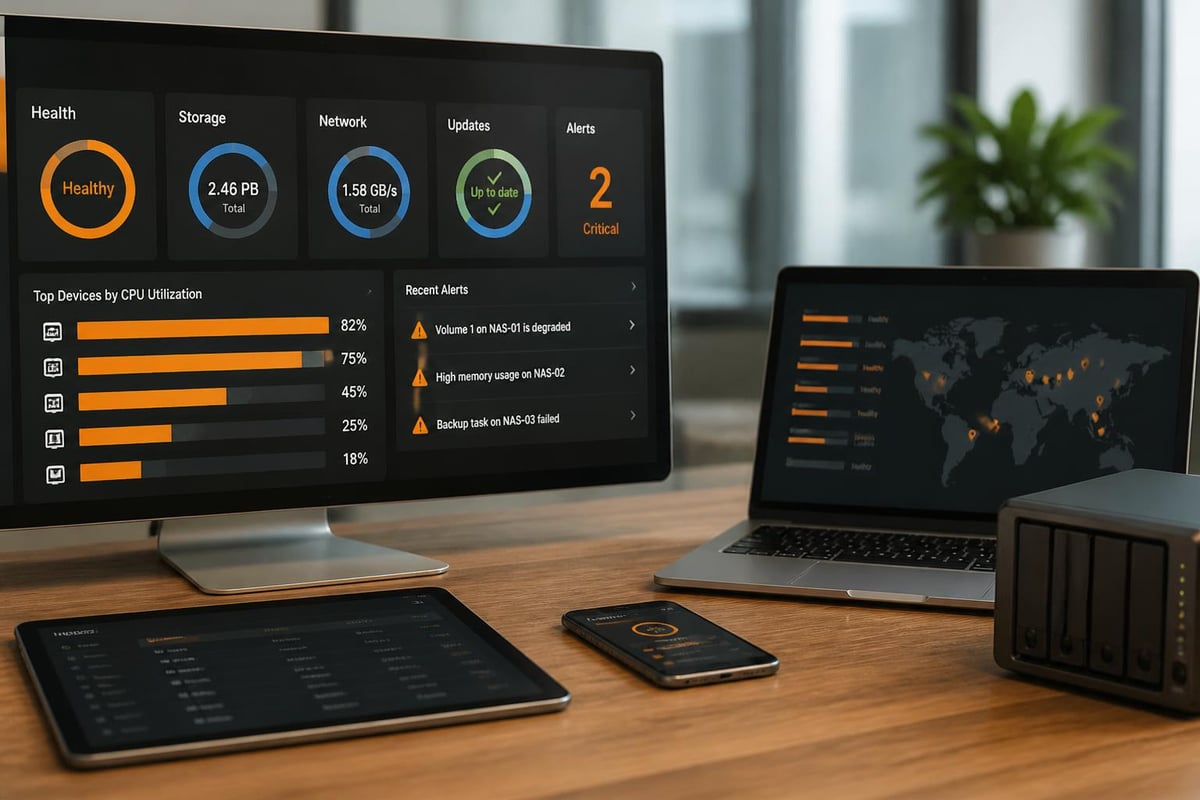
Whilst synology assistant focuses primarily on configuration and management, it provides valuable status information that can feed into centralised monitoring systems. Regular polling of device status through the application helps identify potential issues before they impact production workloads.
Security Considerations
Managing network-attached storage introduces specific security responsibilities that administrators must address. Synology assistant itself operates with elevated permissions to perform device configuration tasks, making its secure deployment critical to overall infrastructure security.
Access Control
The software inherits the security context of the logged-in user, meaning administrators should run it from appropriately secured workstations. Organisations should implement policies restricting synology assistant installation to authorised IT personnel workstations only, preventing unauthorised device management attempts.
Network Exposure
During initial device setup, synology assistant communicates over the network using standard protocols. Ensuring these communications occur on trusted network segments prevents potential interception of administrative credentials. Many organisations deploy dedicated management VLANs for infrastructure administration, isolating this traffic from general user networks.
Update Verification
Before applying firmware updates through the tool, verify the update packages match official Synology checksums. Whilst the software includes integrity checking, additional verification provides defence-in-depth against supply chain attacks or compromised update servers. The setup and management guide emphasises these security practices for enterprise deployments.
Alternatives and Complementary Tools
Whilst synology assistant remains the official management utility, administrators should understand the broader ecosystem of Synology management tools. The web-based DiskStation Manager provides comprehensive device configuration once initial setup completes, offering features beyond the assistant's scope.
Mobile applications like DS finder provide discovery and basic management from smartphones and tablets, useful for on-call administrators needing quick status checks. These tools complement rather than replace synology assistant, each serving specific use cases within the management workflow.
For organisations evaluating Mac-based hosting solutions, understanding how different management interfaces integrate becomes relevant when designing hybrid infrastructure incorporating both Synology NAS systems and macOS server platforms.
Performance Optimisation
Maximising efficiency when using synology assistant involves understanding how network topology and device configuration affect discovery and management operations. Large deployments benefit from strategic network design that facilitates rapid device identification whilst maintaining security boundaries.
Network Topology Considerations
Placing NAS devices and management workstations within the same broadcast domain accelerates discovery. However, security requirements often necessitate segmentation. In such scenarios, configuring multicast relay or IGMP snooping on network switches ensures discovery packets traverse VLAN boundaries appropriately.
Resource Management
On workstations managing numerous devices, the software's memory footprint becomes relevant. Monitoring resource utilisation and closing the application when not actively managing devices prevents unnecessary resource consumption, particularly on systems running multiple management tools simultaneously.
Businesses exploring how to optimise their infrastructure benefit from understanding these technical nuances. For those seeking comprehensive support, a demonstration of integrated cloud solutions can provide insights into how different technologies work together within secure hosting environments.
Best Practices for Deployment
Implementing synology assistant effectively requires following established practices that reduce errors and improve operational outcomes. These guidelines emerge from extensive enterprise deployments across diverse environments.
Maintain a central repository of device information including serial numbers, MAC addresses, and initial configuration details. This documentation proves invaluable when troubleshooting connectivity issues or recovering from network changes. Standardise device naming conventions that reflect physical location, function, and organisational ownership to simplify identification in large deployments.
Schedule regular review sessions where administrators verify all managed devices appear in synology assistant and confirm their operational status. This proactive approach identifies configuration drift or network issues before they impact users. Coordinate firmware update schedules across devices to maintain consistency whilst avoiding simultaneous updates that might overwhelm network bandwidth or administrative resources.
Documentation and Knowledge Transfer
Creating internal documentation specific to your environment's Synology deployment ensures knowledge continuity as team members change. Document custom configurations, network-specific settings, and integration points with other infrastructure components. This information proves essential during incident response or when onboarding new administrators.
Future Developments and Roadmap
Synology continues evolving its management tools in response to changing infrastructure requirements. Recent updates have enhanced IPv6 support, improved discovery algorithms for complex network topologies, and introduced better integration with DiskStation Manager's centralised management features.
Understanding the development trajectory helps organisations plan infrastructure investments and training initiatives. Following official Synology communications regarding synology assistant updates ensures you leverage new capabilities as they become available, maintaining competitive advantages through effective technology adoption.
Effective NAS management begins with understanding the tools available for deployment, configuration, and ongoing administration. Synology Assistant streamlines these processes whilst maintaining the security and reliability required for business-critical storage infrastructure. Whether you're managing a single device or coordinating enterprise-wide storage deployments, leveraging this tool appropriately reduces complexity and improves operational outcomes. For organisations seeking secure, reliable hosting infrastructure backed by expert support and sustainable practices, vBoxx delivers comprehensive cloud solutions designed for modern business requirements.