
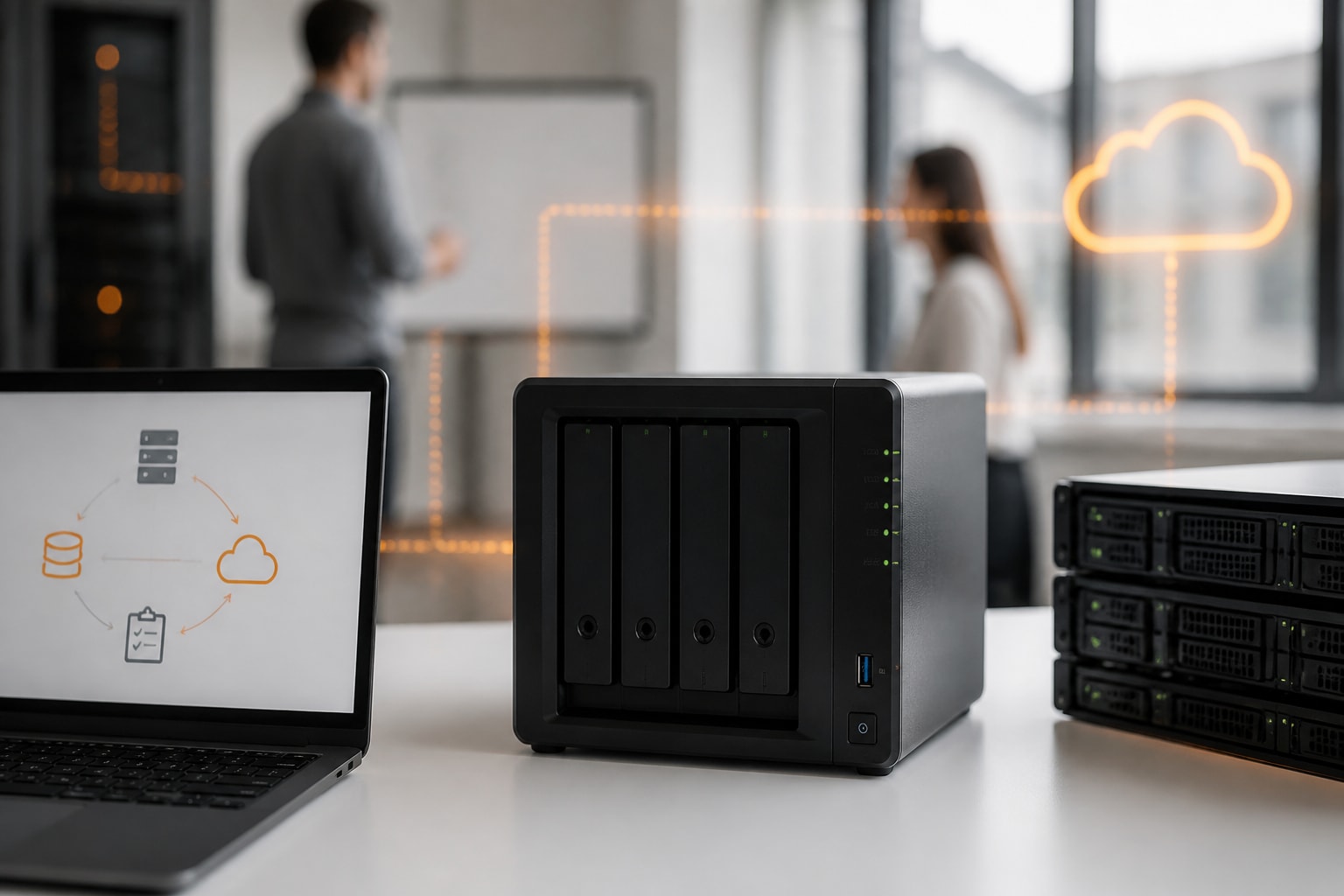
The Synology 923 usually refers to the DiskStation DS923+, a four-bay network attached storage (NAS) system with an AMD Ryzen R1600 processor, 4 GB of DDR4 memory as standard and room to grow through memory upgrades, a fifth drive via an expansion unit and optional 10GbE networking. It suits small and mid-sized businesses that want central file storage, local backup and light virtualisation. Therefore, the questions that matter most are how to configure the drives, how to set up DSM and, above all, how to protect the data once it sits on the device.
This guide covers the practical decisions in the order you will face them: hardware, drive selection, storage pool design, initial setup, backup and security. It addresses the point that influences European organisations most, namely where the second and third copies of your data should live.
What the Synology 923 Offers a Business
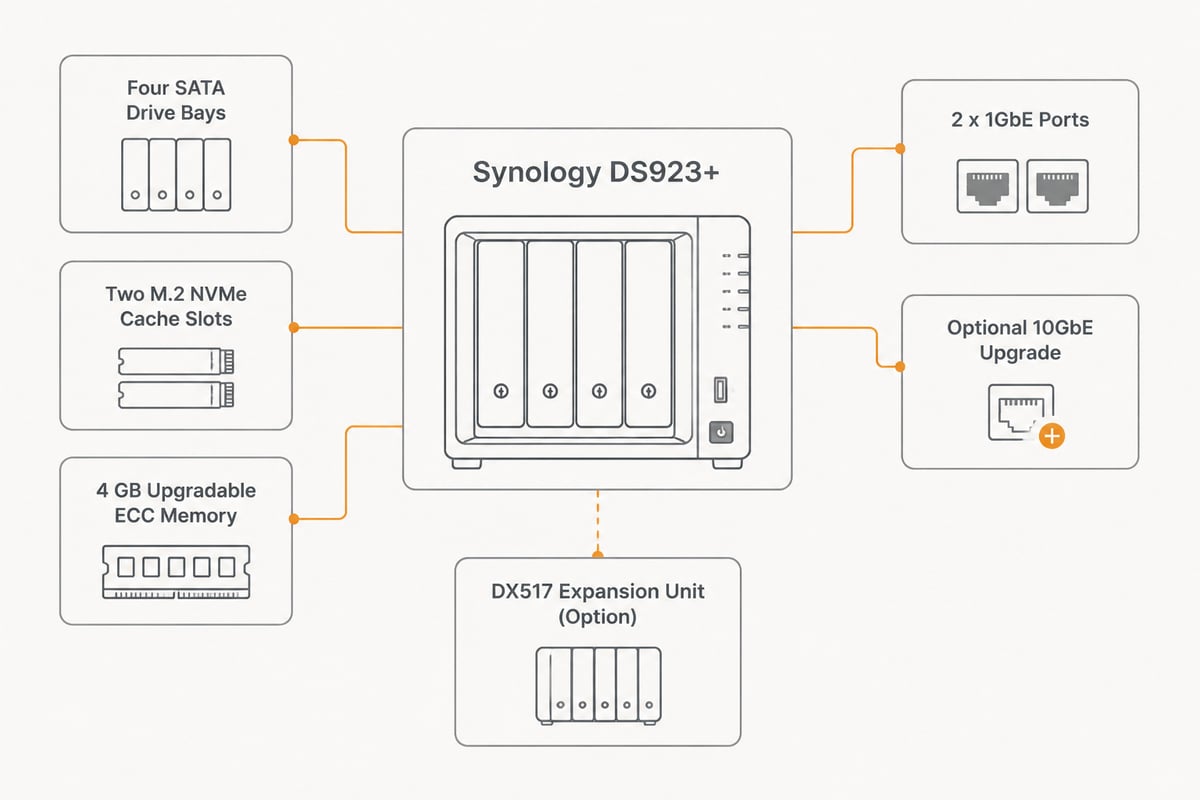
The DS923+ is a compact desktop NAS with four 3.5-inch or 2.5-inch SATA bays, two M.2 NVMe slots for caching, and a dual-core, four-thread Ryzen Embedded R1600 processor. In addition, it ships with two gigabit Ethernet ports that can be aggregated, while a PCIe slot accepts Synology's optional 10GbE adapter for faster transfers.
The key specifications at a glance:
- Bays: four SATA bays, expandable to nine drives with a DX517 expansion unit
- Memory: 4 GB DDR4 ECC SODIMM as standard, upgradable
- Cache: two M.2 2280 NVMe slots, usable for read/write caching
- Network: 2 x 1GbE, with an optional 10GbE upgrade through the expansion slot
- Connectivity: USB ports and an eSATA port for expansion
- Operating system: DiskStation Manager (DSM)
The NAS runs a broad package ecosystem, including Synology Drive for file sync, Synology Photos, Surveillance Station for IP cameras, Virtual Machine Manager and Container Manager. As a result, one device can serve as file server, backup target and small application host.
A caution applies to hardware choice. Synology has tightened its drive compatibility policy on some newer models, so checking the vendor's drive compatibility list before buying is advisable. Nevertheless, you should check the current compatibility list for the DS923+ before buying drives, because policy and firmware behaviour can change over time.
Choosing Drives and Memory for a Synology 923
The right drives for a Synology 923 are NAS-rated disks of identical capacity, ideally bought in different batches, paired with a memory upgrade only if you plan to run virtual machines or many packages. Consumer desktop drives are a false economy, since NAS-rated models are built for continuous operation and the vibration of several drives sharing one enclosure.
Consider these points when you buy:
- Capacity: Match drive sizes. A RAID array uses the smallest drive as its reference, so mixing sizes wastes space.
- Workload rating: Choose drives rated for 24/7 operation. Enterprise-class models carry a higher workload rating.
- Memory: The standard 4 GB is adequate for file serving. Therefore, upgrade only if you intend to run containers, virtual machines or heavy indexing.
- NVMe cache: An SSD cache helps when many users open the same small files. In contrast, it does little for large sequential transfers such as video backups.
- Spare drive: Keep one identical spare on the shelf. Consequently, a failed disk can be replaced the same day rather than after a shipping delay.
For further background on how Synology devices fit into business environments, the vBoxx overview of Synology DiskStation models is a useful companion.
Designing the Storage Pool and RAID Level
The most sensible RAID choice for a four-bay NAS is usually Synology Hybrid RAID (SHR) with one-drive fault tolerance, or RAID 6 when you want to survive two simultaneous drive failures. Both protect against hardware failure, but neither replaces a backup, which is a distinction worth stating early.
| Option | Fault tolerance | Usable capacity (4 x 8 TB) | Best suited to |
|---|---|---|---|
| SHR (1-drive) | 1 drive | approx. 24 TB | Flexible growth, mixed sizes |
| RAID 5 | 1 drive | approx. 24 TB | Balanced capacity and speed |
| RAID 6 | 2 drives | approx. 16 TB | Larger drives, higher safety |
| RAID 10 | 1 drive per mirror | approx. 16 TB | Write-heavy workloads |
Larger drives take longer to rebuild after a failure. Consequently, the risk of a second failure during the rebuild rises with capacity, which is why RAID 6 becomes more attractive above roughly 8 TB per drive.
Use the Btrfs file system for shared folders. In addition to data integrity checking, it provides snapshots, which allow near-instant rollback after accidental deletion or ransomware. Finally, create separate shared folders per department, because permissions and snapshot schedules are then simpler to manage.
Setting Up DSM Step by Step
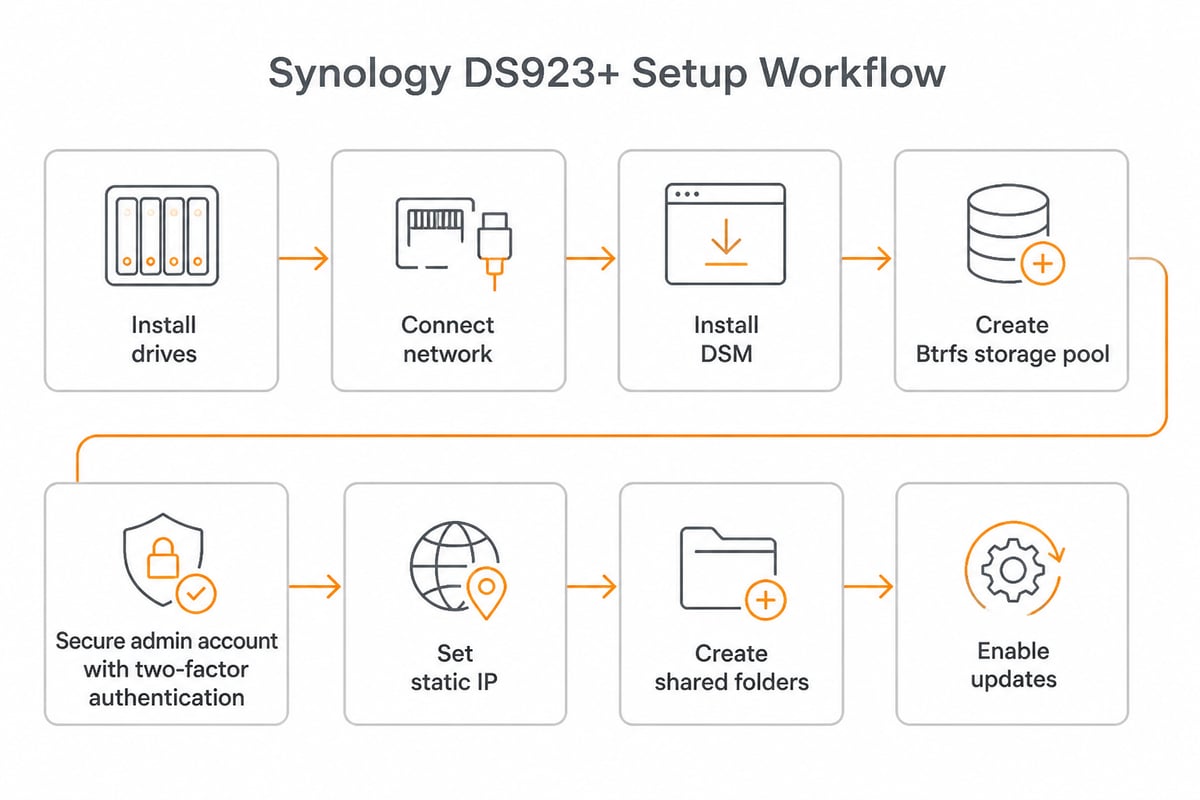
Initial setup of the DS923+ takes under an hour: install the drives, connect the network cable, find the device with Synology Assistant or the web portal, install DSM and then create the storage pool. The steps below reflect the sequence that avoids most rework.
- Install drives and connect power and network. Use a wired connection to your switch rather than Wi-Fi.
- Locate the device. The Synology Assistant utility discovers NAS units on the local network, after which you install the latest DSM version.
- Create the storage pool and volume. Choose SHR or RAID 6 as discussed, and select Btrfs.
- Create an administrator account and disable the default admin. Moreover, enable two-factor authentication immediately.
- Set a static IP address. Therefore, scheduled tasks and mapped drives do not break after a router restart.
- Configure users, groups and shared folders. Apply the principle of least privilege.
- Turn on automatic DSM and package updates. Security patches matter more on a device that stores business data.
Be careful with remote access. Opening ports on your firewall exposes the device to the internet, which attracts automated attacks. Instead, use a VPN or restrict access to known IP ranges. For a closer look at the trade-offs, see the vBoxx article on Synology QuickConnect.
Backup Strategy for a Synology 923
A RAID array keeps a NAS running when a disk fails, whereas a backup lets you recover when the NAS itself is lost, deleted from, encrypted by ransomware or damaged. Therefore, every Synology 923 deployment needs a separate backup plan based on the 3-2-1 principle: three copies of your data, on two types of media, with one copy offsite.
Synology provides several tools for this, and its own overview of DSM backup tools explains how Hyper Backup, Snapshot Replication, USB Copy and Cloud Sync can contribute to a 3-2-1 plan. In practice, the roles divide as follows:
- Snapshot Replication: frequent, space-efficient point-in-time copies for rapid rollback of accidental changes
- Hyper Backup: scheduled, versioned backups to a separate destination
- USB Copy: quick copies to an attached drive for local redundancy
- Cloud Sync: file-level synchronisation, which mirrors deletions and is therefore not a true backup
Hyper Backup is the core tool. According to Synology's Hyper Backup overview, it supports destinations including local shared folders, external drives, remote Synology systems, file servers and cloud services. In addition, it can retain up to 65,535 data versions and uses cross-version deduplication to reduce storage use. As a result, long retention periods remain practical even on modest capacity.
For the first local copy, Synology documents how to back up to a local shared folder or USB with Hyper Backup step by step. For the offsite copy, you can follow the instructions for backing up to a remote Synology NAS or file server, which includes scheduling and integrity checks. Meanwhile, Synology also explains how Hyper Backup handles data types and block-level incremental backups, which helps when estimating storage needs.
A practical backup layout for a small business might look like this:
- Hourly snapshots of shared folders, retained for two weeks
- Nightly Hyper Backup to an external USB drive
- Nightly or weekly Hyper Backup to an offsite destination
- A quarterly test restore, since an untested backup is only an assumption
For more detail on backup design, the vBoxx guide to Synology backup goes further into scheduling and retention.
Where to Keep the Offsite Copy under GDPR
For European businesses, the offsite backup copy should be stored with a provider that keeps data, metadata and backups within the EU, because personal data in a backup remains personal data under the GDPR. Many Synology users default to a US-based cloud destination, which can create compliance questions about transfers and about the reach of the US CLOUD Act.
Several factors deserve scrutiny before you choose a destination:
- Jurisdiction: Is the provider a European company, and is it outside the reach of the US CLOUD Act?
- Data location: Do data, metadata, backups and support tooling all stay in the EU?
- Certification: Does the provider hold ISO 27001 certification with an independent audit?
- Contracts: Is a data processing agreement available?
- Encryption: Can you encrypt client-side in Hyper Backup, so the destination only ever holds encrypted blocks?
Nevertheless, encryption alone does not resolve every question. Metadata, access logs and support processes also matter, which is why the full chain of custody should be reviewed. In addition, document your backup locations in your record of processing activities, because auditors will ask where copies reside.
Some organisations prefer to reduce the amount of data held on the NAS at all. In that scenario, working files live in a managed European cloud and the NAS serves as a local cache and archive. For teams in that position, vBoxxCloud offers GDPR-compliant business cloud storage with 256-bit AES encryption in ISO 27001-certified data centres in the Netherlands, which can act as the offsite tier alongside a local DiskStation.
Security Hardening Checklist
A NAS holding business data is a target, so a short hardening routine matters as much as the hardware. Ransomware groups routinely scan for exposed Synology devices, and a few settings close most of the common gaps.
- Enable two-factor authentication for all administrator accounts
- Disable the default admin and guest accounts
- Enable auto block to stop repeated failed logins
- Change default ports only as a minor measure, not as a substitute for a VPN
- Enable the firewall and allow only required services
- Keep DSM and packages up to date
- Use immutable snapshots where available, so ransomware cannot delete recovery points
- Store administrator credentials in a password manager rather than a shared document
Review user permissions twice a year. Former employees and obsolete service accounts are a frequent source of unnecessary exposure. Therefore, tie account removal to your offboarding process.
Common Use Cases and Realistic Limits
The DS923+ performs well as a file server, backup target for workstations and servers, photo archive and light application host. However, its limits should be understood before purchase.
Typical strengths:
- Central file sharing for teams of up to a few dozen users
- Workstation backup with Active Backup for Business, which is included with DSM
- Surveillance recording for a modest number of cameras, subject to licences
- Container workloads such as small internal tools
Typical limits:
- Two CPU cores restrict heavy virtualisation and many simultaneous transcodes
- Gigabit networking caps transfer speed unless you add the 10GbE card
- The device is a single point of failure for availability, so it offers no high availability on its own
- Hardware warranty and spare parts depend on the vendor, not on you
In addition, a NAS is something you operate yourself. Firmware updates, drive monitoring, capacity planning and restore tests all fall to your team. Consequently, organisations without in-house IT time sometimes choose a managed alternative, which the vBoxx article on hosted Synology discusses in more detail. Similarly, businesses that want a smaller model might compare the Synology DS723+ before deciding.
Maintenance Routine to Keep the NAS Healthy
Regular maintenance prevents most NAS failures from becoming data loss. A simple monthly and quarterly routine is enough for most small businesses.
Monthly:
- Review the Storage Manager for SMART warnings and reallocated sectors
- Check that scheduled Hyper Backup tasks completed successfully
- Install pending DSM and package updates
Quarterly:
- Run a data scrub on the storage pool to detect silent corruption
- Perform a test restore of a sample folder from each backup destination
- Review user accounts, shared folder permissions and external access rules
Annually:
- Reassess capacity growth and plan drive replacement before warranty ends
- Verify that your backup retention still matches legal and business needs
- Update your documentation of backup locations for GDPR purposes
Record the results. A short log of restore tests gives you evidence for audits and a baseline for noticing slow degradation.
Frequently Asked Questions
Is the Synology 923 the same as the DS923+?
In everyday use, yes. People searching for a Synology 923 are almost always referring to the DiskStation DS923+, the four-bay model released as a successor to the DS920+.
How much usable storage will I get?
It depends on the RAID level. With four 8 TB drives, SHR or RAID 5 provides roughly 24 TB usable, while RAID 6 provides roughly 16 TB. In addition, file system overhead reduces the figure slightly.
Does RAID replace a backup?
No. RAID protects against drive failure only. Deletion, ransomware, fire, theft and file system errors affect all drives at once, so a separate backup is required.
Can I back up the NAS to the cloud and stay GDPR compliant?
Yes, provided the destination keeps data inside the EU, a data processing agreement is in place and you encrypt backups before they leave the device. Therefore, check the provider's jurisdiction and data location before you configure the task.
Do I need the 10GbE card?
Only if multiple users regularly move large files or you run backups of many workstations simultaneously. For general office use, gigabit with link aggregation is usually sufficient.
Start by listing which data on your DiskStation is business-critical, then confirm that at least one encrypted copy of it sits outside your office in the EU and that you have restored from it at least once. If you want that offsite tier handled by a European provider with its own ISO 27001-certified infrastructure and personal support, vBoxxCloud can store and share those files securely in Dutch data centres. To see how it fits alongside your NAS, you can get a free trial of vBoxx and test the setup with your own data before committing.