
Microsoft Teams has become the backbone of business communication and collaboration in 2026. As organisations rely more on Teams, the risk of data loss, compliance breaches, and costly disruptions grows without a reliable teams backup strategy.
Real-world breaches have shown that losing Teams data can halt operations and damage reputations. This guide will give you a clear, actionable path to protect your Teams environment. You will learn about Teams data architecture, compare native and third-party teams backup options, and see step-by-step how to set up secure, compliant backups.
For those seeking a practical solution, consider using Synology products with Active Backup for Business from vBoxx. With vBoxx, you can back up Teams environments, chats, and channels without monthly software licence costs. Simply rent a dedicated or virtual Synology starting at €65 per month for a scalable, compliant teams backup.
By the end of this guide, you will be ready to build a future-proof teams backup plan that keeps your data safe and your business running.
Understanding Microsoft Teams Data Architecture in 2026
Microsoft Teams has evolved into the backbone of organisational collaboration, with its data architecture underpinning every message, file, and workflow. As businesses depend on Teams for daily operations, understanding its data structure is crucial for effective teams backup and data protection.

Teams Data Structure: Files, Chats, Channels, and Integrations
Teams data is multifaceted, spanning files, chat messages, channel discussions, wikis, meeting recordings, and a growing range of integrations. Every Team comprises channels, each with its own conversations and document libraries. Chats, both group and private, generate persistent message histories, while wikis and apps add further layers of information.
This complexity means that a robust teams backup strategy must account for every data type, ensuring nothing is overlooked.
Where Teams Data Lives: Storage Across Microsoft 365
Teams does not store its data in a single silo. Instead, files shared within channels are saved to SharePoint Online, while chat files reside in users’ OneDrive for Business accounts. Chat messages, channel conversations, calendar data, and meeting information are stored in Exchange Online mailboxes. Integrations and third-party apps may use external storage, introducing additional complexity.
Because Teams data is distributed, it is vital to map all storage locations when planning a teams backup approach. Missing a location can leave critical data unprotected.
Teams and Microsoft 365 Integration: Retention and Flow
Microsoft Teams is tightly integrated with Microsoft 365 services. When a file is uploaded to a channel, it is instantly saved to the associated SharePoint site. Private chat files are stored in a special OneDrive folder. Retention policies set in Microsoft 365 Compliance Center determine how long chats and files are preserved.
This interconnectedness streamlines collaboration, but also means that teams backup solutions must consider retention settings across SharePoint, OneDrive, and Exchange Online. If retention is not managed holistically, data gaps can occur.
Architectural Changes Since 2024: New Data Types and Performance
Since 2024, Microsoft Teams has undergone significant architectural updates, including new data types, improved integrations, and optimised performance. The January 2026 Microsoft Teams Performance Update introduced enhanced startup times and more efficient data handling, impacting how data is stored and accessed.
Hybrid work trends have led to an explosion in Teams usage. According to Microsoft 365 reports, Teams data storage has grown by over 40 percent year-on-year, with more organisations relying on integrations and automations. This growth adds further urgency to implementing comprehensive teams backup strategies.
Mapping Your Teams Data Landscape: The Foundation of Backup
Before deploying any teams backup solution, it is essential to map your entire Teams environment. Document all Teams, channels, users, and connected apps. Identify where files, chats, wikis, and app data are stored. Use Microsoft 365 admin tools to export inventories and visualise data flows.
A practical approach is outlined below:
| Teams Data Type | Storage Location | Example Tool to Export |
|---|---|---|
| Channel Files | SharePoint Online | Microsoft 365 Admin |
| Chat Files | OneDrive for Business | PowerShell Scripts |
| Messages | Exchange Online | Compliance Center |
| Wikis/Apps | Third-party/SharePoint | App-specific APIs |
For added security and control, use our Synology products and Active Backup for Business from vBoxx to back up your Teams environment, including chats and channels. With no monthly licence costs beyond device rental, you can rent a dedicated or virtual Synology from vBoxx starting at €65 per month, ensuring your teams backup remains compliant and cost-effective.
A thorough understanding of your Microsoft Teams data architecture is the foundation for any successful teams backup strategy. By mapping your data landscape now, you will be better prepared to protect your organisation’s critical information in 2026.
Native Teams Backup and Retention Options: Capabilities & Limitations
Microsoft Teams has become a central hub for collaboration. As organisations depend on it for business continuity, understanding native teams backup and retention options is vital. Let us explore the built-in features, their strengths, and their limitations.
Teams Recycle Bin and Versioning
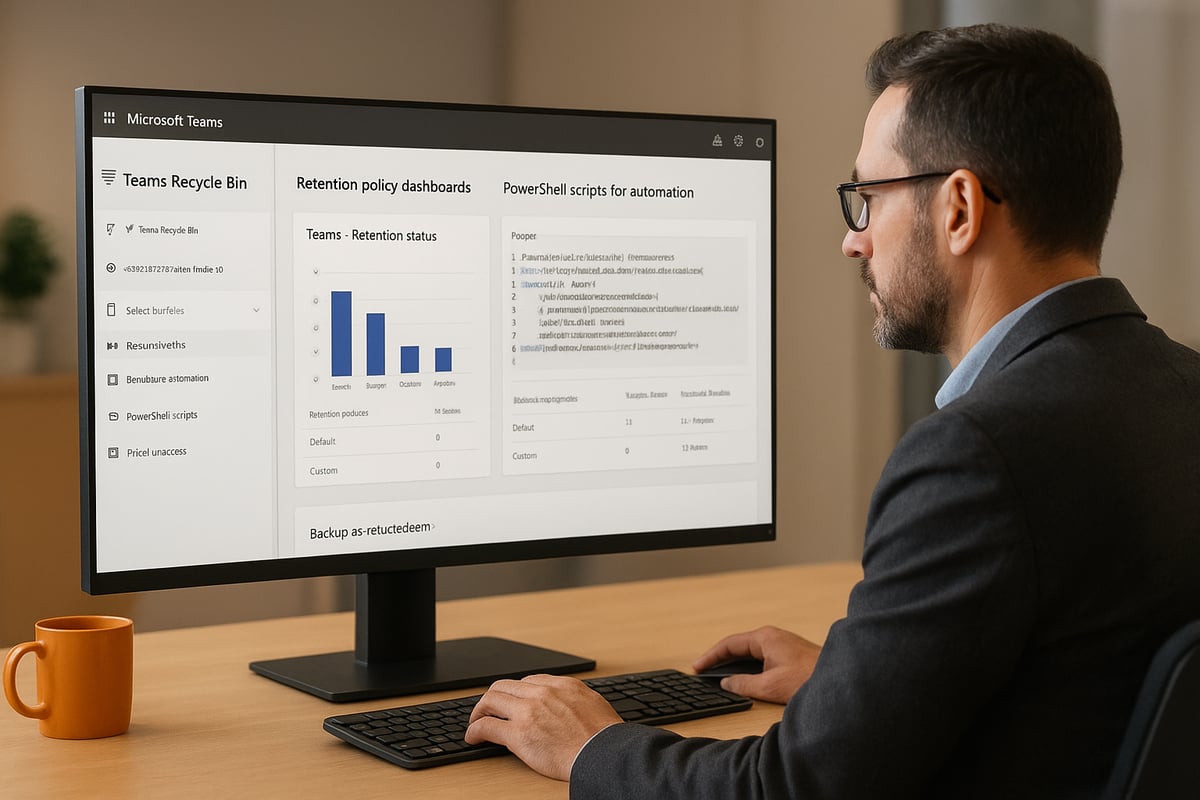
When files are deleted in Teams channels, they are stored in the SharePoint or OneDrive Recycle Bin for 93 days. This feature allows users to restore accidentally deleted files easily. File versioning complements this by keeping earlier versions, so you can roll back to a previous state if necessary.
For example, if a project document is removed from a Teams channel, you can retrieve it from the SharePoint Recycle Bin within the retention window. This is a straightforward process for files, supporting basic teams backup needs.
However, this approach has clear limitations. Chat messages and channel conversations are not included in the Recycle Bin, and versioning does not cover these data types. As a result, relying solely on native tools for teams backup exposes gaps, especially for critical communications that are not file-based.
Retention Policies and Compliance Center
Microsoft 365 Compliance Center enables organisations to create retention policies for Teams chats and channel messages. These policies specify how long data is preserved, whether for public or private Teams, and can be tailored to meet regulatory requirements.
To set up a retention policy, navigate to the Compliance Center, select Information governance, and create a new policy. Choose whether to retain or delete Teams messages, select the retention duration, and apply it to relevant users or teams.
Retention and teams backup serve different purposes. Retention policies are designed for legal hold and compliance, ensuring data is available for a specific period. In contrast, true teams backup supports flexible recovery from various data loss scenarios, such as accidental deletions or ransomware attacks.
For example, a financial firm may apply a policy to retain Teams messages for 10 years, meeting industry regulations. Yet, if a user permanently deletes a message outside the retention window, recovery may not be possible.
Limitations include time-bound recovery and the risk of missing data if policies are not configured correctly. The process can be complex, especially for organisations with many Teams and compliance needs. For an in-depth look at recent enhancements, including granular restore features, see the Microsoft 365 Backup and Archive Updates – Ignite 2025.
Archival Options and PowerShell Automation
Teams and SharePoint sites can be archived using the Microsoft 365 Admin Center or automated with PowerShell scripts. Archiving makes Teams read-only, preserving content for long-term reference. This is useful when a project ends but the data must remain accessible.
To archive a Team, go to the Admin Center, select the Team, and choose Archive. PowerShell allows batch operations and scheduling for larger environments. When needed, archived Teams can be restored to active status.
Despite these tools, archiving is not a full teams backup solution. Restore granularity is limited, and archived content cannot always be recovered at the item level. According to recent enterprise surveys, adoption rates for Teams archiving have grown, but many organisations still seek more robust teams backup options.
For those requiring advanced backup, use our Synology products and Active Backup for Business from vBoxx to protect your teams environment, including chats and channels. With vBoxx, there are no monthly license costs beyond the device itself. You can rent a dedicated physical or virtual Synology starting at €65 per month, offering a cost-effective and scalable backup solution for Teams data.
Third-Party and Hybrid Teams Backup Solutions
Organisations in 2026 face an unprecedented reliance on Microsoft Teams for collaboration, making teams backup a critical component of business continuity. As data volume and complexity rise, native capabilities alone often fall short. Modern enterprises are turning to third-party and hybrid backup solutions to protect their Teams data and ensure compliance, security, and operational resilience.
Why Third-Party Backup is Essential
Relying solely on built-in Microsoft tools for teams backup exposes organisations to significant risks. Microsoft operates under a Shared Responsibility Model, meaning they guarantee uptime and platform security, but customers are responsible for safeguarding their own data.
Native solutions may not fully protect against accidental deletions, ransomware, or compliance breaches. For example, if a user deletes a critical Teams channel and it goes unnoticed for over 93 days, recovery becomes impossible. Industry surveys report that nearly 70% of companies using Microsoft Teams have experienced data loss incidents, prompting a shift towards dedicated teams backup solutions.
Third-party backup tools provide granular control, longer retention, and faster recovery, reducing downtime and safeguarding compliance-sensitive information. As hybrid and remote work persist, these solutions become indispensable for maintaining business continuity.
Key Features to Look for in Teams Backup Tools
Selecting the right teams backup solution requires careful evaluation of features tailored to modern business needs:
- Comprehensive Coverage: Protect all Teams data types, including files, chats, channels, wikis, apps, and associated metadata.
- Granular Restore Options: Enable point-in-time, item-level, and cross-user restores to recover exactly what was lost, when needed.
- Automation and Reporting: Streamline backup schedules, automate reporting, and monitor backup health for compliance assurance.
- Compliance Support: Ensure GDPR, NIS2, and sector-specific requirements are met, with audit trails and legal hold capabilities.
- Unlimited Retention: Store Teams data as long as necessary, meeting regulatory or internal policy demands.
- Integration: Fit seamlessly within broader Microsoft 365 backup strategies for unified management.
For example, a robust solution allows you to restore a single Teams conversation from a specific date, minimising business disruption.
When assessing vendors, prioritise solutions that offer flexible storage locations and strong encryption, ensuring your teams backup remains secure and compliant.
Step-by-Step: Implementing a Third-Party Teams Backup Solution
Establishing a reliable teams backup strategy involves several key steps:
- Assess Business Requirements: Identify critical Teams data, compliance obligations, and desired recovery objectives.
- Choose Solution Type: Decide between cloud-based, on-premises, or hybrid backup based on data residency, scalability, and cost.
- Configure Backup Schedules: Set up automated jobs for daily or weekly full and incremental backups. Define retention policies to align with legal and business needs.
- Integrate with Microsoft 365: Ensure the solution supports seamless integration, covering SharePoint, OneDrive, Exchange, and Teams.
- Test and Validate: Regularly perform restore tests to confirm data can be recovered quickly and accurately. Document all procedures for audit readiness.
For instance, a multinational firm might implement a hybrid teams backup approach, storing encrypted copies both locally and in a European cloud. Regular restore tests, automated reporting, and compliance monitoring ensure uninterrupted operations and regulatory peace of mind.
[Backup Microsoft Teams with Synology & vBoxx Solutions] (https://vboxx.eu)
For SMEs and larger organisations, Synology NAS devices combined with Active Backup for Business from vBoxx offer a powerful teams backup option. With vBoxx, you can rent either a dedicated physical Synology or a virtual Synology, starting at €65 per month. There are no ongoing licence fees beyond the device, making it a cost-effective solution.
This setup enables comprehensive backup of Teams environments, including chats and channels, with European data residency and full GDPR/NIS2 compliance. Many businesses use vBoxx to centralise their Microsoft 365 and Teams backup, ensuring business continuity and regulatory alignment. To learn more about how Synology can meet your business storage needs, visit Synology for business storage needs.
Step-by-Step Guide: Building a Teams Backup Strategy for 2026
Building a resilient teams backup strategy in 2026 is essential for protecting collaboration data and ensuring business continuity. The process involves a structured approach, from understanding your environment to implementing, testing, and maintaining robust backup workflows. Follow these steps to create a future-ready teams backup plan that meets your operational and compliance needs.
Assessing Your Teams Environment
Start by conducting a thorough assessment of your Microsoft Teams environment. An accurate inventory is the cornerstone of any effective teams backup strategy.
- List all Teams, channels, and user accounts across the organisation.
- Identify connected apps and integrations that store or process Teams data.
- Determine which Teams contain business-critical or compliance-sensitive content.
Use Microsoft 365 admin tools to export a comprehensive Teams inventory. Pay special attention to where data resides, such as SharePoint for files, OneDrive for personal storage, Exchange Online for calendars and emails, and any third-party services. This mapping enables you to pinpoint all sources that must be included in your teams backup plan.
A well-documented inventory ensures no data silos are overlooked and sets the stage for a targeted backup solution.
Defining Backup Objectives and Compliance Needs
Next, clarify your backup objectives and regulatory requirements. Start by setting clear recovery point objectives (RPO) and recovery time objectives (RTO) for your teams backup.
- What is the maximum acceptable data loss window?
- How quickly must you restore Teams data to resume operations?
Align your teams backup policies with industry regulations such as GDPR, NIS2, and any sector-specific mandates. For example, legal or financial organisations may need to retain Teams chats for seven years to meet compliance obligations.
Document these requirements to guide your backup frequency, retention schedules, and data handling practices. This step ensures your teams backup approach supports both operational continuity and regulatory needs.
Selecting the Right Backup Approach
With objectives defined, compare native, third-party, and hybrid backup solutions for Teams. Each approach offers distinct benefits and trade-offs in terms of features, scalability, and compliance.
| Backup Solution | Pros | Cons |
|---|---|---|
| Native | Integrated with Microsoft 365, no extra cost | Limited restore options, retention gaps |
| Third-Party | Granular restores, compliance support | Additional cost, vendor selection |
| Hybrid | Combines flexibility and control | Complexity, requires integration |
Consider data sovereignty, especially for European organisations. Solutions that guarantee data residency within the EU can simplify compliance. For more insight, see the European cloud independence benefits.
A multinational business, for example, might choose a hybrid approach, using third-party tools for granular restores while maintaining native retention for basic needs. Match your teams backup choice to your unique operational and compliance profile.
Implementing and Automating Backup Workflows
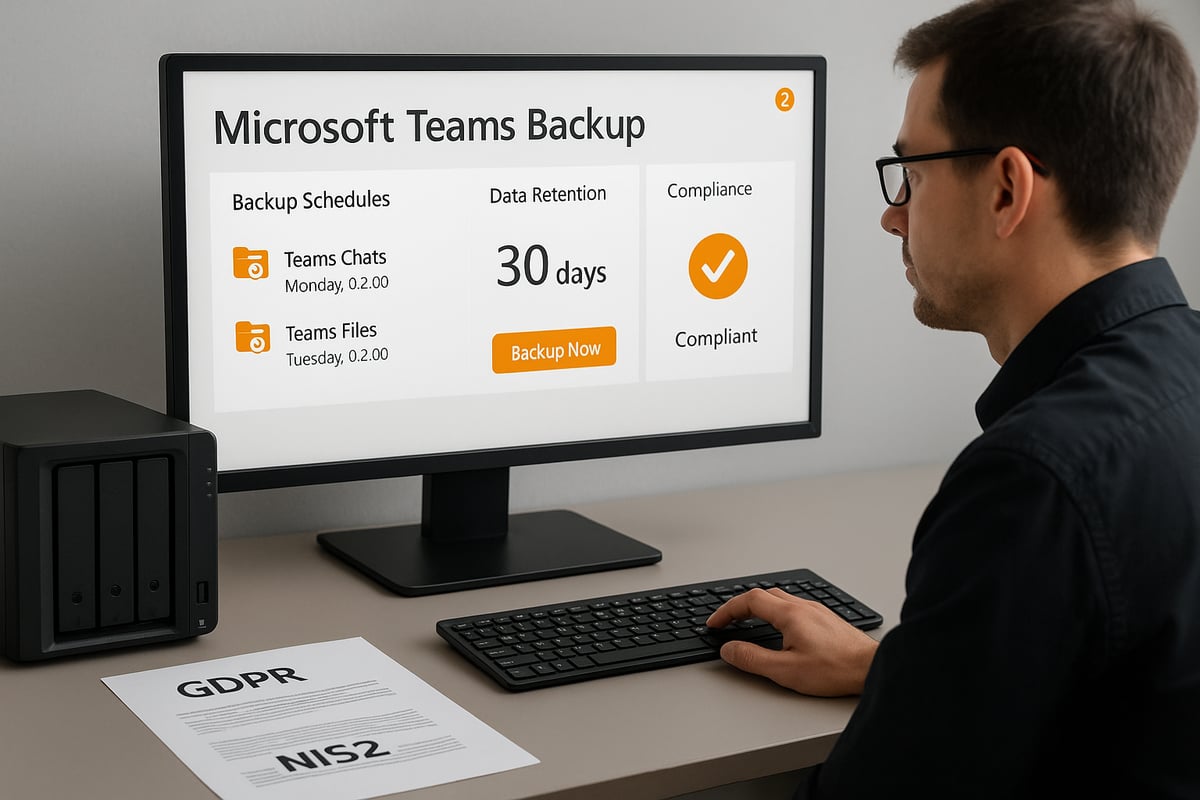
Once you have selected your solution, set up automated teams backup workflows to ensure consistent protection. Configure backup jobs to run at intervals that meet your RPO, such as weekly full backups and daily incremental backups. Integrate Teams backup with your wider Microsoft 365 data protection strategy for unified management.
Using Synology products and the Active Backup for Business software from vBoxx, you can back up your entire Teams environment, including chats and channels. With vBoxx, there are no monthly license costs beyond the device rental. You can rent a dedicated physical Synology or a virtual Synology starting at €65 per month. This setup offers scalability, GDPR and NIS2 compliance, and centralised control for SMEs and enterprises alike.
Regularly review backup reports and automate notifications for any errors or compliance violations. Automation reduces manual effort and minimises the risk of missed backups, ensuring your teams backup remains reliable.
Testing, Monitoring, and Validating Restores
Testing is a crucial part of any teams backup plan. Schedule periodic restore drills, such as quarterly tests, to confirm that your backups are complete and recoverable.
Monitor backup jobs for errors or signs of non-compliance. Use dashboards and automated alerts to track status and respond swiftly to any issues.
For example, simulate a restore of Teams data from a specific date to validate that all required information can be recovered quickly and accurately. This ongoing vigilance keeps your teams backup process trustworthy and audit-ready.
Training and Documentation
Finally, ensure IT staff and end-users are educated on teams backup policies and procedures. Provide clear instructions for self-service restores where possible, reducing support bottlenecks.
Maintain up-to-date documentation covering backup schedules, restore processes, and compliance requirements. This knowledge base supports business continuity and makes onboarding new staff more efficient.
Compliance, Security, and Data Sovereignty in Teams Backup
Modern organisations face a complex web of compliance requirements when it comes to teams backup. With regulations like GDPR and NIS2 setting strict standards for data privacy, improper handling of Teams data can result in significant financial penalties and reputational harm. The exponential growth of Teams usage across sectors has only increased the need for robust backup strategies that address these legal obligations.
Regulatory Landscape: GDPR, NIS2, and Sector-Specific Rules
Compliance frameworks such as GDPR and NIS2 require organisations to safeguard Teams data, ensure data subject rights, and maintain the ability to restore information in the event of loss or breach. Many industries, including finance and healthcare, have even stricter requirements for data retention and auditability. Failure to implement a compliant teams backup can result in regulatory fines, which have risen sharply in recent years.
For deeper insights on navigating these regulations, explore GDPR and data privacy insights. Understanding these rules is vital before choosing or configuring any backup solution.
Data Sovereignty and European Hosting
Where your Teams backup is stored matters as much as how it is protected. Data residency requirements increasingly mandate that sensitive information remains within specific geographic boundaries, such as the European Union. Storing Teams backups on European-hosted infrastructure helps satisfy both regulatory and client demands for data sovereignty.
European-hosted solutions also simplify compliance audits and strengthen legal defensibility in the event of a dispute. Organisations should always map out their data flows and storage locations before implementing a teams backup to ensure full compliance.
Security Best Practices for Teams Backup
Security is equally critical to compliance for teams backup. Encryption, both in transit and at rest, is non-negotiable to prevent unauthorised access. Strong access controls, multi-factor authentication, and detailed audit trails further reduce risks of data exposure.
For a comprehensive overview of how to secure your Teams backup data, see Encrypted online storage solutions. Regular monitoring and automated alerts also help IT teams respond quickly to suspicious activity or compliance violations.
Choosing the Right Provider: Compliance and Privacy
Selecting a provider with robust privacy credentials is essential for teams backup success. Look for vendors who demonstrate adherence to GDPR, NIS2, and relevant industry standards. Key features should include transparent data processing agreements, clear data residency options, and proven incident response protocols.
Providers that prioritise European data hosting and maintain independent compliance certifications offer added assurance. This due diligence ensures your teams backup strategy stands up to regulatory scrutiny and supports business continuity.
Real-World Example: vBoxx Synology Solutions for Teams Backup
A practical approach to secure, compliant teams backup is using Synology hardware combined with Active Backup for Business from vBoxx. With vBoxx, you can back up your entire Teams environment, including chats and channels, without incurring monthly license costs beyond the device itself. You have the option to rent either a dedicated physical Synology or a virtual Synology from vBoxx, starting at €65 per month.
This solution ensures European data residency, supports GDPR and NIS2 compliance, and offers scalable, secure infrastructure. Many SMEs use vBoxx to centralise their Microsoft 365 and Teams backups, ensuring regulatory compliance and business continuity with minimal complexity.
Future Trends in Teams Backup: AI, Automation, and Beyond
The world of teams backup is evolving rapidly as organisations seek smarter, more resilient solutions for their critical collaboration data. In 2026, businesses face ever-increasing data volumes and complex regulatory requirements. Staying ahead means embracing innovation, automation, and intelligent analytics.
AI and Automation: The Next Frontier
Artificial intelligence is transforming teams backup by introducing machine learning for anomaly detection and automated response. AI-powered systems can monitor data flows, flag suspicious activities, and trigger instant backups in response to potential threats. For example, if the system detects an unusual spike in Teams data deletion, it can automatically initiate a full backup to preserve critical information.
AI-driven teams backup tools not only reduce manual workloads but also help prevent data loss from human error or malicious actions. This shift is empowering IT teams to focus on strategic projects instead of constantly monitoring for risks.
Predictive Analytics and Intelligent Workflows
Modern teams backup solutions are leveraging predictive analytics to optimise backup schedules and anticipate potential issues. By analysing usage patterns and storage trends, these tools recommend the best times for backups and highlight areas of vulnerability. Automation further streamlines the process, ensuring that backup and restore workflows are consistent and error-free.
Third-party providers are at the forefront of these innovations. For instance, CrashPlan Enhances Microsoft Collaboration by integrating AI and automation, enabling enterprises to strengthen their data resilience. These advancements make teams backup more robust and adaptable to evolving organisational needs.
Evolving Threats and Best Practices
The threat landscape for teams backup continues to intensify. In recent years, ransomware, supply chain attacks, and insider risks have become top concerns for IT leaders. As a direct result, backup standards are evolving to include multi-layered security, immutable backups, and detailed audit trails, all of which strengthen data protection.
At the same time, best practices in 2026 demand regular testing of restore processes, comprehensive monitoring, and close alignment with current regulations. Increasingly, teams backup strategies are being integrated with broader business continuity and disaster recovery plans. This approach ensures that organisations can respond swiftly to incidents while also meeting regulatory demands.
Preparing for 2026: Flexibility, Synology, and Beyond
Looking ahead, future-ready teams backup requires flexibility, scalability, and compliance. For this reason, organisations should prioritise solutions that adapt to changing data volumes and evolving regulatory landscapes. One practical approach is to use Synology devices with Active Backup for Business from vBoxx. With this setup, you can back up your entire teams environment, including chats and channels.
In addition, vBoxx eliminates monthly licence costs beyond the device itself. As an added benefit, you can rent a dedicated or virtual Synology starting at €65 per month, making the solution both predictable and cost-effective.
Ultimately, by embracing these modern strategies, businesses can ensure their teams backup is not only resilient today but also fully prepared for whatever tomorrow brings.
As you’ve seen throughout this guide, a strong Teams backup strategy is crucial for protecting your business from data loss, compliance issues, and unexpected disruptions in 2026. If you’re ready to take the next step and see how secure and sustainable cloud solutions can fit your needs, I invite you to experience vBoxx in action. You can explore how our privacy-focused, green hosting and backup services work together to keep your Microsoft Teams environment safe and compliant—no guesswork required. Let’s make your backup strategy future proof.
Schedule a demo