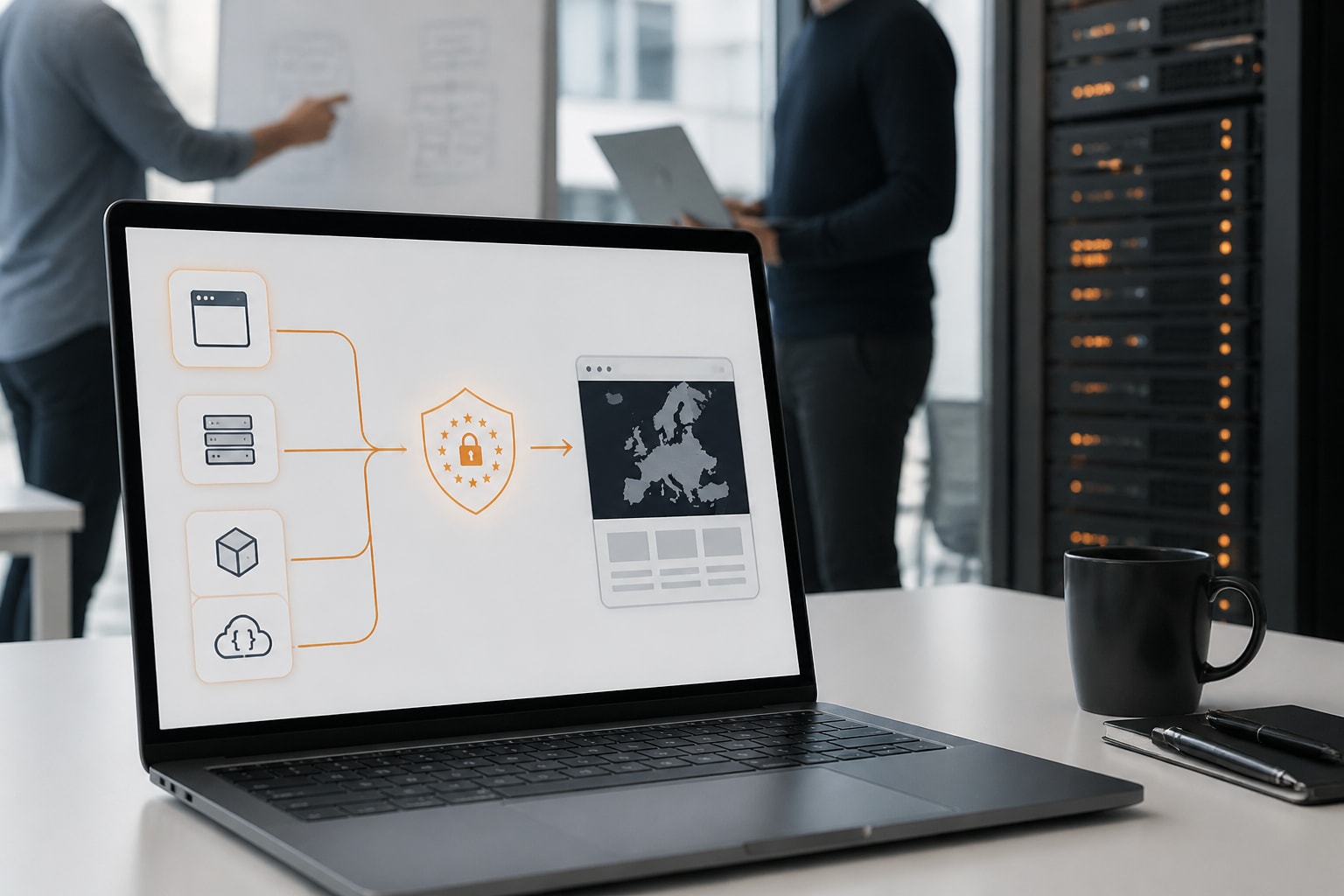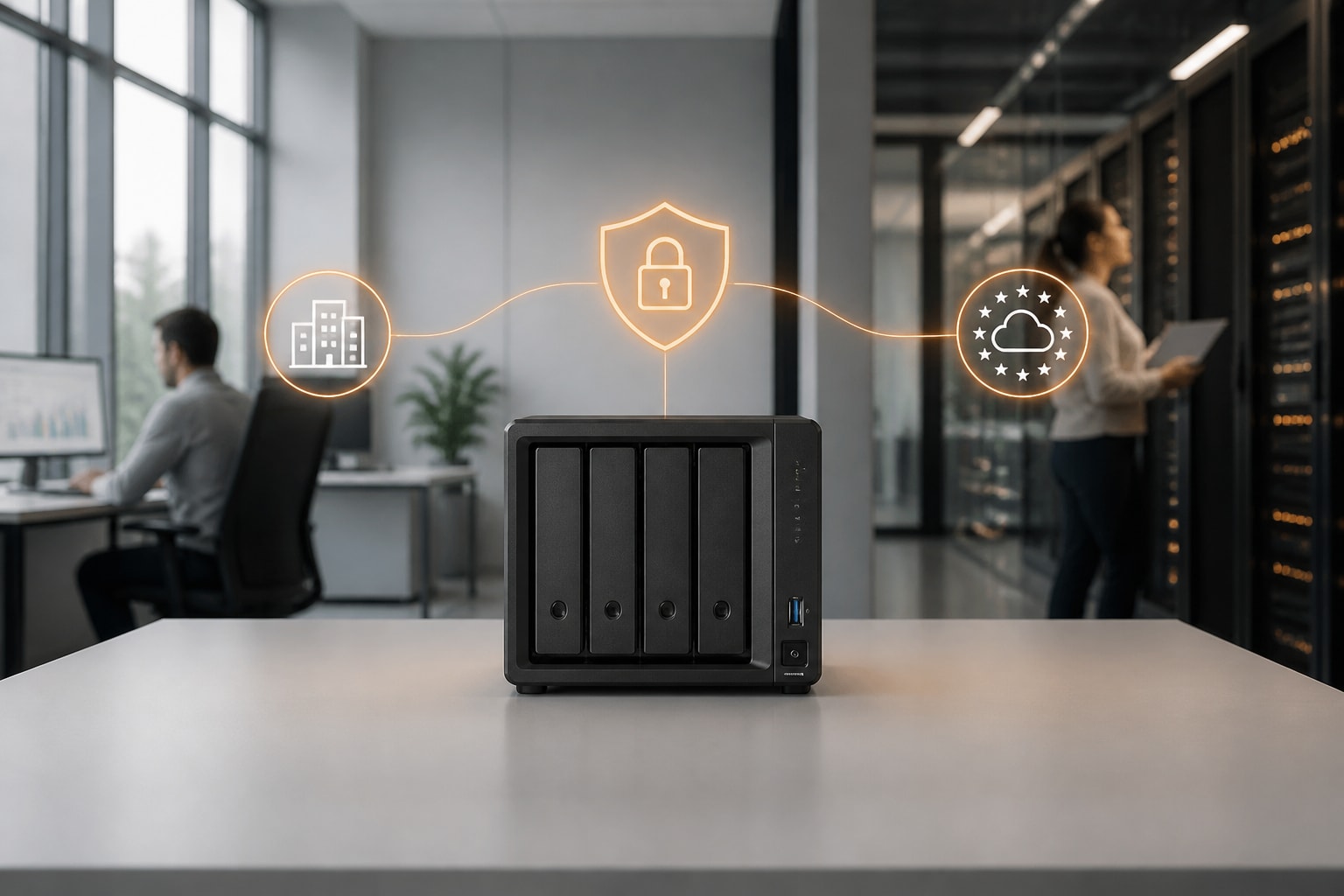
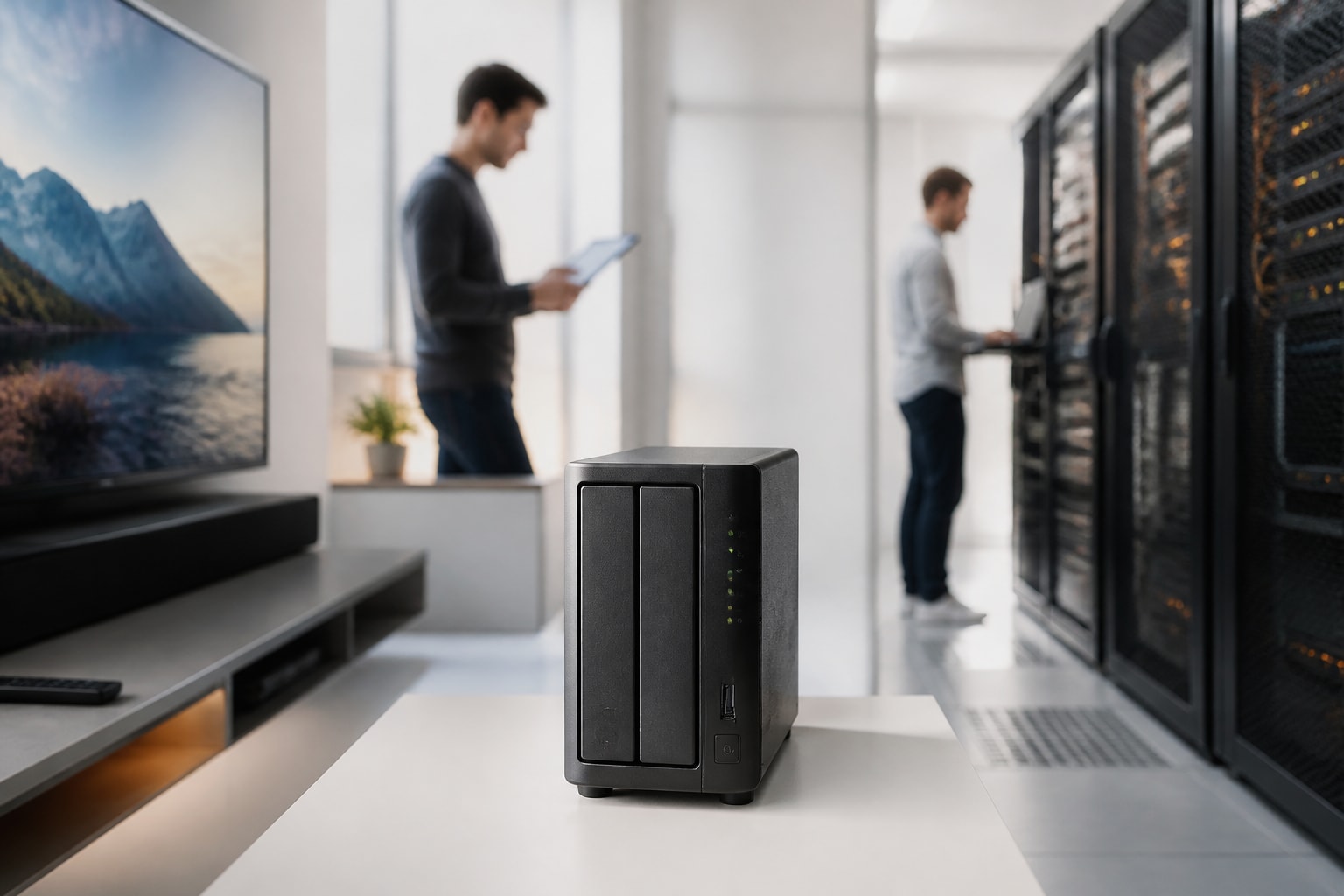
The ds214play is a two-bay Synology NAS from 2013, built mainly for streaming and sharing media at home or in a small office, and it remains usable for light file storage today. However, its ageing hardware and software support mean it is no longer a sensible foundation for business-critical data. This guide explains how to set it up, what it does well and where its limits now lie.
What the Synology DS214play Is
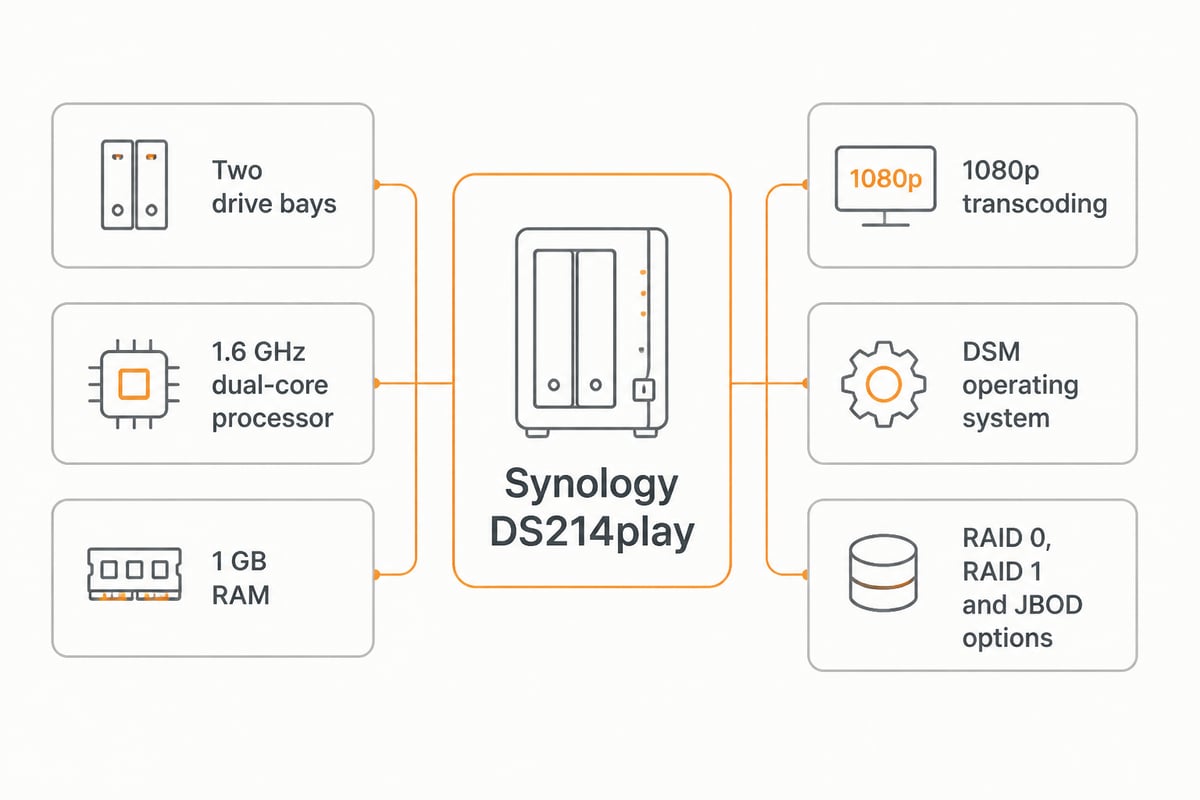
The Synology DS214play is a compact network attached storage unit with two drive bays, aimed at multimedia use rather than heavy office workloads. According to Synology's own announcement, it uses a 1.6 GHz dual-core processor and 1 GB of RAM. Furthermore, Synology advertised on-the-fly 1080p Full HD video transcoding as its headline feature.
In practical terms, the DS214play was positioned as a family-oriented device. Therefore, it was designed to store photos, music and films, and then deliver them to televisions, tablets and phones across a home network. A technical review at StorageReview covers the two-bay hardware, memory, processor and supported streaming use cases in more detail.
Key specifications at a glance:
- Bays: two, supporting RAID 0, RAID 1 or JBOD configurations
- Processor: 1.6 GHz dual-core
- Memory: 1 GB RAM
- Headline feature: 1080p transcoding for compatible playback devices
- Operating system: DiskStation Manager (DSM), Synology's browser-based interface
How to Set Up a DS214play Step by Step
Setting up a DS214play follows five stages: hardware installation, network connection, DSM installation, storage pool creation and user configuration. Nevertheless, a careful approach at each stage prevents data loss later.
- Install the drives. Fit two compatible 3.5-inch or 2.5-inch drives into the bays. Using two identical drives is advisable if you intend to run RAID 1.
- Connect the unit. Attach the power adapter and an Ethernet cable to your router or switch, then press the power button.
- Find the NAS on your network. Open the Synology discovery tool or use the browser-based finder to locate the device on your local network.
- Install DSM. Follow the guided installation, which downloads the operating system and formats the drives. Consequently, any existing data on those drives will be erased.
- Create a storage volume. Choose RAID 1 for redundancy or JBOD for maximum capacity. Afterwards, create shared folders and user accounts with appropriate permissions.
Change the default administrator account name, enable two-step verification and set a strong password straight away. In this regard, a dedicated password manager helps; the vBoxx article on commonly used passwords shows why weak credentials remain such a persistent risk.
What the DS214play Does Well
The DS214play handles media streaming, simple file sharing and basic backup competently for a device of its generation. In addition, its DSM interface remains easy to navigate, even for users without a technical background.
Media streaming and transcoding
Transcoding converts video files on the fly so that devices with limited format support can still play them. Synology advertised 1080p transcoding for the DS214play, and this was its main selling point. Nevertheless, a review in Home Cinema Choice found that compatibility could vary by playback device, and that DTS audio did not stream in that review's test. Treat this as a review-era observation rather than a universal rule, because results depend on your client devices and software versions.
File speeds
Synology reported RAID 1 read and write speeds of over 110 MB/s and 100 MB/s respectively in a Windows environment. These are manufacturer test claims, however, and not guaranteed real-world results. In reality, speeds depend on your drives, network and file types, so small files in particular will transfer more slowly.
Everyday sharing and backup
The DS214play also works as a modest file server for photos, documents and scheduled backups of a few computers. It supports standard sharing protocols, which means Windows, Mac and Linux devices can all connect.
Limits of the DS214play in 2026
The main limits of the DS214play are its processor and memory, its end-of-life software status and its lack of modern business features. Therefore, the device suits personal media tasks far better than commercial workloads.
| Area | Limitation |
|---|---|
| Processing power | A dual-core CPU with 1 GB RAM struggles with multiple simultaneous users or heavy packages |
| Software support | The device is no longer a current model, so check which DSM versions it supports before upgrading |
| Video | Modern formats such as 4K and newer codecs are beyond its design |
| Resilience | Two bays and a single unit offer limited protection against hardware failure |
| Security | Older hardware receives fewer updates, which raises exposure over time |
Regarding software support, Synology's DSM release notes include model-support lists that name the DS214play in historical compatibility entries. However, you should check the specific release and model list on that page before assuming any upgrade is available. In addition, a device without current security patches should never be exposed directly to the internet.
Furthermore, RAID is not a backup. A RAID 1 mirror protects against a single drive failure, but it does not protect against deletion, ransomware, fire or theft. For that reason, any data you cannot afford to lose needs a separate, offsite copy.
Why Is a Synology NAS Slow?
A Synology NAS is usually slow because of network bottlenecks, ageing hardware or an overloaded processor, and the DS214play is vulnerable to all three. Nevertheless, several fixes are worth trying before replacing the device.
- Check the network. A 100 Mbit/s port, a poor cable or a congested Wi-Fi link will cap speeds well below what the NAS can deliver. Use a Gigabit wired connection.
- Review running packages. Indexing, media scanning and surveillance tasks consume the limited 1 GB of RAM. Consequently, disable anything you do not use.
- Inspect the drives. Failing or very slow drives drag down the whole volume, so check their health status in DSM.
- Avoid concurrent heavy tasks. Transcoding while backing up and indexing at the same time will slow everything down.
Many small files transfer far more slowly than a few large ones, because each file carries overhead. If the device remains sluggish after these checks, the hardware itself has most likely reached its ceiling.
How Expensive Is It to Run a NAS?
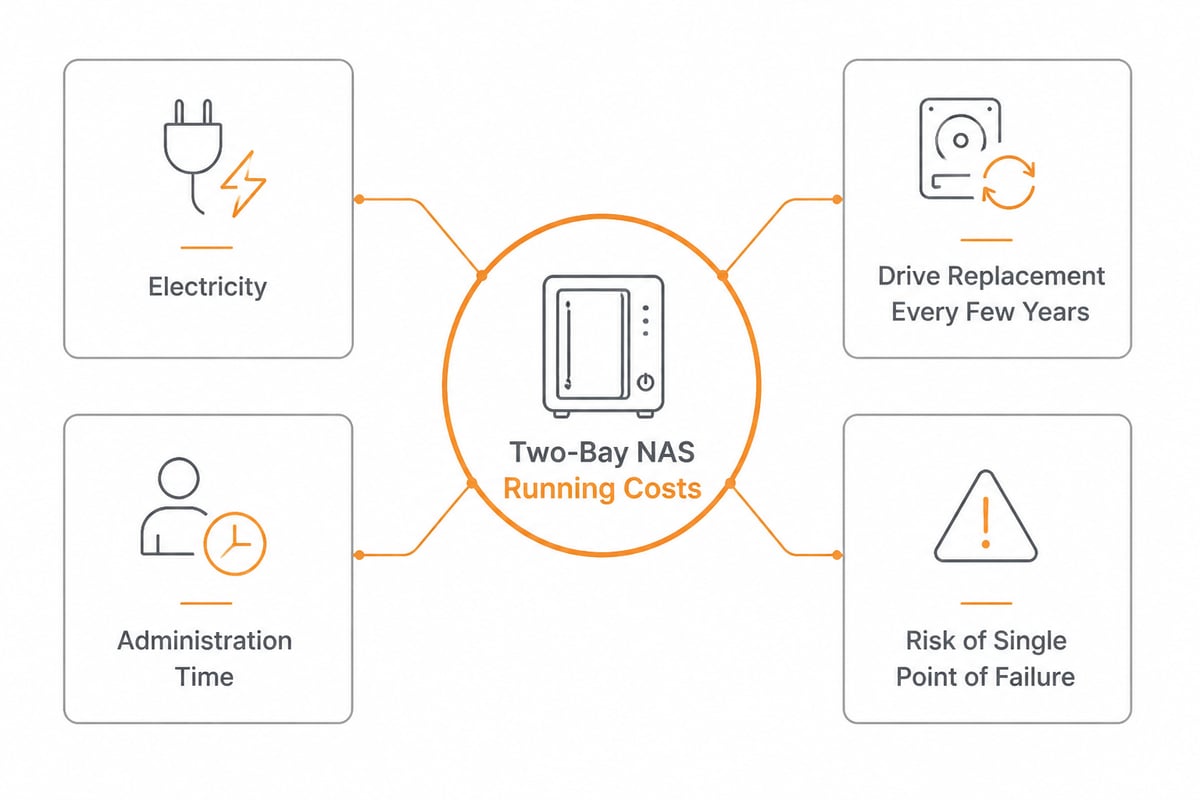
Running a two-bay NAS costs little in electricity, but the true cost includes drive replacement, time and the risk of data loss. In addition, older devices lack the energy-saving efficiency of current models, so the saving is smaller than it first appears.
The main running costs are:
- Electricity. A two-bay unit with spinning drives draws modest power, but it runs around the clock. Therefore, the annual cost depends on your local tariff and how often the drives spin down.
- Drive replacement. Hard drives wear out. Budget for replacements every few years, especially in a unit as old as the DS214play.
- Administration time. Updates, monitoring and troubleshooting take hours that a business could spend elsewhere.
- Risk. A single device in one location is exposed to theft, fire, power surges and hardware failure.
Consequently, many businesses now compare the total cost of owning hardware against a managed alternative. The vBoxx article on cloud-based storage for business sets out how that comparison works in practice.
Is the DS214play Suitable for a Business?
The DS214play is not suitable as the main storage system for a business, although it can serve a limited secondary role. Moreover, European businesses must also consider where their data lives and who can access it.
For a small office, the device might still handle a few reasonable tasks, such as archiving old project files on the internal network or acting as a local media server. However, it falls short in several respects that matter to organisations subject to the GDPR:
- It offers no guaranteed security patching on current terms.
- It has no built-in offsite replication, so a single site failure can destroy everything.
- It places the burden of access control, logging and auditing entirely on your own team.
- It cannot provide the availability commitments that a professional service offers.
Therefore, if the files on your NAS include customer data, financial records or contracts, it is wise to move them to a managed environment. For organisations that want to keep the Synology approach, vBoxx offers dedicated Synology NAS hosting on its own infrastructure, which removes the burden of maintaining ageing hardware. Likewise, the vBoxx guide to 4-bay NAS systems explains what a more capable configuration looks like.
Finally, security does not end with the device itself. For organisations that want an independent view of risk across IT and operational systems, Securing Things offers cybersecurity advisory and consulting services.
What Are Better Alternatives to a Synology NAS?
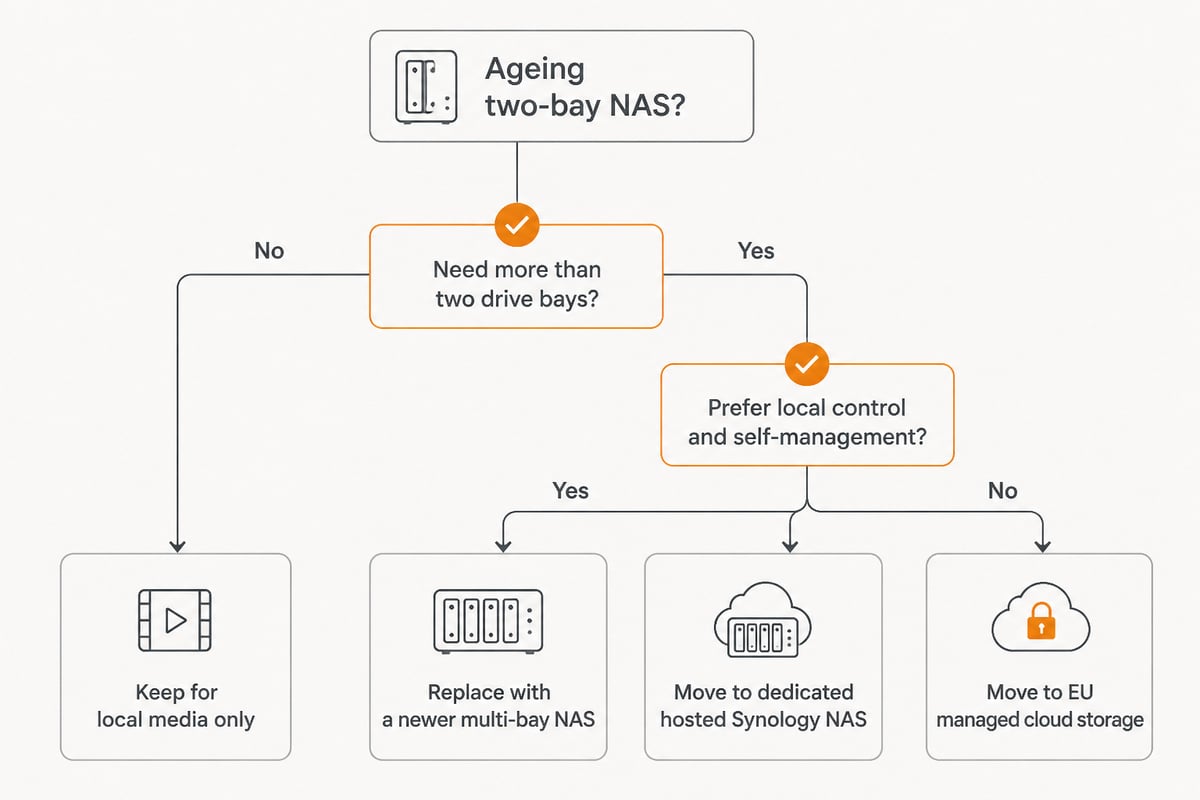
The better option depends on what you need: a newer NAS for local control, or a managed cloud service for resilience and compliance. In addition, a hybrid approach often works well.
A newer NAS
If you want to stay with on-premises storage, a current multi-bay model delivers far stronger processors, more memory and longer software support. As a result, it can handle more users, larger media libraries and modern backup tasks. The vBoxx overview of five-bay Synology systems shows how capacity and performance scale with bay count.
Managed cloud storage in the EU
For file sharing and collaboration, a European cloud service removes hardware maintenance completely. vBoxxCloud, for example, provides cloud storage, file sharing, eIDAS-compliant e-signing and AI-assisted document search, hosted on vBoxx's own infrastructure in the Netherlands. Because vBoxx is a European company outside the reach of the US CLOUD Act, data stays within EU jurisdiction. In addition, vBoxx holds ISO 27001 certification, audited by TÜV NORD, and offers a data processing agreement for GDPR purposes.
Hosted NAS and hybrid setups
Alternatively, dedicated Synology NAS hosting gives you the familiar DSM environment without the hardware ownership. Combining local storage with an offsite backup produces a resilient hybrid arrangement; the article on the advantages of hybrid cloud explains the principle.
How to Migrate Away from a DS214play Safely
Migrating from a DS214play is safest when you copy the data first, verify it and only then decommission the old unit. Consequently, never delete anything from the original device until you have confirmed the new copy is complete.
- Take inventory. List shared folders, user accounts, permissions and any installed packages.
- Copy the data. Transfer files to the new destination over a wired Gigabit connection. Large libraries take hours, so plan accordingly.
- Verify the copy. Compare file counts and sizes, and open a sample of files.
- Recreate access rights. Rebuild users and permissions deliberately rather than copying them blindly.
- Retire the old unit. Securely erase the drives before recycling or reselling the hardware.
Nevertheless, a migration involves details that are easy to underestimate, such as permissions and application dependencies. vBoxx offers free migration services and personal support by phone, chat or remote session, which is useful for teams without a dedicated storage administrator.
Final Checks Before You Keep Using a DS214play
Keeping a DS214play in service is reasonable only with clear boundaries. Therefore, apply these checks before relying on it:
- Keep the device on the internal network and never expose it directly to the internet.
- Maintain a separate, offsite backup of anything important.
- Replace ageing drives proactively rather than waiting for failure.
- Limit it to non-critical media and archive duties.
- Reassess annually whether the hardware still meets your needs.
FAQ
Is the DS218+ still supported?
Support status depends on the DSM version and Synology's current lifecycle policy, so it should be verified rather than assumed. Check the model-support lists in the relevant Synology DSM release notes for the specific release you intend to run. The same applies to the DS214play, whose entries appear in historical compatibility lists.
Can the DS214play transcode 4K video?
No. Synology advertised 1080p Full HD transcoding for this model, and 4K is beyond what its processor was designed to handle. For 4K libraries, a newer device or playback on a client that supports the format natively is the better approach.
Is RAID 1 enough to protect my data on a two-bay NAS?
RAID 1 protects against the failure of a single drive, but it does not protect against accidental deletion, ransomware, fire or theft. Consequently, a separate offsite backup is still necessary for any data that matters.
If you are still running a DS214play, start today by copying its contents to a second location and checking that the copy opens correctly. From there, vBoxx can help you decide between dedicated Synology NAS hosting and EU-hosted cloud storage, with free migration services and personal support throughout; get a free trial to see how your files would work in a managed, GDPR-compliant environment.
{"@context":"https://schema.org","@type":"Article","headline":"Synology DS214play Guide: Setup, Features and Limits","description":"The Synology DS214play is a two-bay media NAS from 2013. See how to set it up, what it still does well and where its limits now begin.","image":["/assets/img/blog/e35a9175b1939717.jpg