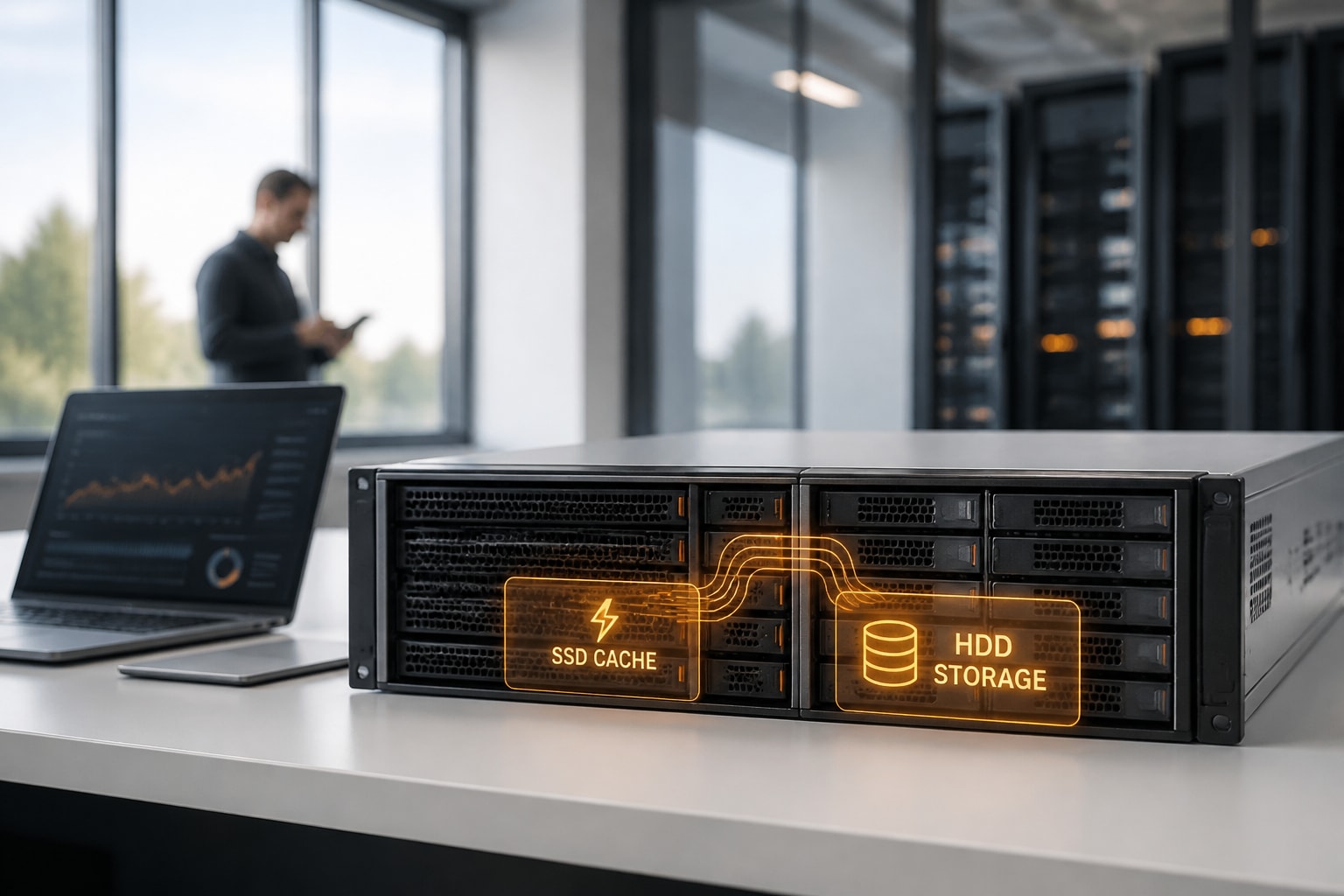
A Synology 5 bay NAS is a network storage device with five drive slots, and for most small and mid-sized businesses the current DS1525+ is the model to look at first. It offers more capacity and redundancy than a four bay unit, and it costs less than stepping up to an eight bay system. Therefore, the real question is rarely which five bay model exists, but whether five bays, a different bay count, or a hosted NAS is the right fit for your data, your budget and your compliance duties.
This guide compares the available options, explains which RAID configurations suit which workloads, and sets out the factors that decide between owning hardware and hosting it. In addition, it covers a point that spec sheets rarely address: how to plan for the day a drive fails.
What a Synology 5 Bay NAS Offers Over Smaller Models
A five bay NAS gives you one more drive slot than a four bay unit, which changes the economics of redundancy and the room available for growth. With four drives in a RAID 5 or SHR-1 layout, you lose 25 percent of raw capacity to parity. With five drives, you lose 20 percent. Consequently, the usable share of your investment rises without changing the protection level.
The extra bay also improves flexibility. A fifth slot lets you keep a drive in reserve as a hot spare, or use SHR-2 or RAID 6 for dual-drive fault tolerance while still retaining a reasonable amount of usable space. For businesses that previously outgrew a smaller unit, our overview of the Synology 4 bay range explains where that ceiling typically sits.
The practical benefits of five bays include:
- Better capacity efficiency than four bays at the same redundancy level
- Room for a hot spare without sacrificing usable storage
- Dual-drive fault tolerance that remains economical
- A stepping stone before the larger investment of an eight bay system
Nevertheless, five bays are not always the answer. A team that stores only a few terabytes of documents may find a Synology 2 bay perfectly adequate, while a business with heavy video or virtual machine workloads may need to look at eight bays or an expansion unit.
Current Synology 5 Bay Models Compared
The main five bay model in the current Synology Plus range is the DS1525+. PCMag lists the DS1525+ at an MSRP of $799.99, and identifies SHR, JBOD, RAID 0, 1, 5, 6 and 10 among its supported storage configurations. That breadth of storage configurations is the main reason the Plus series suits businesses rather than home users.
Older models still appear on the second-hand market and in existing offices, such as the DS1515 and its successors. If you manage one of these, our notes on the Synology DS1515 cover what to check before deciding whether to upgrade.
| Attribute | DS1525+ (current) | Older five bay units (e.g. DS1515) |
|---|---|---|
| Drive bays | 5 | 5 |
| Supported RAID types | SHR, JBOD, RAID 0, 1, 5, 6, 10 | Varies by generation |
| Expansion options | Expansion units supported | Limited or none on older models |
| Software support | Current DSM releases | May be nearing end of support |
| Best use | Small and mid-sized business file services, backup, virtualisation | Existing deployments awaiting replacement |
Before purchasing, confirm current drive compatibility lists, network port configuration and expansion support on Synology's product pages, because specifications change between hardware generations. Check that your chosen drives appear on the compatibility list, since this affects both support and warranty.
Choosing the Right RAID Layout for Five Drives
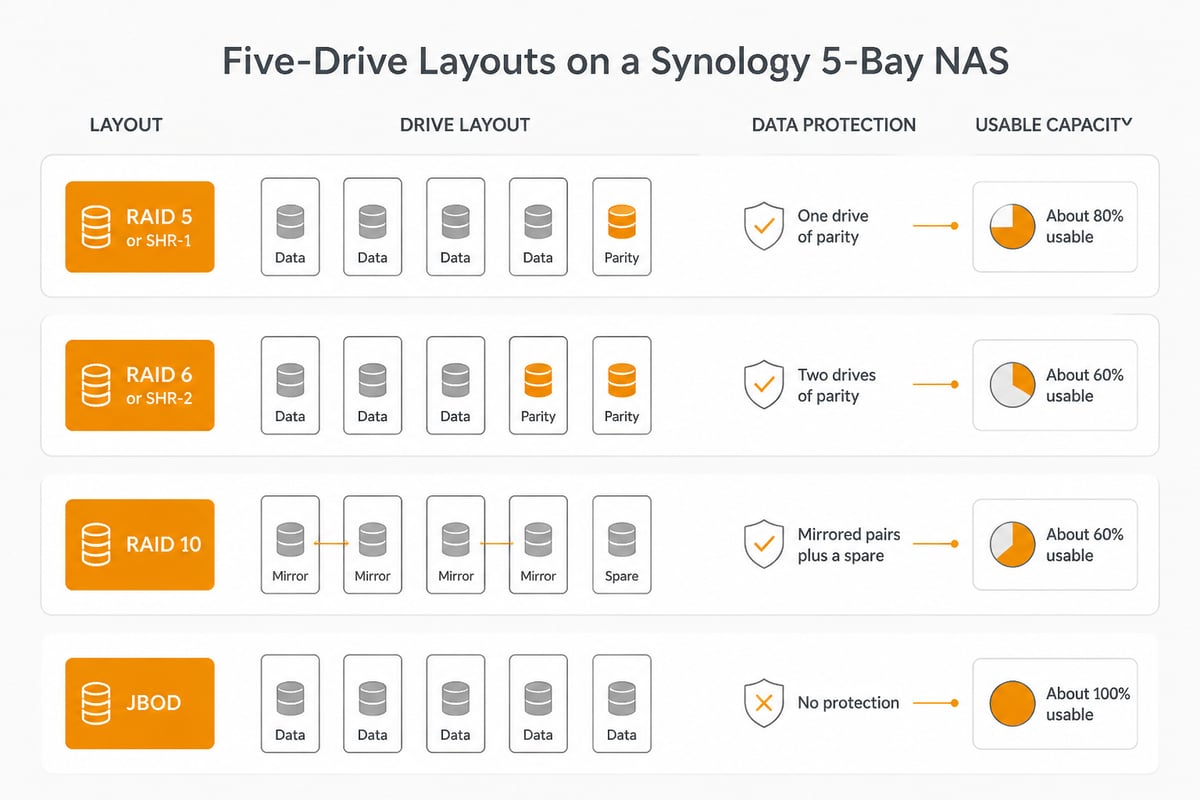
For most businesses, SHR-2 or RAID 6 is the safest layout on five drives, because it tolerates two simultaneous drive failures. SHR-1 or RAID 5 is acceptable when you also maintain a solid external backup and replace failed drives promptly.
The reasoning is straightforward. During a rebuild after a failure, the remaining drives are under heavy load, and a second failure at that moment would destroy a single-parity array. Therefore, larger drives, which take longer to rebuild, favour dual parity. Synology Hybrid RAID (SHR) adds the ability to mix drive sizes, which is useful when you expand gradually.
A brief guide to the main choices:
- SHR-2 or RAID 6: two drives of parity, around 60 percent usable capacity on five equal drives. Best for important business data.
- SHR-1 or RAID 5: one drive of parity, around 80 percent usable. Suitable where backups are strong and rebuild windows are short.
- RAID 10: mirrored pairs, which suits write-heavy workloads but wastes a bay on a five drive unit.
- JBOD or RAID 0: no protection. Appropriate only for scratch data that can be recreated.
RAID is availability, not backup. A deleted folder, a ransomware infection or a failed power supply that damages the volume can destroy all copies at once. Hence, a separate backup remains essential, a subject covered in more detail in our guide to Synology backup.
Planning Drive Capacity and Replacement for a Five Bay Unit
Plan for drive failure before you buy, because the replacement strategy affects both your uptime and your total cost more than the initial hardware price does. This is the point that most buying discussions omit.
Begin by buying drives in at least two batches, or from different production runs. Drives from the same batch, installed on the same day and subjected to identical workloads, tend to wear at similar rates. Consequently, a failure in one raises the likelihood of another soon after. Staggering purchases reduces that correlation.
Next, decide on a spare policy. Options include:
- A hot spare in the fifth bay: the array rebuilds automatically, though you give up one bay of capacity.
- A cold spare on the shelf: you retain all five bays for data and swap manually, accepting a longer exposure window.
- Hosted replacement: a provider handles the hardware, which removes the problem entirely.
Use drives designed for NAS workloads, such as those on Synology's compatibility list, and monitor SMART data through DSM. Finally, document who in your organisation is responsible for acting on an alert, since an alert that nobody reads provides no protection. Our guide to Synology NAS hard drive selection covers capacity and endurance in more detail.
Security and Ransomware Protection on a Synology 5 Bay NAS
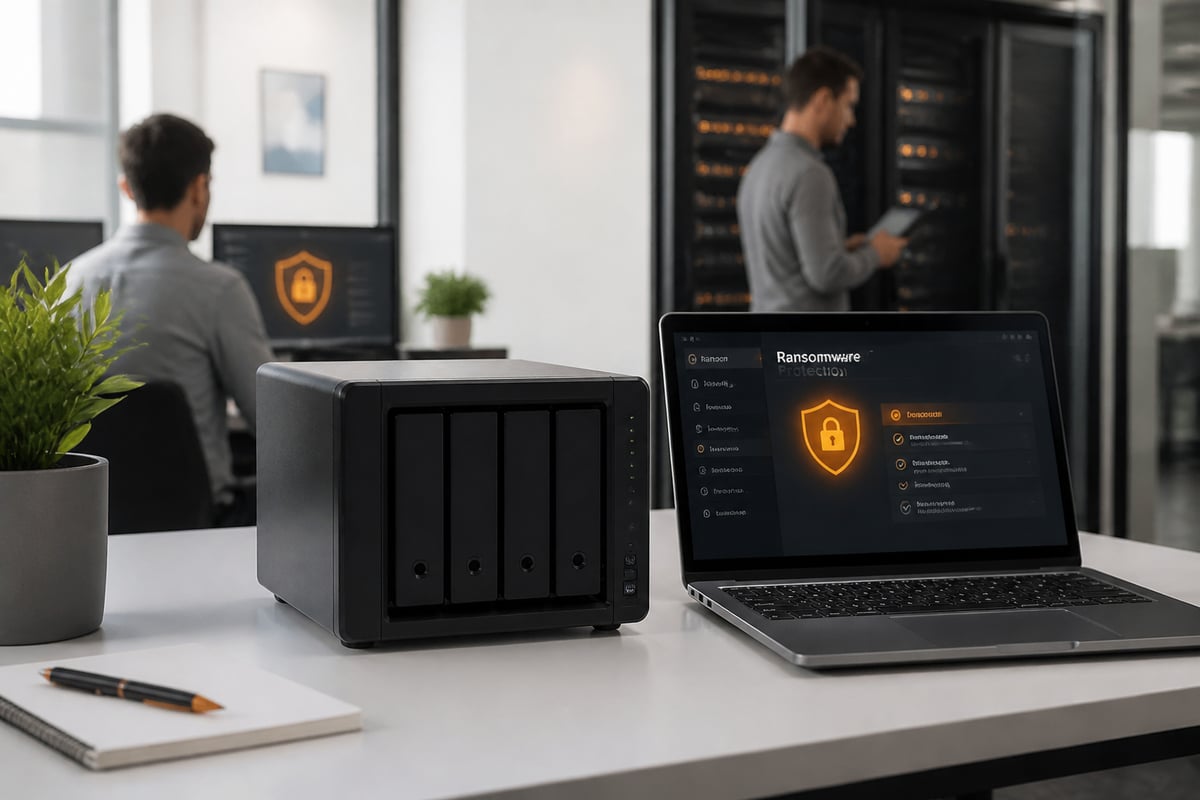
A Synology 5 bay NAS can be configured to withstand ransomware, but only if immutability, snapshots and access controls are set up deliberately. Default settings are not enough for a business that holds client or employee data.
Synology's DSM 7.2 supports WriteOnce shared folders with retention policies and immutable snapshots, intended to protect data against modification, deletion or compromised administrator credentials. This matters because attackers frequently target administrator accounts first. With immutable snapshots, even a compromised admin login cannot erase protected data inside the retention period.
Additional hardening steps include:
- Enabling two-factor authentication for every account
- Disabling default admin accounts and unused services
- Placing the NAS behind a firewall, and avoiding direct exposure of management ports to the internet
- Keeping DSM and packages updated
- Replicating snapshots to a second location
For European organisations, security extends to data location as well. Therefore, if your NAS stores personal data, you remain the controller under GDPR, with responsibility for access control, retention and breach notification. This is a significant operational burden for a small team, and it is one reason many businesses consider hosted alternatives.
Owning a Synology 5 Bay NAS Versus Hosted Synology NAS
Owning the hardware gives you maximum control, whereas a hosted Synology NAS gives you the same software platform without the maintenance burden. The right choice depends on who in your business can realistically look after the device.
Owning has clear advantages. You decide where the unit sits, you pay once rather than monthly, and local network transfer speeds are high. However, you also accept responsibility for power protection, cooling, firmware updates, drive replacement, off-site backup and physical security. If the office is affected by fire, flooding or theft, the NAS and any on-site backup may be lost together.
Hosting shifts those duties to a provider. vBoxx, for instance, offers dedicated Synology NAS hosting in its own Dutch data centres, with infrastructure maintained by its own engineers and monitored proactively. The vBoxx platform is ISO 27001 certified and operates outside the reach of the US CLOUD Act, which is relevant for organisations with strict data sovereignty requirements.
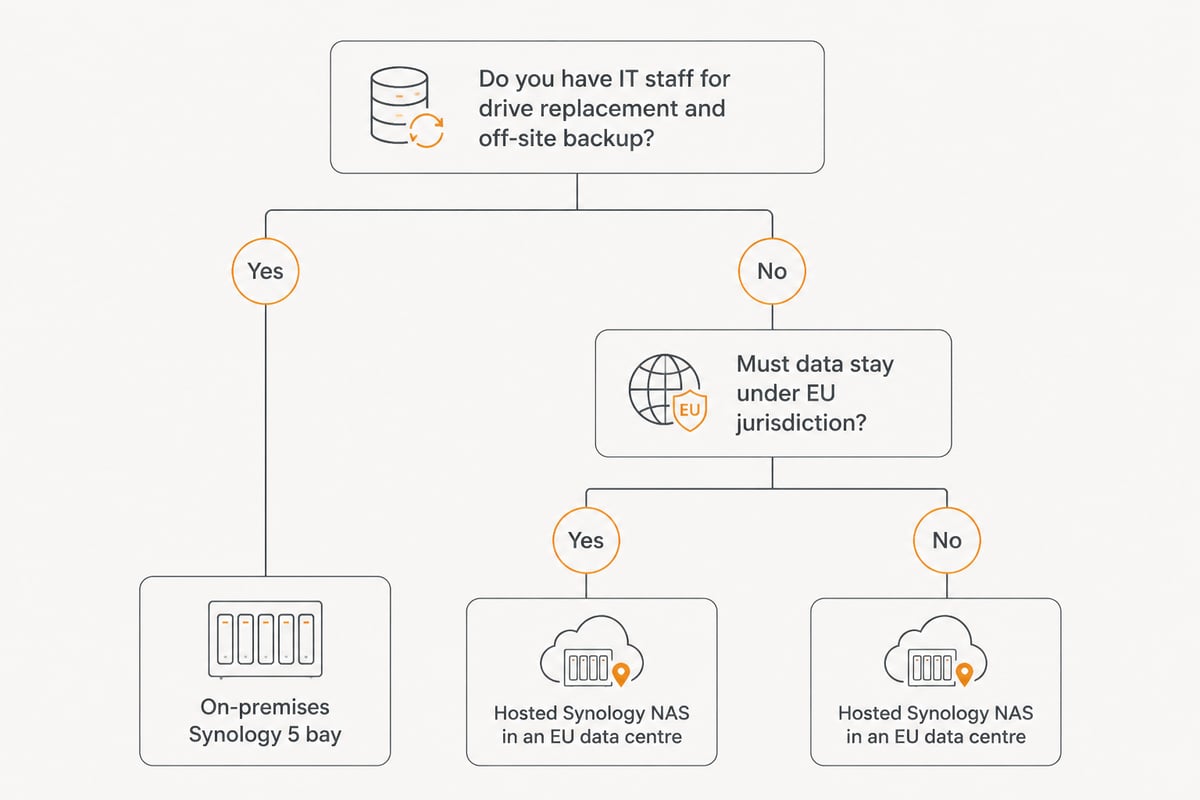
A practical rule is this. If you have a dedicated IT person, a second location for backups and a clear patching routine, owning is reasonable. If you lack any of those, hosting typically reduces risk and hidden labour costs.
Software, Workloads and What Five Bays Will Handle
A five bay Synology comfortably handles file sharing, backup targets, virtual machines and collaboration services for a small to mid-sized team. DSM includes the software for most of these tasks without extra licensing for the core features.
Typical workloads include:
- File server: shared folders with permissions, Windows and macOS access, and versioning through Synology Drive
- Backup target: for workstations, servers and virtual machines
- Photo and media storage: managed through Synology Photos
- Light virtualisation: development or testing environments
- Self-hosted services: such as code repositories, as described in our note on GitLab on Synology
A business that runs heavier workloads should consider memory upgrades and, where supported, SSD caching. Nevertheless, a NAS is a general purpose appliance. If your team needs polished collaboration, electronic signatures and document search across many users, a purpose-built cloud platform may serve better than building those capabilities on a NAS yourself. For example, vBoxxCloud provides GDPR-compliant business cloud storage with 256-bit AES encryption in ISO 27001-certified European data centres, along with eIDAS-compliant digital signing and AI-assisted document search, so teams can combine a NAS for bulk storage with a managed cloud for daily collaboration.
For organisations that are also introducing AI tools alongside their storage, Stellium Consulting offers AI-powered solutions as a Microsoft Solutions Partner, which may help in assessing how such tools interact with your data.
A Buying Checklist for a Synology 5 Bay NAS
Decide on capacity, redundancy, backup, compliance and support before choosing a model, and the hardware choice usually becomes obvious. Work through these steps in order.
- Estimate current data and three-year growth. Add a margin of at least 30 percent, since file volumes rarely shrink.
- Select the redundancy level. Choose SHR-2 or RAID 6 for critical data, SHR-1 or RAID 5 only with strong backups.
- Check network needs. Confirm port speeds match the number of users and the type of files, particularly for large media or virtual machine traffic.
- Plan the backup. Arrange an off-site or immutable copy that sits outside the NAS itself.
- Define compliance duties. Identify whether you process personal data and what your GDPR obligations require, including a data processing agreement where a provider is involved.
- Assign ownership. Name the person responsible for updates, alerts and drive replacement.
- Compare total cost. Include drives, spares, power, backup storage and staff time, not only the purchase price.
For further reading on adjacent decisions, our pieces on the Synology NAS range and on 4 bay NAS options help when the five bay unit proves larger or smaller than your requirement. In addition, if you manage a business with multiple sites, comparing a central hosted unit against several local devices often clarifies the cost picture.
Frequently Asked Questions
How much usable storage does a Synology 5 bay NAS provide?
Usable capacity depends on the RAID layout and drive sizes. With five equal drives, RAID 5 or SHR-1 gives roughly 80 percent of raw capacity, while RAID 6 or SHR-2 gives roughly 60 percent. For example, five 16 TB drives would provide about 64 TB usable under single parity and about 48 TB under dual parity.
Is a five bay NAS better than a four bay for a business?
A five bay offers better capacity efficiency and room for a hot spare or dual parity, so it usually suits growing businesses better. A four bay remains sensible where data volumes are modest and the budget is tight.
Can I use a NAS as my only backup?
No. A NAS provides availability, not independent backup. Keep at least one additional copy in a separate location, ideally with immutability enabled.
When does a hosted Synology make more sense than buying one?
Hosting makes sense when you lack in-house IT capacity, need data stored under EU jurisdiction, or want to remove hardware maintenance and off-site backup from your workload.
Start by listing your current data volume, growth rate and the person responsible for maintenance, because that short exercise shows whether a five bay unit or a hosted setup fits your business. From there, vBoxx can help with dedicated Synology NAS hosting in its own Dutch data centres, personal support by phone, chat or remote session, and free migration services, and teams that also need secure collaboration can add vBoxxCloud for sharing and e-signing. To see how this works in practice, get a free trial with vBoxx and test it against your own requirements.