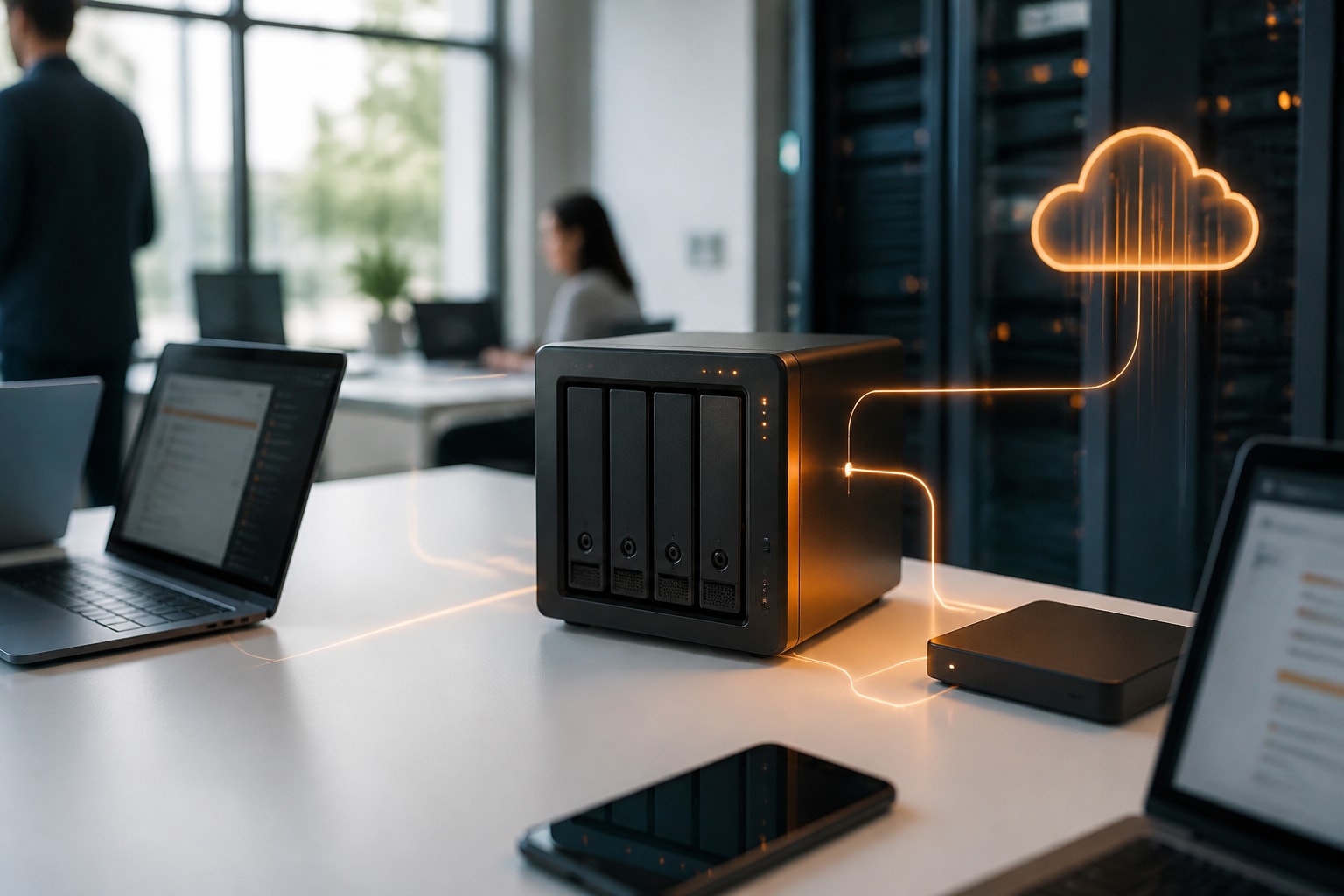
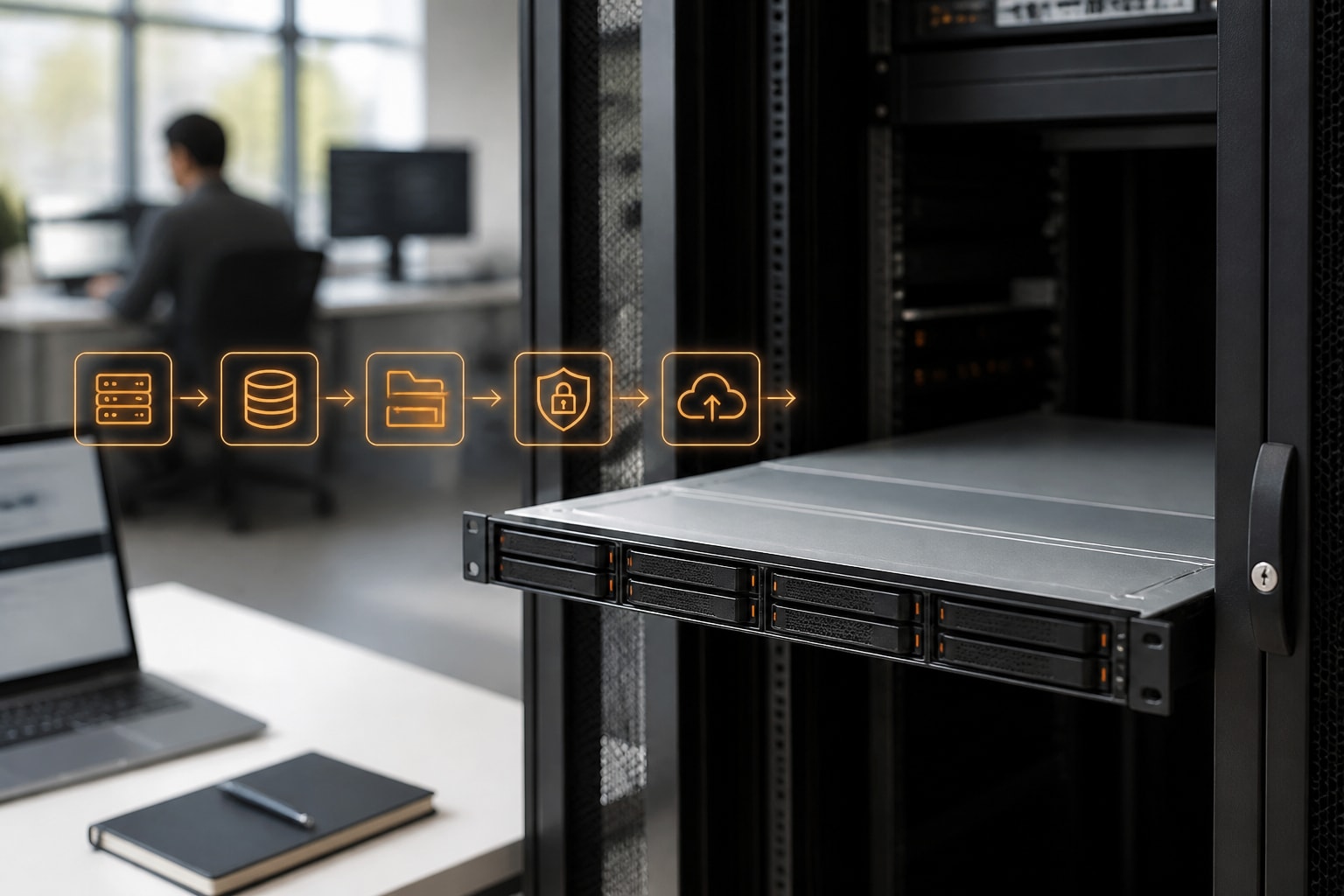
The Synology RS815 is a compact 1U, four-bay rackmount NAS that suits small and medium-sized businesses needing shared file storage, backup targets and light virtualisation in a server cabinet. It is an older model, so a successful deployment depends on realistic expectations, careful drive selection, a sound RAID layout and a security configuration that matches current standards. This guide covers all of these steps, with attention to GDPR and data-location questions for European organisations.
What the Synology RS815 Offers a Business
The Synology RS815 is a four-bay, 1U rack NAS designed for small offices and branch locations that need centralised file services without a full storage array. It is sold in variants, so confirm your unit's exact model number and check the official specification sheet before you plan capacity or upgrades.
Its main strengths are practical:
- A rack-friendly chassis that fits standard cabinets
- Four drive bays
- Support for Synology's DiskStation Manager (DSM) software, including file sharing, snapshots and backup tools
- Dual Gigabit Ethernet ports for link aggregation or failover
Its main limitations are equally clear. The hardware is older, so processor power, network speed and memory ceilings are modest compared with current rack units. Consequently, it fits file serving, backup targets and archive duties better than heavy virtualisation or databases with high input and output demands.
For comparison with other form factors, our overview of a rack-mounted Synology NAS explains where rack units make more sense than desktop models.
Planning Capacity, Drives and RAID Before You Install
Capacity planning starts with usable space, not raw drive size, because the RAID level you choose determines how much of your four bays you can actually use. Decide this before purchasing drives, as changing the layout later usually means moving all data off the unit.
Choosing the Right Drives
Use drives rated for NAS workloads, not desktop disks. NAS-rated drives tolerate the vibration of a populated rack and are designed for continuous operation. In addition, buy drives of identical capacity from the same product line, and ideally from different production batches, to reduce the chance of simultaneous failures. Always check the compatibility list for your exact model before ordering, since older units can be selective about supported drive firmware and capacities.
Selecting a RAID Level
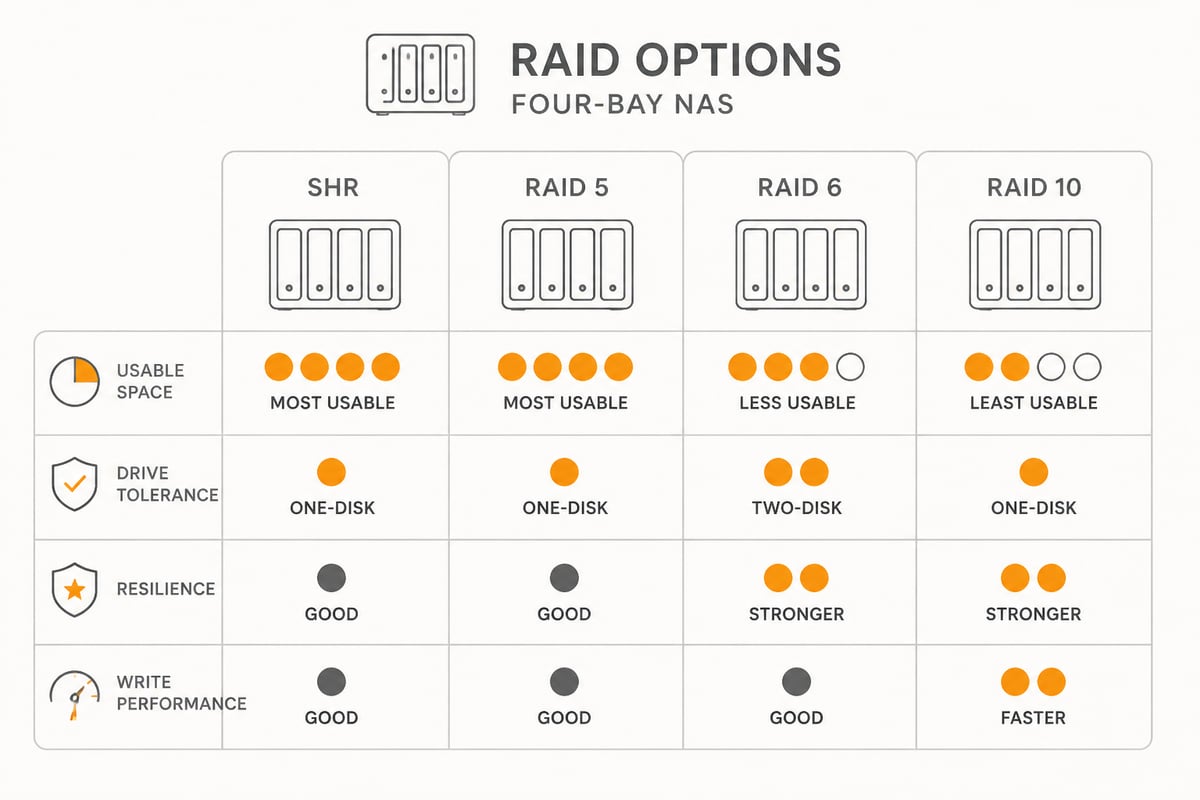
With four bays, the realistic options are few. The table below compares them on the same attributes, using four 4 TB drives as an example.
| RAID level | Usable capacity | Drive failures tolerated | Best suited to |
|---|---|---|---|
| SHR with one-disk protection | Roughly three drives' worth | 1 | Flexible growth, mixed drive sizes |
| RAID 5 | Roughly three drives' worth | 1 | General file serving |
| RAID 6 | Roughly two drives' worth | 2 | Larger drives, higher resilience |
| RAID 10 | Roughly two drives' worth | 1 per mirrored pair | Better write performance |
For most office file shares, RAID 6 or SHR with two-disk protection is the safer choice with large modern drives. Rebuild times on high-capacity disks can be long, and a second failure during a rebuild is a real risk. RAID is not a backup, however, and nothing in this table replaces a separate copy of your data.
Installing and Configuring the Synology RS815 Step by Step
A reliable installation follows a fixed order: rack the hardware, install the drives, install DSM, create the storage pool, and only then build shares and users. Following this sequence avoids rework and keeps the configuration auditable.
- Mount the unit. Fit the rails, secure the chassis and connect both power inputs to separate circuits if your variant has redundant supplies. Use a UPS so that power cuts do not corrupt volumes.
- Insert the drives. Install all four before first boot so DSM can offer the full layout during setup.
- Connect the network. Attach both LAN ports to your switch. Configure link aggregation if your switch supports it, or use failover for resilience.
- Install DSM. Use the Synology web assistant on a computer on the same network to install the latest DSM version supported by your model, then create the administrator account.
- Create the storage pool and volume. Select your RAID level, then create a volume using the Btrfs file system where available, since it provides snapshots and checksums that protect against silent corruption.
- Set a static IP address. Servers should not rely on DHCP leases that may change.
- Disable the default admin account and create named administrator accounts for each responsible person.
Update DSM and all packages before putting any real data on the system. The first working day on a new unit should end with a clean update status and a completed first backup.
Structuring Shares, Users and Permissions
A clean permission model prevents most of the accidents and breaches that NAS devices see in practice. Create shared folders by department or function, assign access through groups instead of individuals, and grant the minimum permission each group needs.
A workable pattern for a small business looks like this:
- One group per department, such as Finance, Sales and Operations
- One shared folder per group, with read and write rights limited to that group
- A read-only folder for company-wide documents
- A separate, restricted folder for administrators' backup and configuration exports
Enable recycle bins on shared folders so accidental deletions can be recovered. In addition, switch on snapshots for important shares. Snapshots capture the state of a folder at set intervals and let you roll back individual files after a mistake or after ransomware has altered them. They live on the same unit, however, so they complement an off-device backup rather than replace it.
Securing the RS815 for Business Use
Security on an older NAS depends on reducing exposure first and hardening second. Synology advises using a VPN for internet access to NAS file services, and if DSM must be reachable from outside, only the ports needed for the services in use should be opened, as set out in its ransomware prevention guidance.
Apply these measures in order of impact:
- Keep the NAS off the public internet. Do not forward ports directly to DSM. Use a VPN for remote access.
- Enable two-factor authentication for all administrator accounts.
- Turn on auto-block to stop repeated failed logins.
- Run Security Advisor. Synology explains that this tool scans your NAS configuration and reports risks with recommended actions, so schedule it to run regularly.
- Restrict services. Disable file protocols you do not use, such as FTP or Telnet.
- Review the wider hardening checklist in Synology's guide to adding extra security to a NAS, which covers account permissions, public ports and snapshots.
Nevertheless, be aware of one structural risk: once a model reaches the end of its software support period, security patches stop. Check Synology's current lifecycle information for the RS815 and plan its replacement before that point matters to your risk assessment.
How to Back Up a Synology RS815 Properly
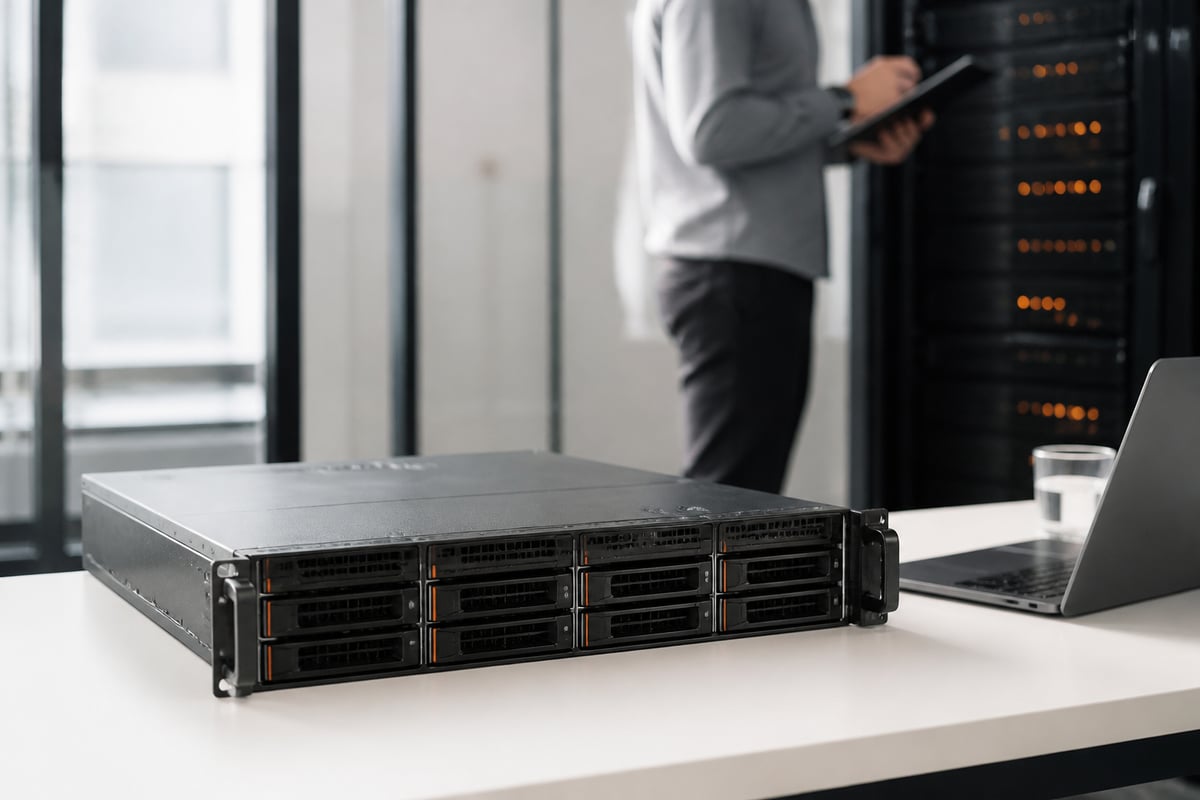
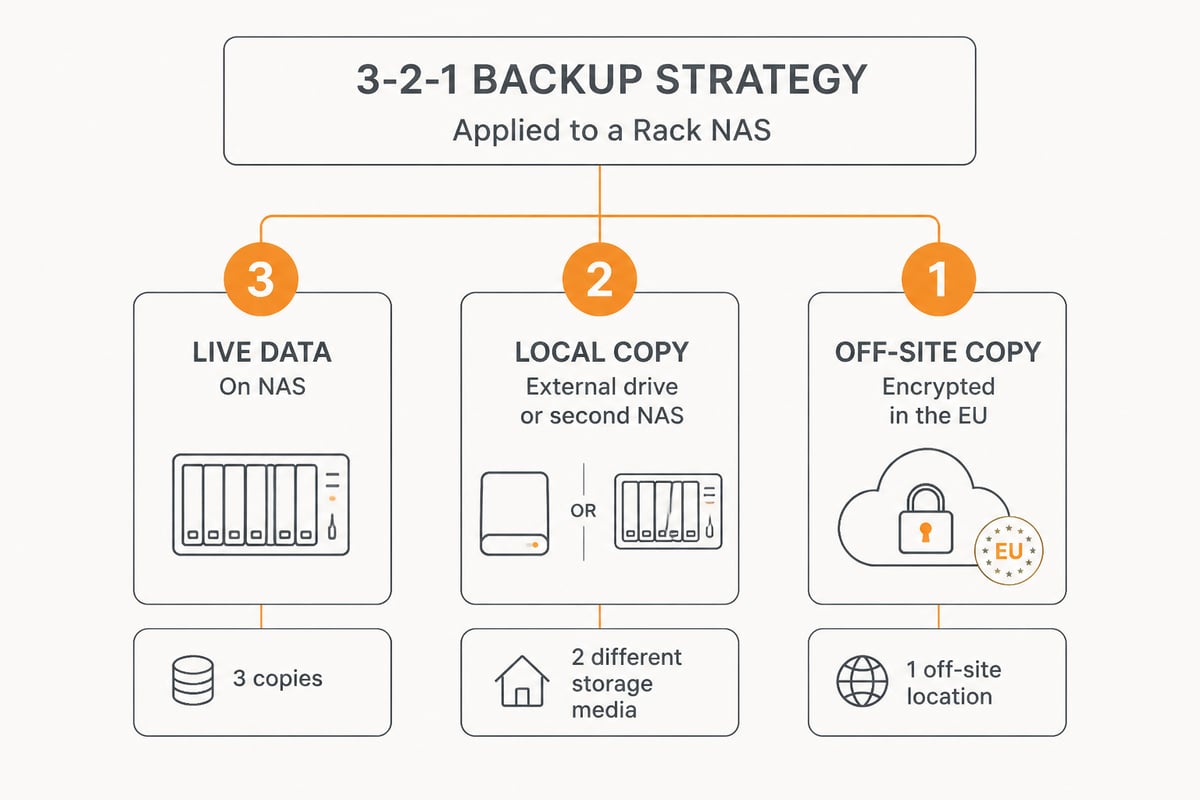
A NAS is a single point of failure unless its data exists somewhere else, so backup design should be settled before the first user saves a file. Synology recommends the 3-2-1 backup strategy: three copies of data on two storage mediums, with one copy off-site.
For an RS815 this typically translates into:
- Copy one: the live data on the NAS volume
- Copy two: a local backup, such as Hyper Backup to an external USB drive or a second NAS
- Copy three: an encrypted off-site copy in a location outside your own premises
DSM includes several tools for this work, including Hyper Backup, Snapshot Replication and USB Copy, all described in Synology's backup tutorial. Test restores at least quarterly, because an untested backup is only an assumption.
The off-site copy raises a jurisdiction question for European businesses. Sending backups to a provider subject to non-EU law can complicate GDPR obligations. If you want a destination that stays inside the EU, vBoxxCloud offers GDPR-compliant business cloud storage with 256-bit AES encryption in ISO 27001-certified European data centres in the Netherlands, outside the reach of the US CLOUD Act. For deeper reading on structuring copies, see our guide to Synology backup.
Performance Expectations and Why a NAS Feels Slow
A Synology NAS usually feels slow because of the network, the drives or the workload, not because the software is faulty. Gigabit Ethernet limits throughput per connection, so large transfers will not exceed that ceiling however fast the drives are.
Check these causes in sequence:
- Network path: a 100 Mbit switch port, a faulty cable or a mismatched link aggregation setting can silently halve speeds.
- Drive health: a failing disk, or a RAID rebuild in progress, slows every operation. Review SMART data in DSM.
- Many small files: thousands of tiny files transfer far more slowly than a few large ones.
- Indexing and background tasks: media indexing, antivirus scans and backups running during office hours compete with users.
- Memory pressure: running too many packages on a unit with limited RAM can slow it down.
Avoid asking the RS815 to do work it was never built for. Containers, video analytics or busy databases will strain this hardware, whereas file sharing, backup targets and archives suit it well. For ideas on matching workloads to hardware, our article on using a NAS as a server offers useful context.
How Long Does a Synology NAS Last?
A Synology NAS can remain useful for several years, though lifespan is set by three separate factors: the drives, the hardware and the software support period. Synology does not publish a single fixed lifespan, so treat any planning range as an estimate and not a guarantee.
- Drives are the most frequent failure point. Many businesses replace NAS-rated disks on a planned cycle, or sooner if SMART warnings appear.
- Chassis, fans and power supplies can outlast the drives, although fans and capacitors do age.
- Software support is the limiting factor for older models. When security updates end, continued use becomes a compliance and risk question, particularly for systems holding personal data.
A sensible policy is to schedule a periodic review, budget for replacement, and migrate in a planned way instead of reacting to a failure. For a view of when moving data off a local unit makes sense, read our article on hosted Synology options.
Is Synology Still a Good Choice for Business Storage?
Synology remains a well-regarded option for small business storage because DSM is mature, documentation is extensive and the backup and snapshot tooling is strong. However, whether it is the best choice depends on what you need.
On-premises NAS suits organisations that want physical control of data and have someone to maintain it. In contrast, a hosted platform removes hardware maintenance, patching and disaster recovery from your workload. Many businesses therefore run both, using the NAS as a fast local share and a hosted EU service for collaboration and off-site copies. Our general Synology overview outlines the product family and where each line fits.
FAQ
What are the specifications of the Synology RS815?
The RS815 is a 1U rackmount NAS with four drive bays and dual Gigabit Ethernet. Exact processor, memory and capacity limits vary by variant, so check Synology's official specification sheet for your model before purchasing drives or upgrades.
Can the Synology RS815 run current versions of DSM?
Support depends on the model and on Synology's lifecycle policy, which limits the DSM version an older unit can install. Check the download centre and lifecycle information for your exact variant, and plan a replacement before security updates end.
Is the RS815 suitable for storing personal data under GDPR?
It can be, provided you secure it properly, restrict access, keep it patched and maintain an off-site backup under a lawful arrangement. Where the unit no longer receives security updates, storing personal data on it becomes harder to justify.
Your next step is to log into DSM, run Security Advisor and confirm that your off-site backup follows the 3-2-1 principle before you add more data to the unit. If you want that off-site copy and your team collaboration to sit with a European provider, vBoxxCloud offers encrypted storage in ISO 27001-certified data centres in the Netherlands, operated by an EU company. A free trial of vBoxx lets you test EU-hosted storage alongside your existing NAS and see how it fits your own workflow.
{"@context":"https://schema.org","@type":"Article","headline":"Synology RS815 Setup Guide for Business Storage","description":"Plan, install and secure a Synology RS815 for business storage, from drive selection and RAID to backup and lifespan, with EU data-protection advice.","image":["/assets/img/blog/fe2187c2fb7f5eef.jpg