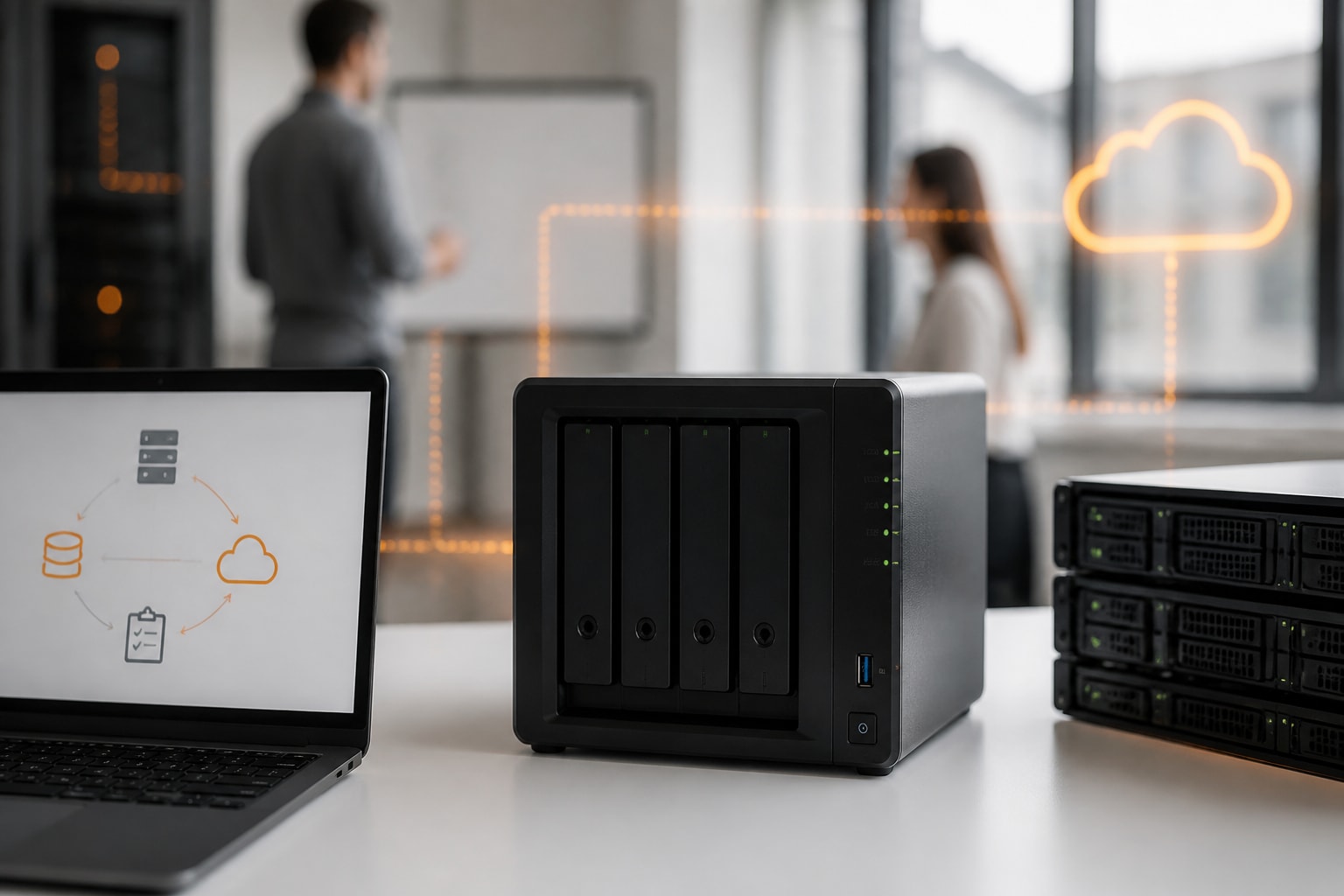

A 4 bay NAS is a network storage device with four drive slots, and for most small and medium-sized businesses it is the best balance between capacity, redundancy and cost. It holds enough disks to run a RAID array that survives a drive failure, while remaining compact enough for an office cabinet. Therefore, the real task is not finding the most popular model, but matching drive layout, processing power and security features to how your team actually works.
What Is a Good 4-Bay NAS for a Business?
A good 4-bay NAS offers a processor and memory suited to your workload, support for a RAID level that protects your data, and a reliable software platform with regular security updates. In addition, it should allow RAM upgrades, offer at least one 2.5 GbE or faster network port, and provide snapshot and backup tools. Price matters less than these fundamentals, because a cheap unit that stalls under load or lacks patches becomes an expensive liability.
Use this checklist when shortlisting models:
- Processor: an Intel Celeron or Ryzen-class chip suits file serving, whereas lighter ARM processors suit archiving only.
- Memory: 4 GB is a minimum, and 8 GB or more is sensible if you run virtual machines or containers.
- Network: 2.5 GbE ports are now common, and 10 GbE matters if several people edit large files simultaneously.
- Bays and expansion: four 3.5-inch bays, plus M.2 slots for SSD caching or a fast volume, offer the most flexibility.
- Software: snapshot support, user permissions, and a clear patch policy.
Consider the vendor's track record on updates. A NAS is a long-term investment, often remaining in service for several years, so ongoing software support deserves the same scrutiny as the hardware itself. For a closer look at one popular platform, our overview of a Synology 4-bay model covers typical business configurations.
Why Choose Four Bays Instead of Two?
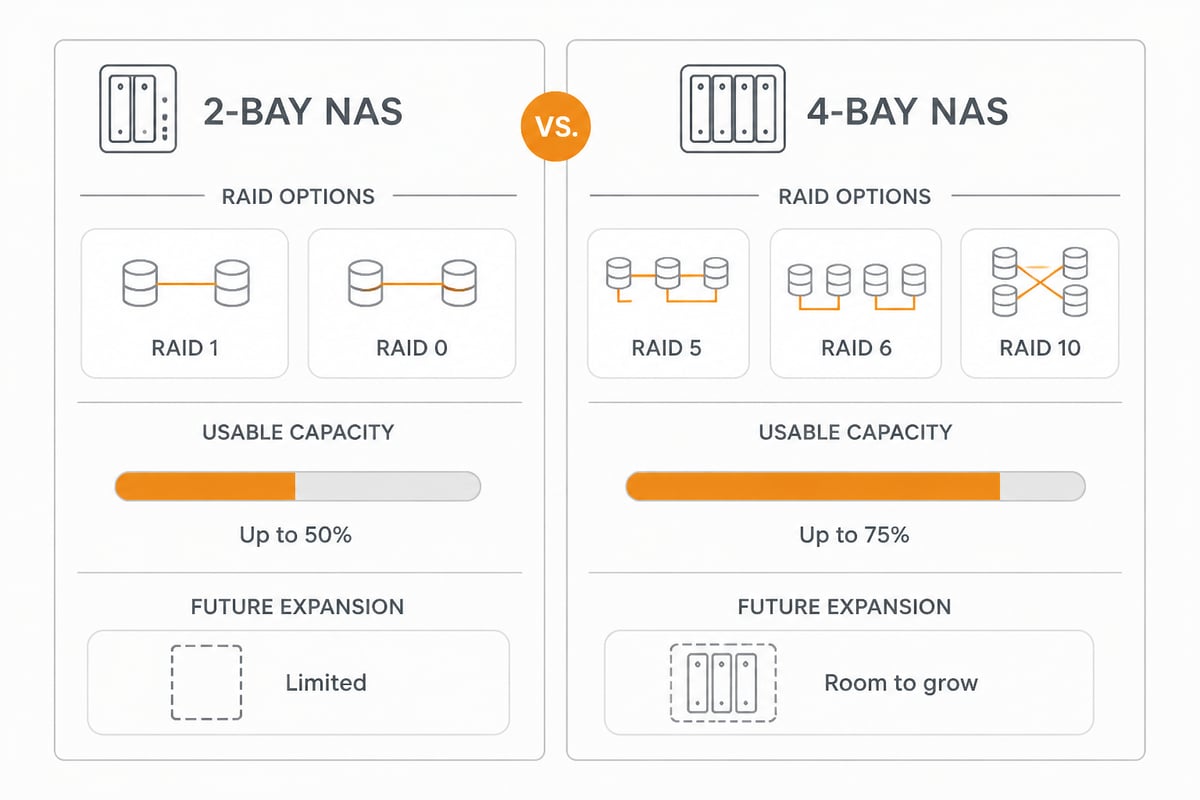
Four bays allow more capacity, better redundancy options and room to grow, which is why they are usually the better choice when a business expects its data to expand. A two-bay unit is limited to mirroring or striping, whereas four bays unlock RAID 5, RAID 6 and RAID 10. Consequently, you gain protection against failure without sacrificing half of your raw storage.
The practical differences are easy to summarise:
| Factor | 2-bay NAS | 4-bay NAS |
|---|---|---|
| Typical RAID options | RAID 1, RAID 0 | RAID 5, RAID 6, RAID 10 |
| Usable capacity at one-disk redundancy | 50% of raw | 75% of raw (RAID 5) |
| Scope to add capacity later | Limited | Considerable |
| Footprint and power draw | Smaller | Moderate |
| Typical use | Small team, basic backups | Growing team, shared projects |
However, a four-bay device is not always necessary. If your data fits comfortably on two large drives and will not grow quickly, a smaller unit may be sufficient. Our comparison of a 2-bay Synology explains where that cut-off tends to sit.
How Big Should a NAS Be?
A NAS should offer at least double your current data volume in usable capacity, because business data typically grows steadily and backups, snapshots and version history consume additional space. Begin by measuring what you store today, then add a realistic growth estimate for the next three to five years. As a result, you avoid buying capacity that is exhausted within eighteen months.
A practical sizing method follows these steps:
- Total the current data across file servers, workstations and archives.
- Add 30 to 50 per cent for annual growth, depending on how media-heavy your work is.
- Reserve space for snapshots and versioning, which can add 20 per cent or more.
- Convert the result into usable capacity, then work backwards to raw drive size using your chosen RAID level.
Hypothetical example: a team holding several terabytes of project files that expects steady growth would plan for usable capacity at least double its current volume, then work back to disk sizes using the RAID level chosen. Buying drives of identical size and model from the same specification family generally keeps performance consistent. If you are weighing individual disk sizes, the guide to an 8 TB NAS is a useful reference.
Which RAID Level Suits a 4 Bay NAS?
For most businesses, RAID 5 or RAID 6 is the right answer on a four-drive unit, while RAID 10 suits workloads that need faster writes. Your choice determines both usable capacity and how many disks may fail before data is lost. Therefore, decide this before purchasing drives, since changing the level later can be time-consuming.
RAID 5: balanced capacity and protection
According to QNAP's RAID documentation, a four-drive RAID 5 array tolerates one disk failure and provides usable capacity equal to three drives of the smallest size in the array. QNAP describes it as a balance of data protection, capacity and speed. Nevertheless, its performance guidance notes that RAID 5 suits general-purpose and sequential workloads rather than performance-demanding applications.
RAID 6: stronger protection for business data
RAID 6 needs at least four disks and tolerates two simultaneous failures, with capacity equal to the total minus two disks, as the same QNAP documentation explains. On four drives, that means usable space equal to two disks. In addition, QNAP recommends RAID 6 for critical data protection and business storage. This matters because large modern drives take many hours to rebuild, and a second failure during a rebuild is a genuine risk.
RAID 10: speed with mirroring
RAID 10 requires an even number of disks, uses half of the combined capacity, and can survive one failed disk in each mirrored pair. Consequently, it is the choice for databases, virtual machines and other write-heavy tasks, provided you accept the lower capacity.
Detailed behaviour during degraded states is set out in QNAP's RAID group reference, which is worth reading before committing to a layout.
How Do You Choose the Right Processor, Memory and Network Speed?
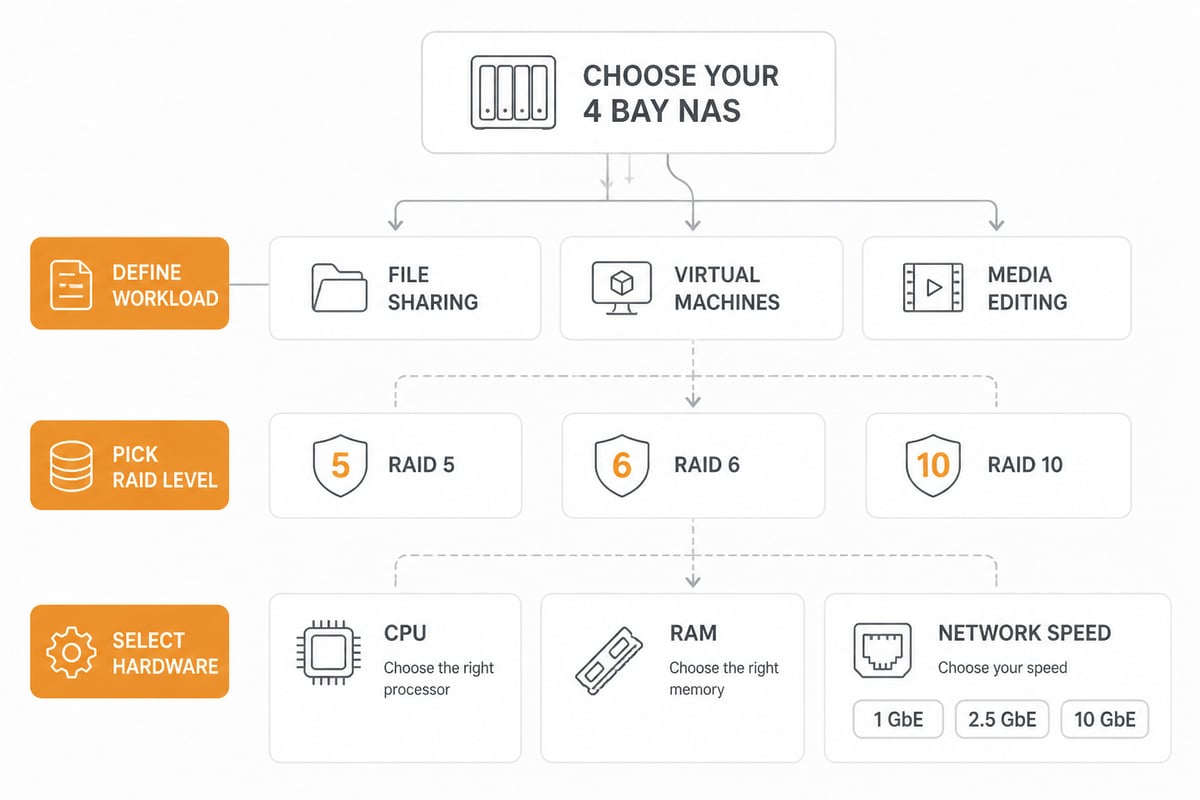
Match the hardware to the heaviest task you expect, not the average day. File serving for ten users needs little processing power, whereas video editing, virtual machines, or on-device indexing and photo analysis demand considerably more. Hence, workload definition should come before any model comparison.
- File sharing and backup only: an entry-level Intel or AMD chip with 4 GB RAM is adequate.
- Containers, virtual machines or surveillance: choose a quad-core processor and 8 GB RAM or more, ideally expandable.
- Large media files across multiple users: prioritise 10 GbE or link aggregation, plus SSD caching.
- Databases and mixed workloads: pair RAID 10 with M.2 cache drives.
Check whether the drive bays accept the disks you intend to buy. Some vendors restrict compatibility to their own branded drives, which affects both cost and warranty. For guidance on disk selection, see our notes on NAS hard drives, and for flash options, the overview of an SSD-based NAS.
Which Security Features Matter Most?
The most important security features are immutable snapshots, two-factor authentication, automatic patching and a firewall that limits remote access. A NAS holds your most valuable files, and an exposed device is a common ransomware target. Therefore, security configuration should be treated as part of the purchase, not an afterthought.
Synology publishes practical guidance on this subject, including extra security measures for NAS administrators, covering ransomware defences, immutable snapshots and write-once shared folders. In addition, apply these baseline measures:
- Disable default admin accounts and enforce strong, unique passwords stored in a password manager.
- Enable two-factor authentication for every user.
- Never expose the management interface directly to the internet.
- Turn on automatic updates, or schedule a monthly patch review.
- Keep snapshots on a schedule that allows rollback to a point before an infection.
Nevertheless, even a well-hardened device remains a single point of failure if it is the only copy of your data. That brings us to backup strategy.
Is a NAS Enough for Backup?
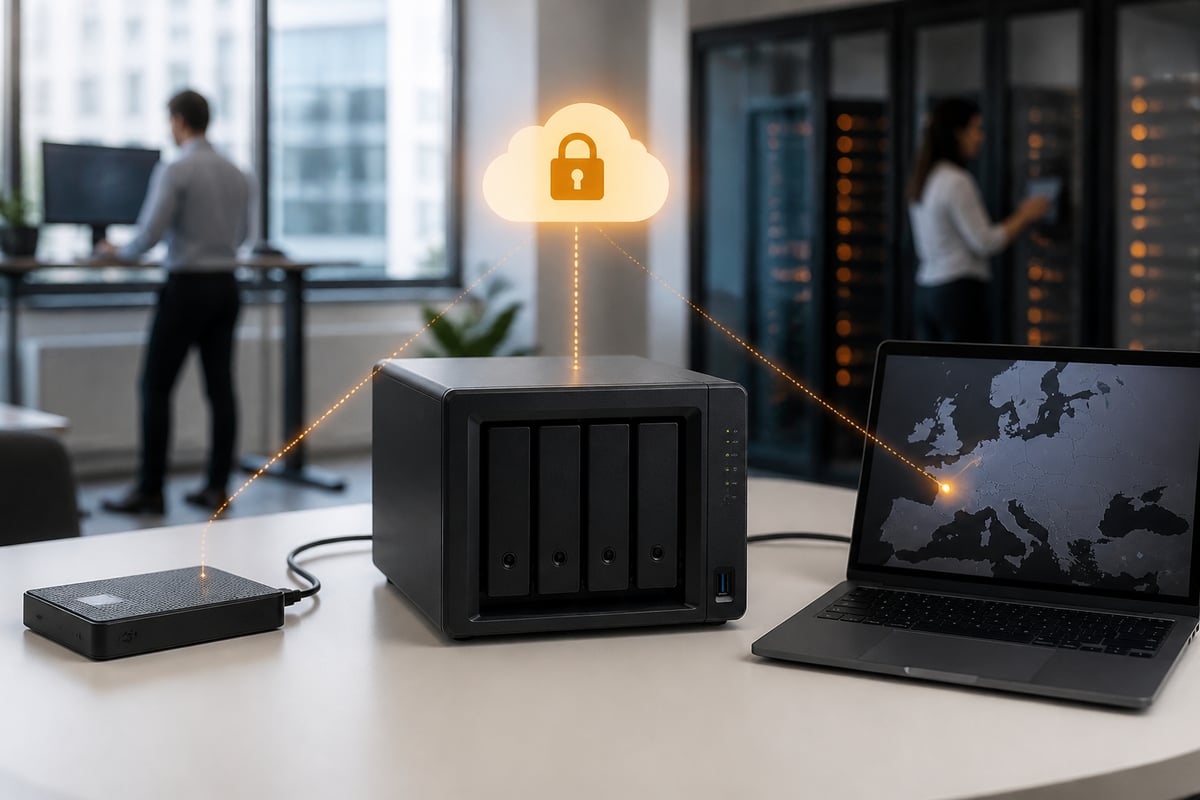
No, a NAS on its own is not a complete backup, because RAID protects against disk failure but not against fire, theft, accidental deletion or ransomware. Consequently, businesses should follow the 3-2-1 principle: three copies of data, on two different media, with one copy held off-site. A second NAS, a cloud target or both can fulfil the off-site requirement.
For European businesses, the location of that off-site copy deserves attention. Data stored with providers subject to non-EU jurisdiction can complicate GDPR compliance, so many organisations prefer an EU-hosted target. Our guide to NAS backup outlines practical approaches, from scheduled replication to cloud synchronisation.
In addition, a hybrid arrangement often works well in practice: the NAS serves as fast local storage for daily work, while a cloud platform handles external sharing, e-signing and document search. vBoxxCloud fits this role, offering GDPR-compliant storage with 256-bit AES encryption in ISO 27001-certified data centres in the Netherlands, outside the reach of the US CLOUD Act. As a result, staff keep the speed of local storage whilst clients and partners receive files through a controlled, auditable channel.
Should You Buy Hardware or Use Hosted NAS?
Buying hardware suits businesses with in-house IT capacity and a reason to keep data on the premises, whereas hosted storage suits those who prefer predictable operating costs and no maintenance burden. Both are valid, and the right choice depends on skills, budget and compliance requirements. Therefore, weigh the total cost of ownership rather than the purchase price alone.
Owning a unit means you handle drive replacement, firmware updates, power protection and monitoring. In contrast, a hosted arrangement transfers those responsibilities to a provider. vBoxx, for instance, runs its own in-house infrastructure in EU-owned and EU-operated data centres, with servers maintained by its own engineers, which can simplify a GDPR review. Further background is available in our pages on dedicated Synology NAS hosting and the broader discussion of a NAS system.
FAQ
Is QNAP as good as Synology?
Both vendors produce capable, well-supported business NAS devices, and the better choice depends on your priorities. Synology is often regarded as having polished software and straightforward administration, whereas QNAP often offers more hardware variety and port options, so compare models directly. Compare current models, update policies and the features you need before deciding.
Are NAS drives still worth it?
Yes, provided the NAS is configured with redundancy and backed up off-site. A NAS offers central file storage, user permissions, snapshots and local speed that consumer cloud accounts rarely match. However, it requires maintenance, so factor in administration time and replacement drives.
How long does a 4 bay NAS last?
The chassis and electronics can remain serviceable for several years, whereas hard drives are usually replaced sooner with continuous use. Monitoring drive health and keeping a spare disk reduce the risk of downtime.
Begin by listing your current data volume, number of users and heaviest workload, then use that list to shortlist two or three models and decide on your RAID level. If you would rather pair local storage with a secure, EU-hosted layer for sharing and archiving, explore vBoxxCloud for encrypted storage, e-signing and AI-assisted document search. With over 20 years of experience and personal support by phone, chat or remote session, vBoxx can help you plan a setup that suits your organisation, so get a free trial to see how it fits alongside your NAS.