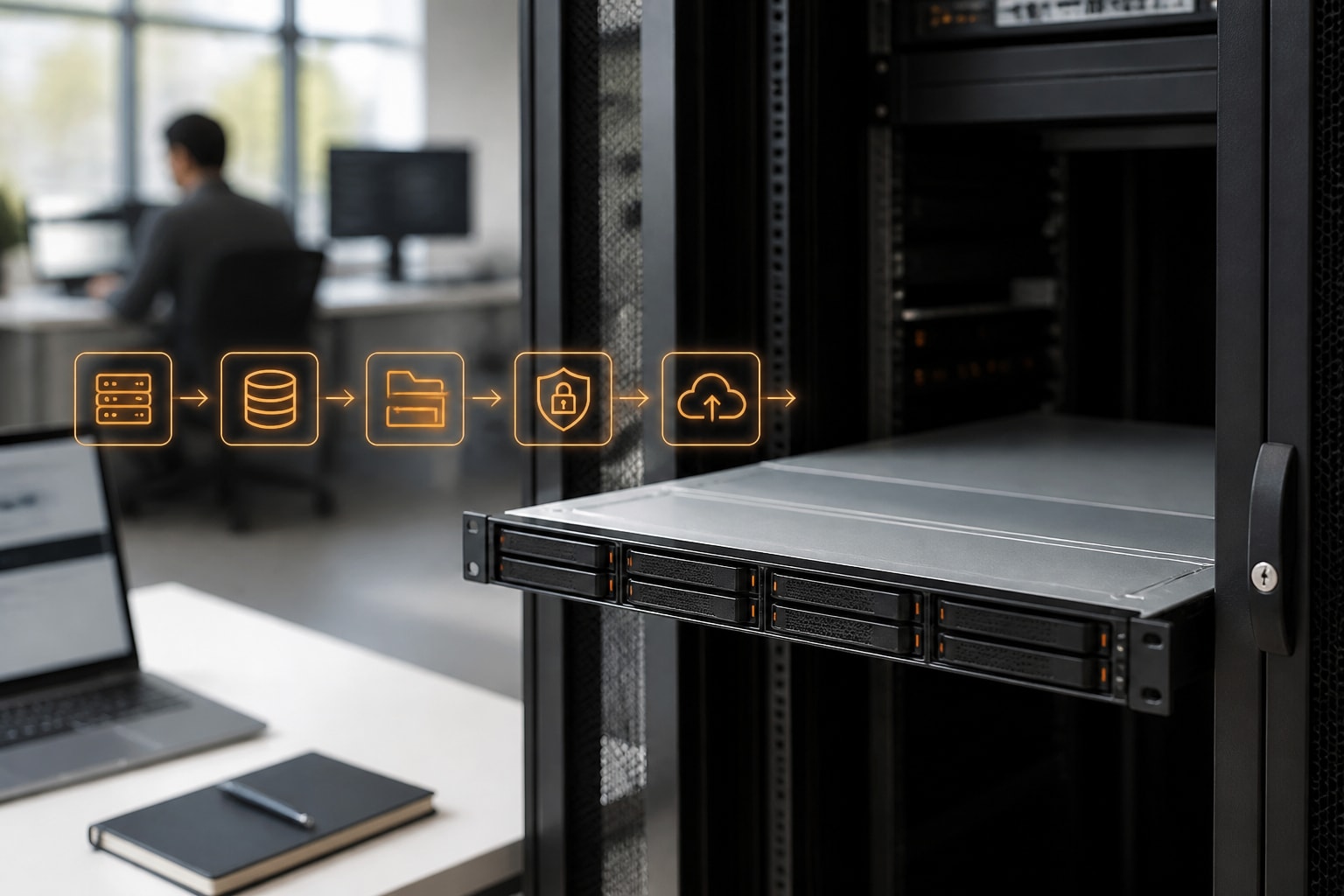
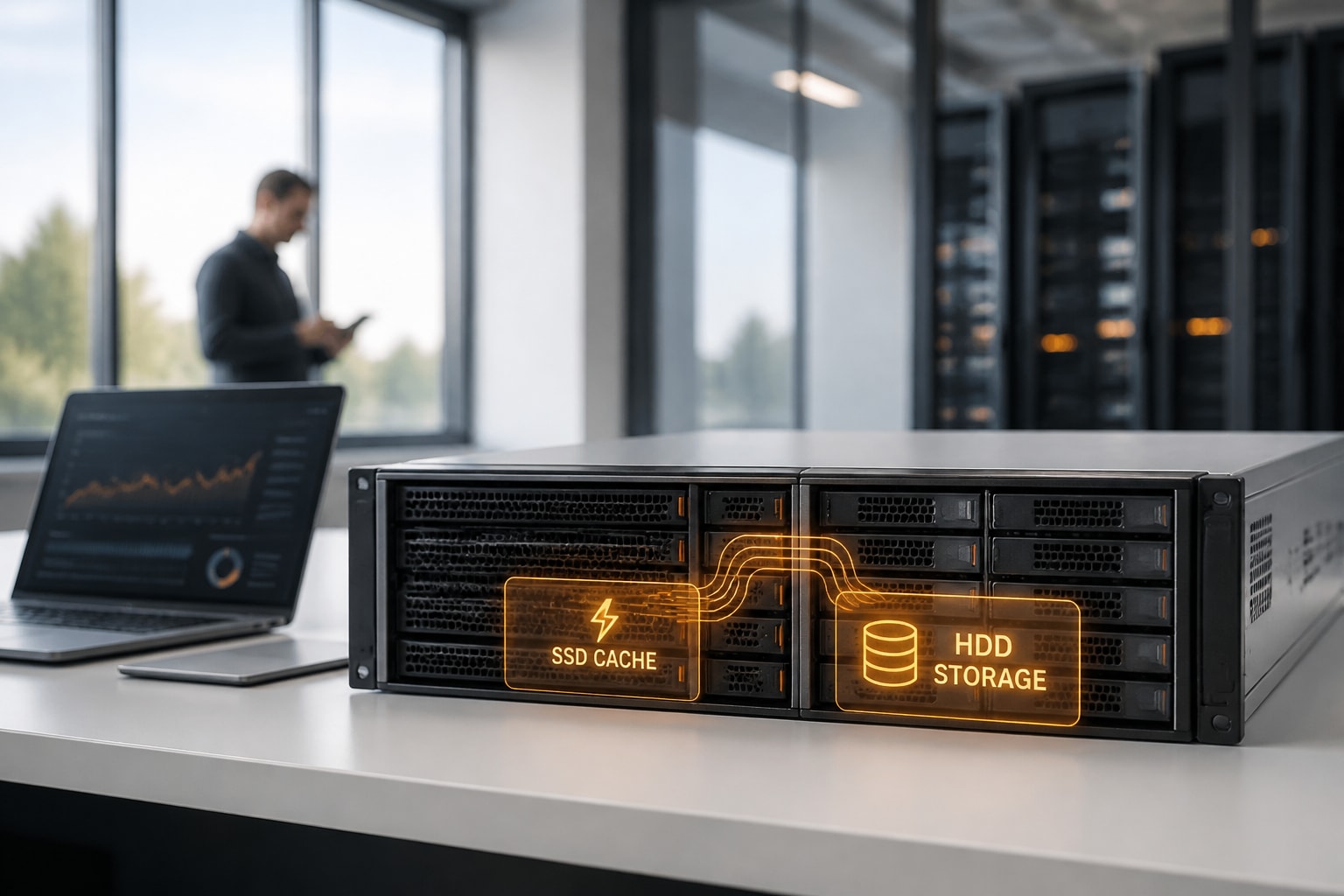
A NAS server SSD is a solid-state drive used inside a network attached storage device, either as fast primary storage or as a cache that speeds up a pool of hard drives. For most businesses, the best result comes from combining the two: hard drives for capacity, and SSDs where speed matters. Therefore, the right choice depends less on the drive itself and more on your workload, your NAS model and your budget.
Can You Use SSDs in a NAS Server?
Yes, you can use SSDs in a NAS server, and most modern business-grade NAS devices support them in at least one of three ways. The method you choose changes both the cost and the benefit.
- As standard storage volumes. Every drive bay accepts a 2.5-inch SATA SSD (and many accept 3.5-inch bays with an adapter), so an all-flash NAS is possible.
- As an SSD cache. One or more SSDs sit in front of a hard drive volume and hold frequently accessed data.
- As NVMe storage. Many current models include M.2 slots for NVMe drives, used either for cache or, on some models, for a dedicated storage pool.
An all-flash NAS is the simplest to understand, but it is also the most expensive per terabyte. In addition, a standard office network of 1GbE limits how much of an SSD's speed you can actually use, because a single gigabit connection is far slower than what modern SSDs can deliver. Consequently, speed gains from SSDs are most visible with multi-gigabit networking, many simultaneous users or small-file workloads.
NAS Server SSD or Hard Drive: Which Fits Your Workload?
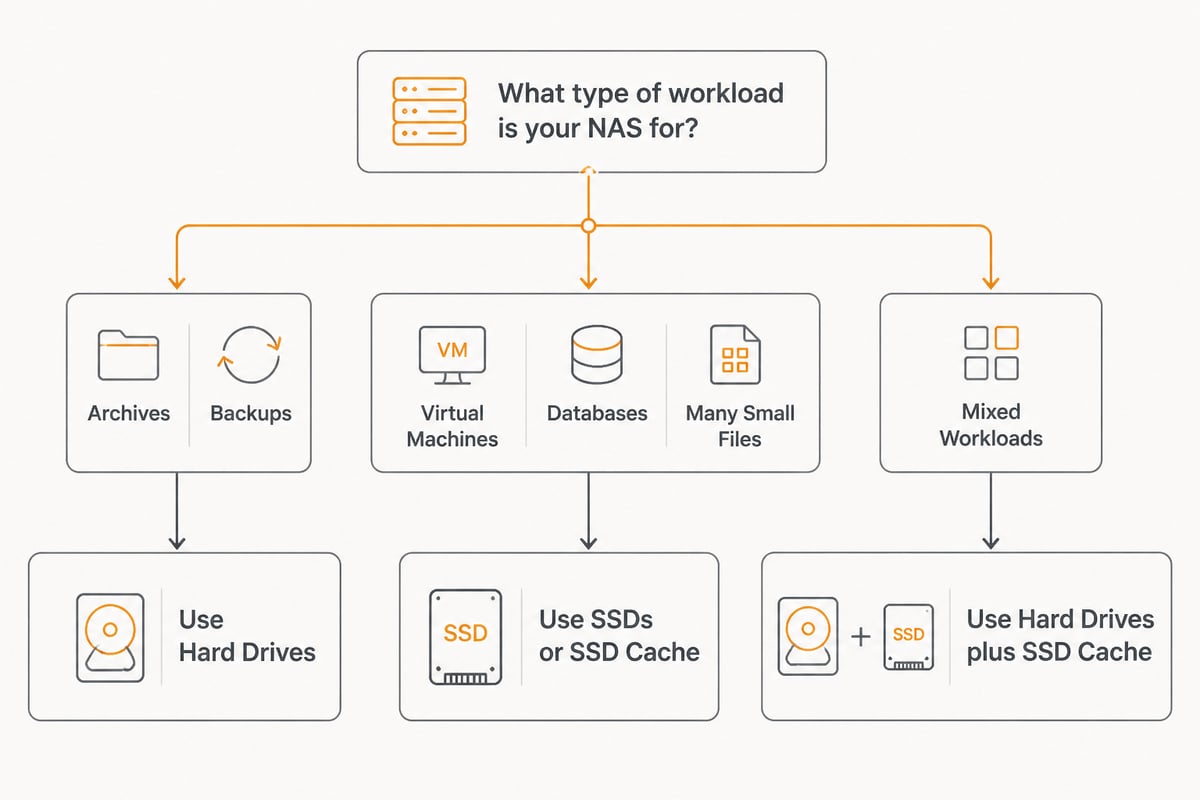
A hard drive suits large, mostly sequential data such as archives and backups, whereas an SSD suits small, random and latency-sensitive workloads. Nevertheless, most businesses need both, so the question is really how to divide the work.
| Workload | Better fit | Reason |
|---|---|---|
| Long-term archives and file history | Hard drives | Lowest cost per terabyte |
| Backup targets | Hard drives | Large sequential writes suit spinning disks |
| Virtual machines and databases | SSDs | Random input/output and low latency |
| Shared project folders with many small files | SSD cache or SSDs | Faster file listing and opening |
| Surveillance footage | Hard drives | Continuous writes, high capacity |
| Docker containers and application data | SSDs | Quick start-up and responsive services |
Power use and noise differ. SSDs draw less power and run silently, which matters in a small office where the NAS sits near workstations. Hard drives, however, remain the economical choice once capacity passes a few terabytes. For a deeper look at the storage side, the vBoxx guide to Synology NAS storage covers how pools and volumes are organised.
How Does SSD Cache Work on a NAS?
SSD cache stores copies of frequently used data on fast flash drives so the NAS can serve them without reading from slower hard drives. As a result, repeated reads feel quicker, and a modest SSD investment can improve a large hard drive pool.
There are two modes, and the difference matters for data safety:
- Read-only cache. Frequently read data is copied to the SSD. If the SSD fails, nothing is lost, because the original data remains on the hard drives. According to the Synology Knowledge Center, a read-only cache can use a single SSD.
- Read-write cache. Writes are also staged on the SSD before reaching the hard drives. Because unsynchronised data lives on the SSD for a time, the same source states that a read-write cache requires at least two SSDs for redundancy.
Therefore, if you want the safest and cheapest starting point, begin with a read-only cache. Subsequently, move to a mirrored read-write cache only if your monitoring shows heavy random writes. The Synology help documentation on SSD cache explains the RAID options and failure protection in more detail.
Does a cache help every workload?
No. Cache helps when the same data is read repeatedly, for example a shared folder that several colleagues open throughout the day. In contrast, large one-off file transfers and sequential backups gain little, because the data is rarely reused. For that reason, review your usage statistics before buying any drives.
Memory and Compatibility Checks Before You Buy
Before buying SSDs for caching, confirm that your NAS model supports cache and that it has enough memory to manage it. In addition, these checks prevent the common mistake of buying drives that the device cannot use fully.
The memory requirement is easy to overlook but is documented clearly. On DSM 7.0 and later, each 1 GB of SSD cache requires about 400 KB of system memory, while DSM 6.2 and earlier need about 416 KB per GB. Furthermore, Synology limits cache memory use to at most one quarter of built-in system memory, although add-on memory can also support cache creation.
A practical example makes this concrete. Consequently, a very large cache on a model with little RAM may be impossible to create, so adding memory can be a better first upgrade than adding a bigger SSD.
Finally, check whether your specific model supports the feature at all. Synology publishes a list of models that support SSD cache, and that list should be your first stop. For model-specific advice on flash options, see the vBoxx article on Synology SSD choices.
What to Look for in a NAS Server SSD
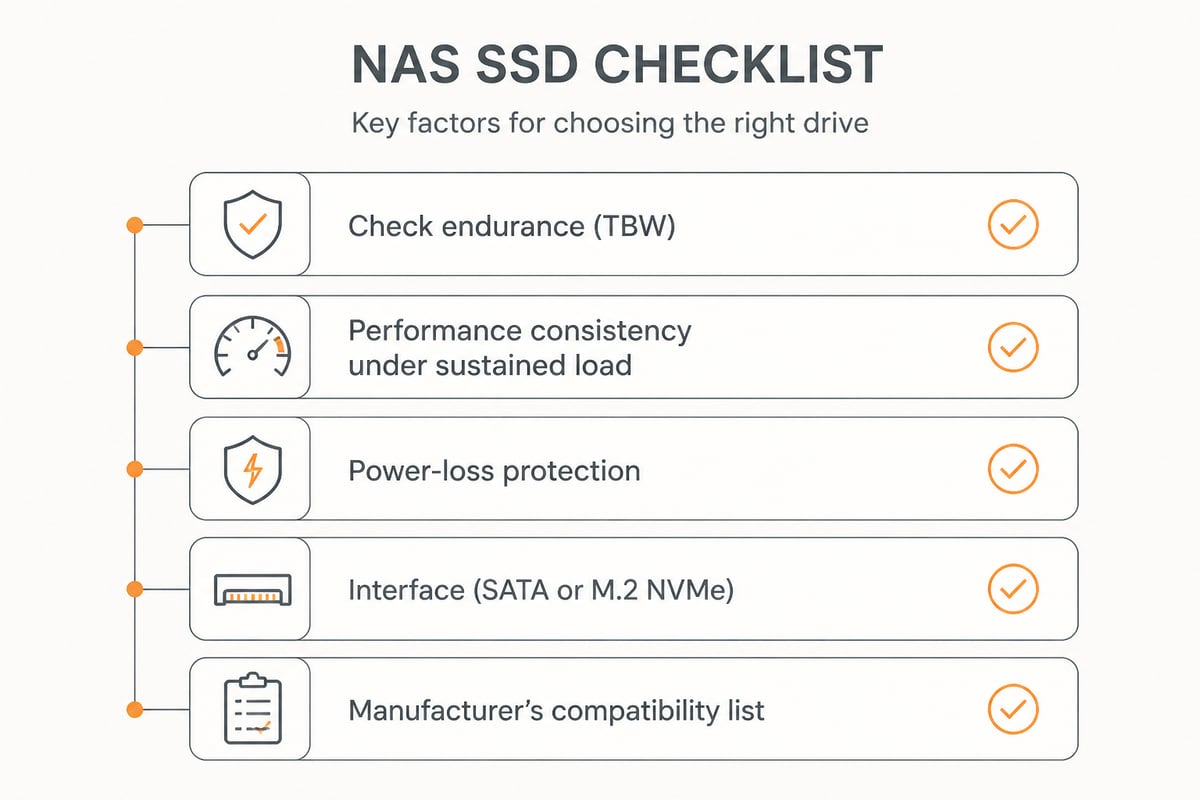
The most important qualities in a NAS server SSD are endurance, performance consistency and power-loss protection, rather than headline speed. Synology names these three as the key factors when selecting SSDs for NAS cache, according to its Knowledge Center.
Endurance
Endurance is the total amount of data a drive can write over its life, usually expressed as terabytes written (TBW) or drive writes per day. A cache takes constant writes, so a consumer drive designed for occasional use may wear out sooner than a drive rated for heavier duty. Therefore, compare the endurance rating rather than relying on capacity or sequential speed.
Performance consistency
A drive that is fast in a short benchmark but slows sharply once its internal buffer fills will disappoint under sustained load. For this reason, look for drives specified for steady performance under mixed workloads, which is typical of enterprise and NAS-oriented models.
Power-loss protection
If power drops during a write, data in the drive's volatile memory can be lost or corrupted. Power-loss protection uses onboard capacitors to finish pending writes. In addition, pairing the NAS with an uninterruptible power supply adds a second layer of safety.
Form factor and interface
- 2.5-inch SATA SSDs fit standard bays and suit all-flash volumes.
- M.2 NVMe SSDs fit dedicated slots and suit cache, provided your model has those slots.
- Official compatibility lists from the NAS manufacturer reduce the risk of warnings or unsupported-drive notices.
How Much Does a NAS Server SSD Setup Cost?
The cost of a NAS device varies widely, from a few hundred euros for a two-bay home unit to several thousand for a rackmount business model, and SSDs add to that total. Nevertheless, you can control spending by deciding early whether you need flash for storage or only for cache.
Instead of quoting prices that change by the week, consider the factors that drive the total:
- The NAS chassis. Models with more bays, faster processors, more memory and multi-gigabit ports cost more.
- Hard drive capacity. This is usually the largest part of the budget for archives and backups.
- SSD capacity and endurance rating. Higher-endurance drives cost more per gigabyte than consumer drives.
- Extras. Additional memory, a network upgrade and a power protection unit all belong in the plan.
Running your own hardware carries ongoing costs, including electricity, cooling, replacement drives and administration time. In contrast, a hosted option moves these items into a predictable service arrangement. The vBoxx article on the cost-conscious choice of NAS systems discusses these trade-offs further.

Hosting Your NAS Instead of Running It On Site
For European businesses that need GDPR-aligned storage, hosting a dedicated NAS in an EU data centre can remove the need to manage drives, power and cooling yourself. In addition, it keeps data under European jurisdiction, which matters when compliance obligations apply.
vBoxx offers dedicated Synology NAS hosting, run on its own infrastructure in data centres in the Netherlands. The infrastructure is EU-owned and EU-operated, ISO 27001 certified and audited by TÜV NORD, and data, metadata, backups and support tooling stay inside the EU. A data processing agreement is available, and servers are maintained by vBoxx's own engineers and monitored proactively.
Therefore, if you are unsure how many SSDs your workload needs, or whether an on-premises device is the right choice at all, personal support by phone, chat or remote session can help you decide. For specifics on configuration options and availability, refer to the product page or contact vBoxx directly, because configuration details are best confirmed there.
A Practical Plan for Adding SSDs to Your NAS
A sensible rollout starts with measurement and ends with monitoring. Consequently, you spend money only where it improves results.
- Audit your current usage. Identify which folders, applications or virtual machines feel slow and how many people use them at once.
- Check hardware support. Confirm that your model supports SSD cache or NVMe pools and note the installed memory.
- Choose the role. Select read-only cache for general file sharing, mirrored read-write cache for write-heavy work or SSD volumes for virtual machines and databases.
- Select suitable drives. Prioritise endurance, consistent performance and power-loss protection over peak benchmark figures.
- Protect the data. Keep an independent backup, because cache and RAID do not replace one. The vBoxx guide to NAS backup explains a sound approach.
- Review after a few weeks. Check cache hit rates and response times, and resize if needed.
Finally, remember that SSDs are an accelerator rather than a substitute for sound design. A well-planned pool of hard drives with a modest, well-chosen SSD cache will serve most small and mid-sized organisations better than an expensive all-flash array they do not need.
FAQ
Can a NAS work without internet?
Yes. A NAS serves files over your local network without an internet connection, so colleagues on the same network can keep working. Internet access is only needed for remote access, software updates, cloud synchronisation and similar online features.
Can I use a NAS drive as a regular drive?
Technically yes, because NAS drives are standard SATA drives and will work in a desktop computer. However, they are tuned for always-on operation and multi-drive enclosures, so they offer little advantage in a single-disk desktop and may be noisier or slower than a drive designed for that use.
Are there SSD NAS devices?
Yes. Some NAS models are sold as all-flash systems, and many standard models accept SSDs in their drive bays or in M.2 slots. Check the manufacturer's compatibility list before buying, because supported drives and features vary by model.
Your next step is to check which SSD features your current or planned NAS supports, and to note how much memory it has installed. If you would rather not manage the hardware yourself, vBoxx can host a dedicated Synology NAS for you in EU data centres, with personal support to help size the storage correctly, so you can get a free trial and see how it fits your business.
{"@context":"https://schema.org","@type":"Article","headline":"NAS Server SSD Guide: Choosing the Right SSDs for Your NAS","description":"Learn when a NAS server SSD makes sense, how SSD cache works, which drives to pick and what to check before buying for your business storage.","image":["/assets/img/blog/2abcc9e22954b031.jpg